New Bloodwork Specimen Label Template for Laboratory Orders
Print Bloodwork Specimen Label
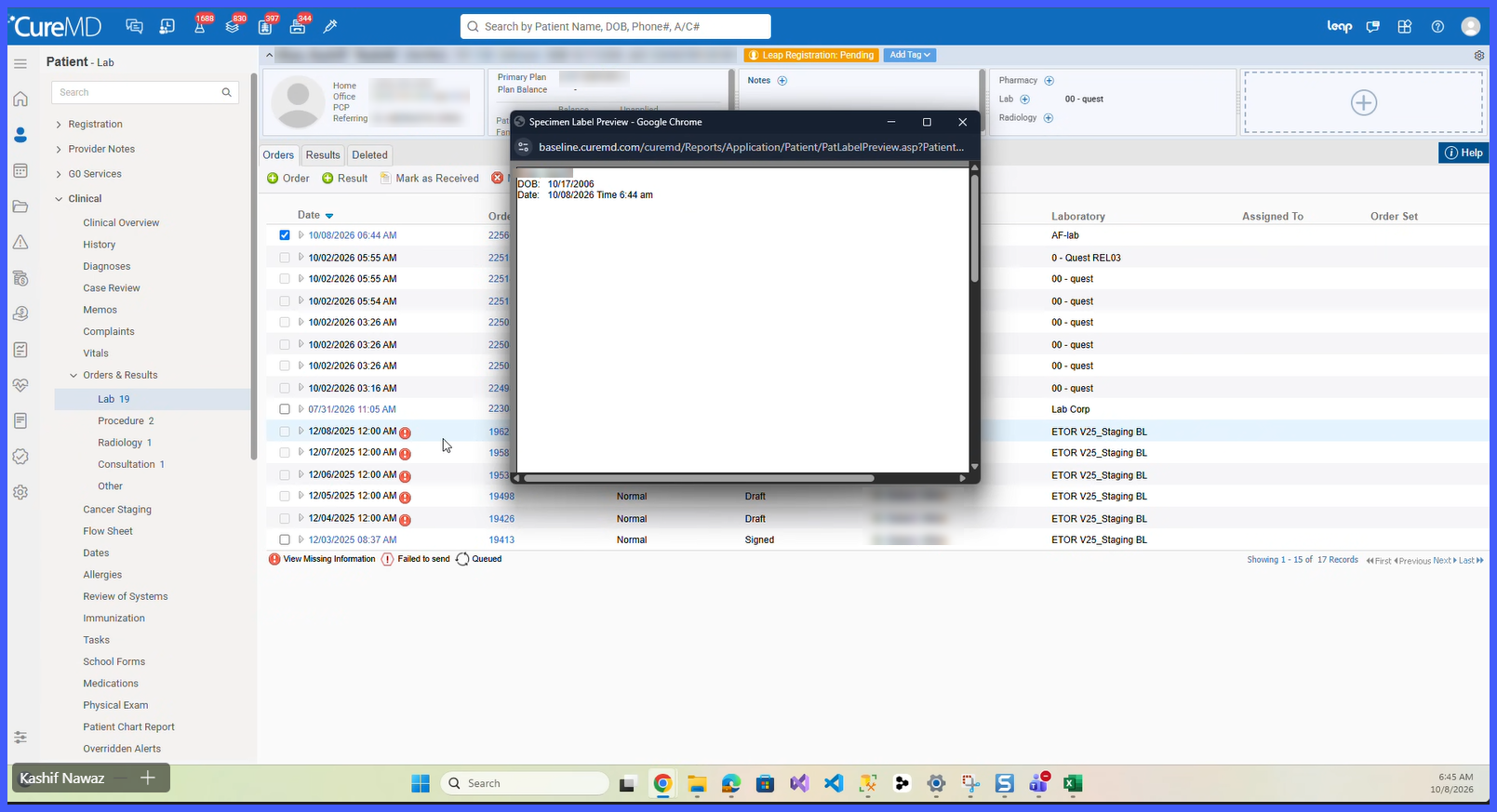
Preview Specimen Label
Configure Default Specimen Label
What’s New
- Added a new specimen label template named Bloodwork.
- The template is available to all CureMD 11g practices alongside existing options such as Standard, Barcode, ADPH, and APHL.
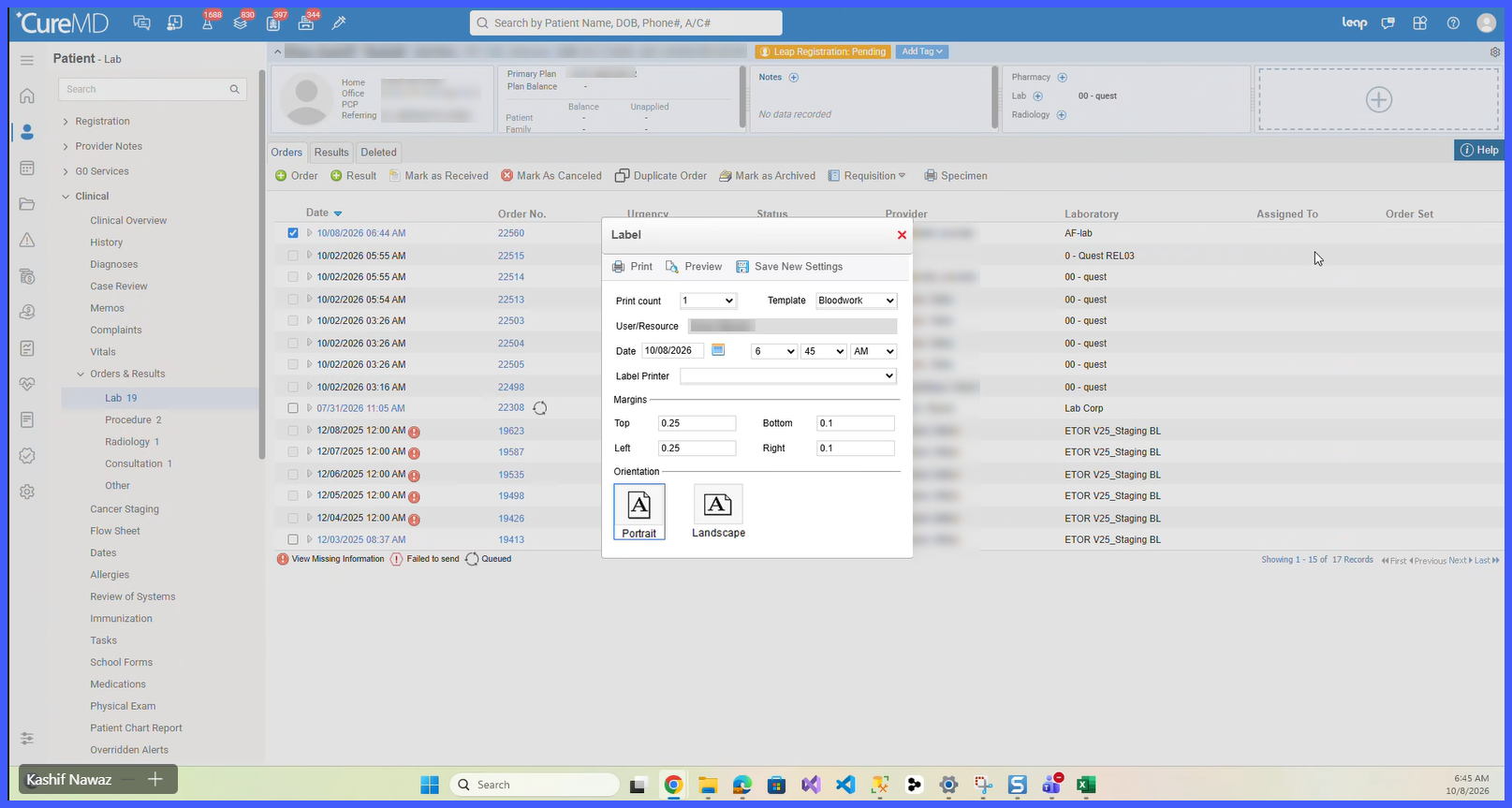
- Bloodwork can be selected from the Template dropdown when printing a specimen label from Patient > Clinical > Orders & Results > Lab.
-
Line 1 – Patient Last Name, First Name
-
Line 2 – Date of Birth
-
-
- Line 3 – Specimen Collection Date and Time
- The printed date and time reflect when the specimen was collected, not when the label was printed.
- Users can preview the completed label before printing.
- Practice administrators can configure Bloodwork as the default specimen label template for an individual laboratory.
- When configured as the default, Bloodwork is automatically selected when opening the Label dialog for that laboratory.
- Existing specimen label templates and laboratory defaults remain unchanged unless the practice selects Bloodwork.
- Line 3 – Specimen Collection Date and Time
How It Works
-
Open the patient’s chart and navigate to Clinical > Orders & Results > Lab.
-
Select the applicable laboratory order or result.
-
Click Specimen to open the Label dialog.
-
Select Bloodwork from the Template dropdown.
-
Confirm the specimen collection Date and Time.
-
Review the print count, label printer, margins, and orientation.
-
Select Preview to review the label before printing.
- Click Print to generate the specimen label using the Bloodwork format.
Users can also select Save New Settings to retain applicable printing preferences for future labels.
Setting Bloodwork as the Default Template
Practice administrators can configure Bloodwork as the default specimen label template for a specific laboratory.
- Navigate to Settings > EHR > Laboratory.
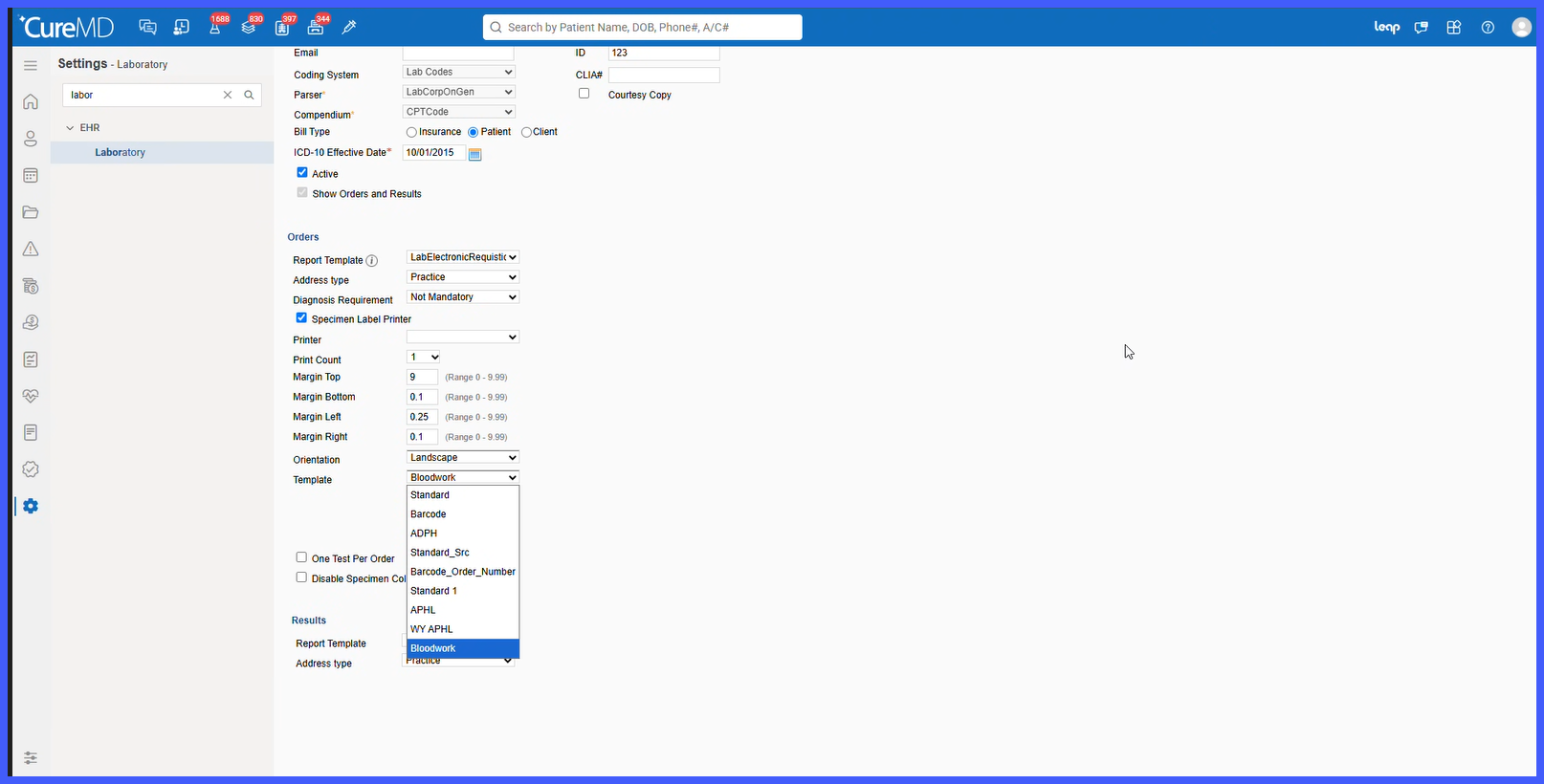
- Open the applicable laboratory record.
- Locate the Orders section.
- Ensure Specimen Label Printer is enabled
- Select Bloodwork from the Template dropdown.
- Save the laboratory configuration.
- Once saved, the Bloodwork template is automatically preselected when users open the specimen Label dialog for orders associated with that laboratory.
Benefits
- Provides a consistent specimen label format containing key patient and collection information.
- Helps laboratory staff match specimens to the correct patient and collection event.
- Reduces the need for handwritten labels or manual adjustments outside CureMD.
- Displays the actual specimen collection date and time rather than the label printing time.
- Allows users to verify label information through Preview before printing.
- Reduces repetitive template selection when Bloodwork is configured as the laboratory default.
- Makes the template available to all 11g practices without changing existing specimen label workflows.
