Configurable Capacity Display for Scheduler Time Slots
What’s New
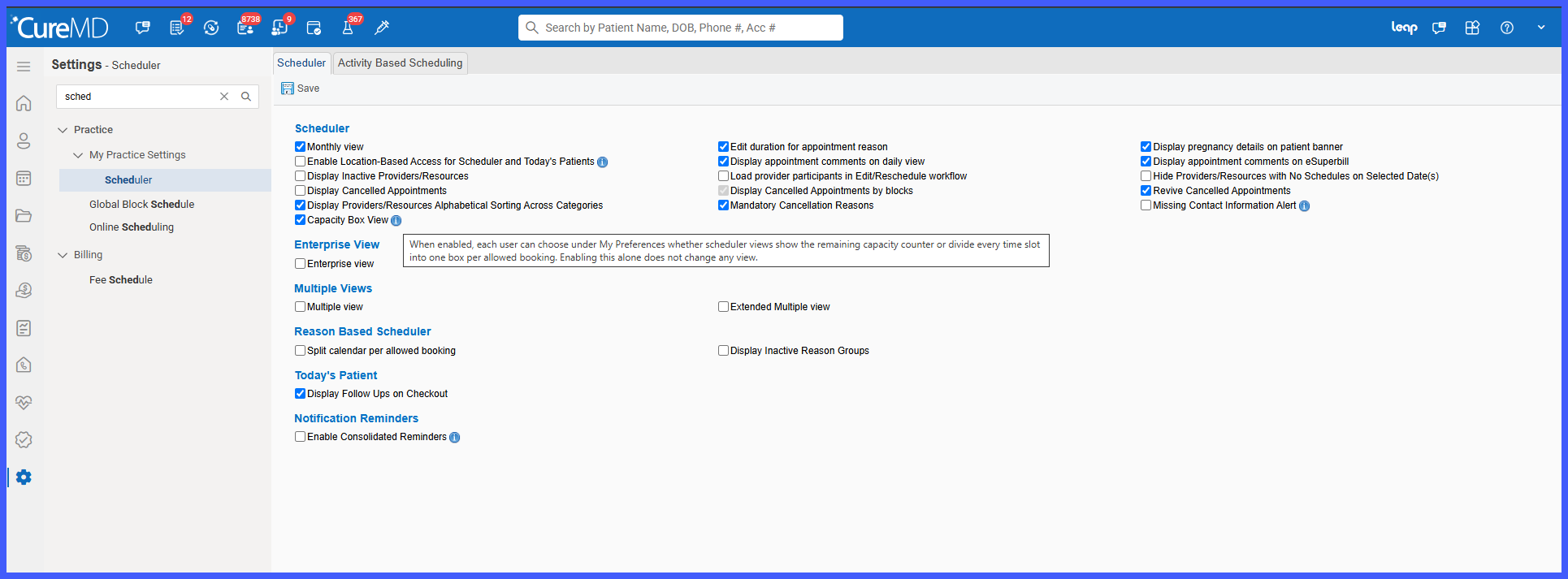
- Added a new Capacity Box View setting under Settings > Practice > Scheduler.
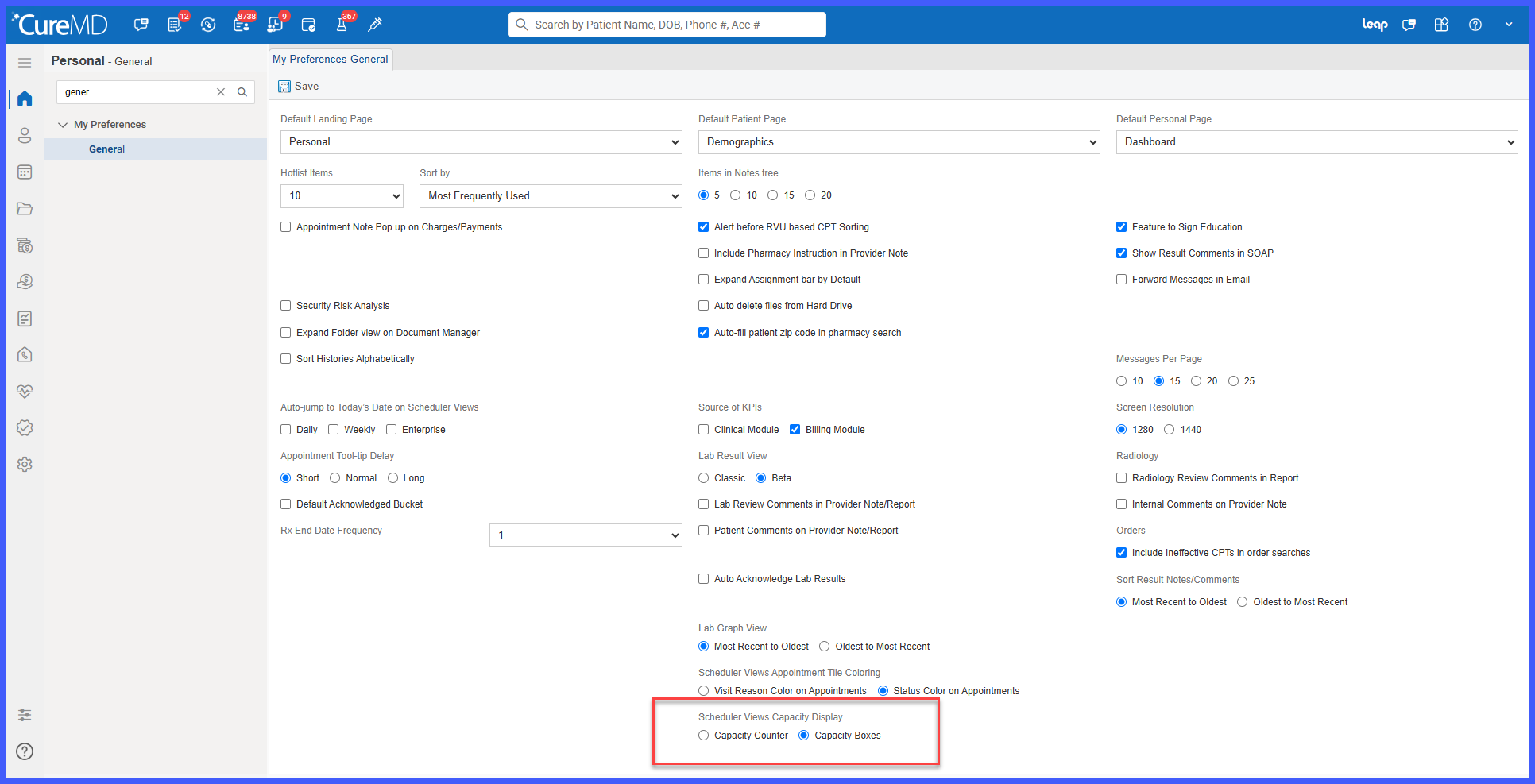
- Once enabled, users can select their preferred capacity display under Personal > My Preferences > General > Scheduler Views Capacity Display.
- Two display options are available:
- Capacity Counter – Displays the existing remaining-capacity number and remains the default option.
- Capacity Boxes – Divides the time slot into individual boxes based on the number of bookings allowed.
- Capacity display preferences are saved separately for each user.
- Different users within the same practice can use different capacity displays.
- Capacity Boxes are supported across:
- Daily Scheduler
- Weekly Scheduler
- Multiple View Scheduler
- Extended Multiple View Scheduler
- Each box represents one allowed booking within the time slot.
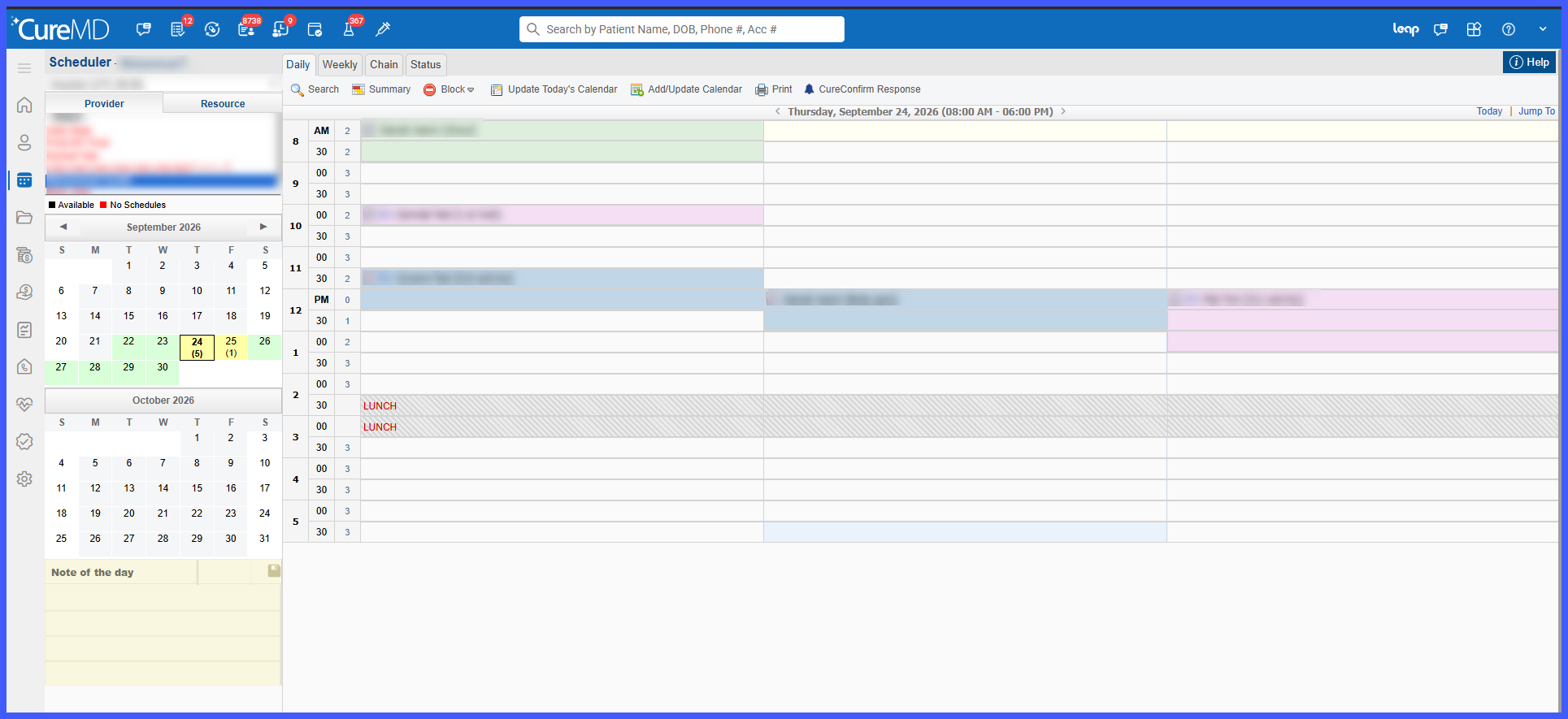
- Available, unavailable, occupied, and blocked capacity remains visually distinguishable.
- Force-booked appointments remain visible when a time slot is overbooked.
- Existing booking, rescheduling, drag-and-drop, tooltip, and scheduling validation behavior remains unchanged.
- Practices that do not enable Capacity Box View continue to use the existing Scheduler experience.
How It Works
- Navigate to Settings > Practice > Scheduler.
- Enable Capacity Box View for the practice.
- Navigate to Personal > My Preferences > General.
- Locate Scheduler Views Capacity Display.
- Select either Capacity Counter or Capacity Boxes.
- Open an applicable Scheduler view.
- Time-slot capacity is displayed according to the user’s selected preference.
- Continue booking, rescheduling, or managing appointments using the existing Scheduler workflows.
Benefits
- Provides an at-a-glance visual representation of appointment capacity.
- Makes it easier to distinguish occupied and available booking capacity within individual time slots.
- Gives users a choice between visual Capacity Boxes and the existing numerical Capacity Counter.
- Allows different users within the same practice to select the capacity display that best supports their workflow.
- Supports consistent capacity visualization across Daily, Weekly, Multiple, and Extended Multiple Scheduler views.
- Introduces the new display without changing existing appointment scheduling behavior.
