Enhanced Payment Plans – Configurable Templates, Automated Patient Reminders, Card Expiry Alerts, and Payment Decline Notifications
Configure Payment Plans
Configure Payment Plan Templates
Create Patient Payment Plan
Upcoming Payment Reminder
Card Expiring Soon Notification
Payment Decline Processing
Patient Payment Declined Notification
Staff Decline Reporting
What’s New
- A centralized Patient Payment Plan section is available within Billing Settings.
- Enable Payment Plan serves as the master control for Payment Plan functionality.
- Practices can configure:
– Decline task assignments
– Decline notification email recipients
– Patient installment reminders
– Payment Plan Templates - Up to five email addresses can be configured for decline notifications, with duplicate and invalid email validation.
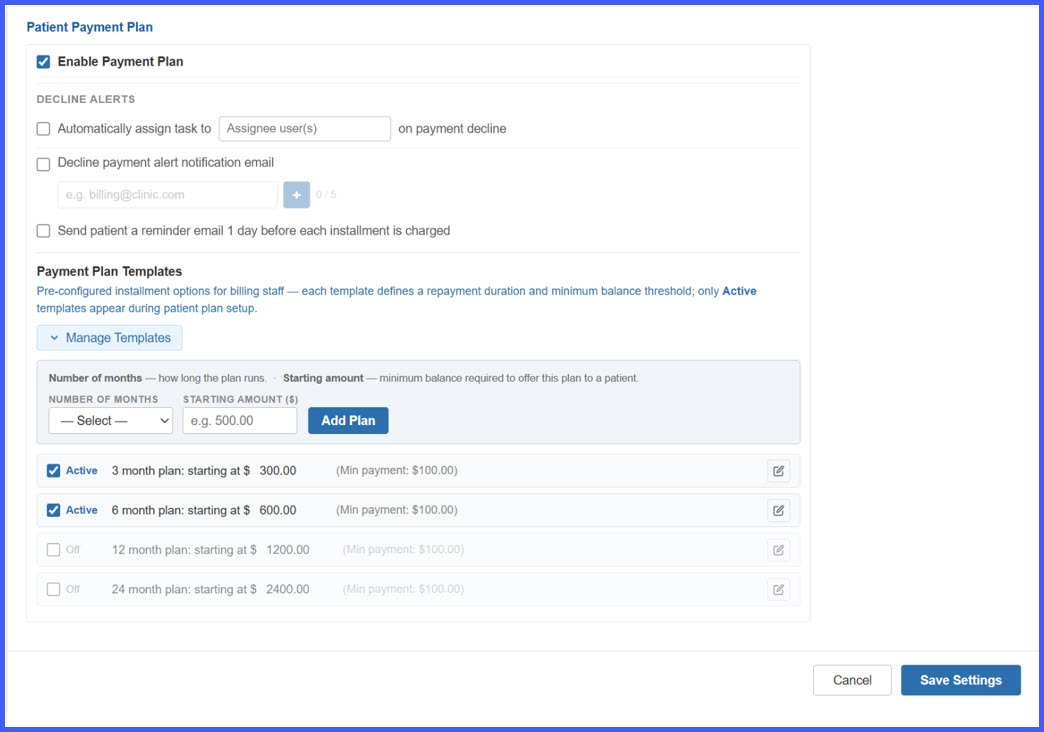
- Payment Plan Templates can be configured using a Number of Months and Starting Amount.
- Templates can be activated or deactivated without deleting them.
- Only Active templates are available during patient Payment Plan creation.
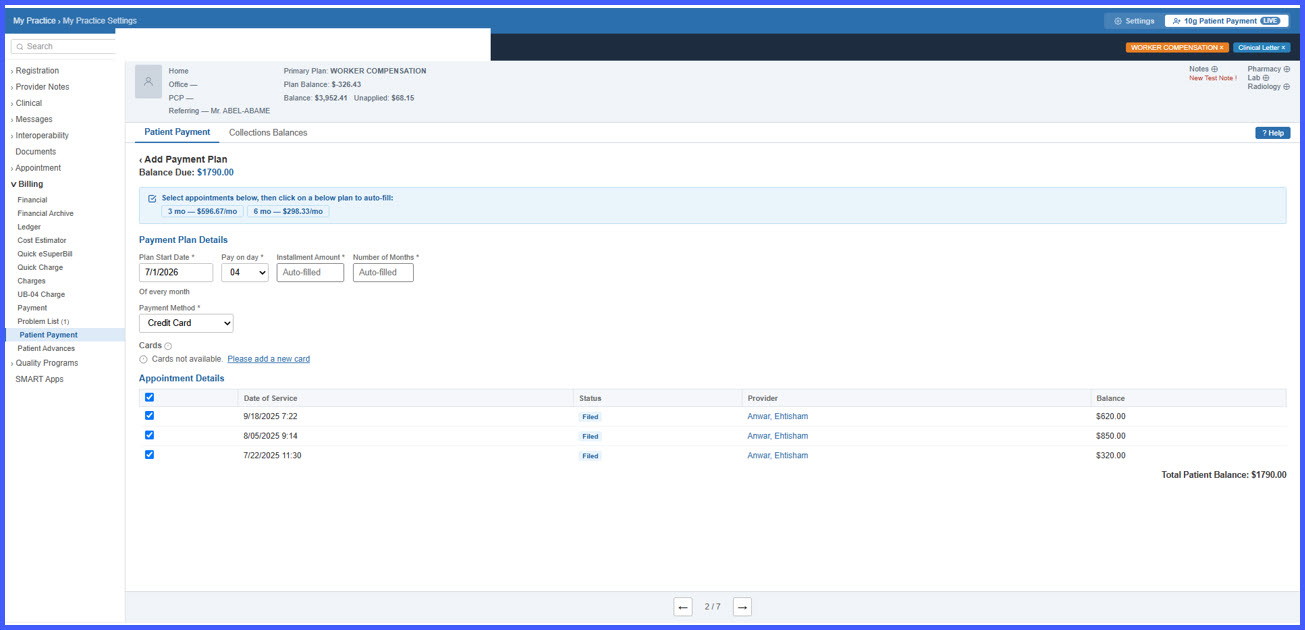
- When creating a patient Payment Plan, the system evaluates the selected appointments and calculates the Balance Due in real time.
- If one eligible Payment Plan Template exists, it is automatically applied.
- If multiple eligible templates exist, the user selects one applicable plan.
- Only one template can be applied to a Payment Plan.
- If no active templates exist, the workflow switches to Free-Form Mode for manual configuration.
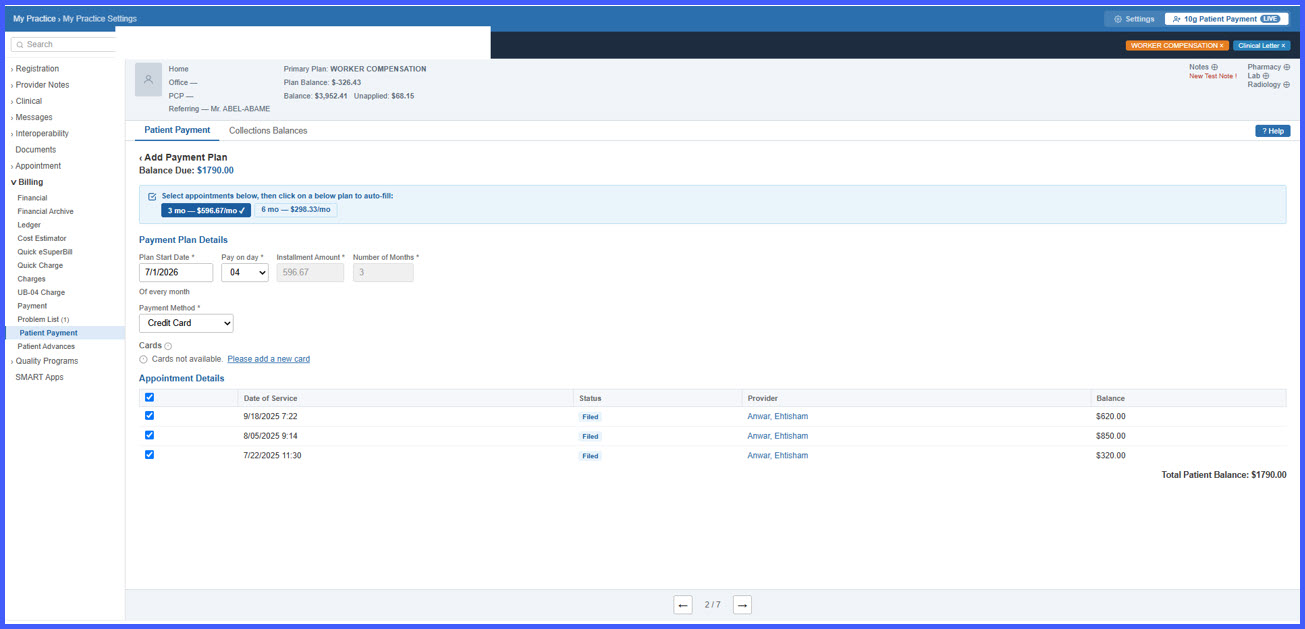
- Selecting a template automatically populates and locks the Installment Amount and Number of Months.
- An installment schedule preview is displayed before the Payment Plan is confirmed.
- Changing the appointment selection clears the selected template and recalculates the applicable Payment Plan information.
- Automated Upcoming Payment Reminder communications can be sent before scheduled installments.
- Reminders can be delivered through Email and SMS when the applicable patient contact information is available.
- Reminder communications include:
– Patient First Name
– Scheduled Charge Date
– Installment Amount
– Card Type
– Last Four Digits
– Practice Name - The reminder functionality is opt-in and remains disabled by default.
- The Payment Plan Reminder alert supports a configurable number of days before the charge date; the Upcoming Payment Reminder Email workflow specifically documents delivery one calendar day before the installment.
- Patients can receive Card Expiring Soon notifications through both Email and SMS.
- The card-expiry check runs on the last day of each month.
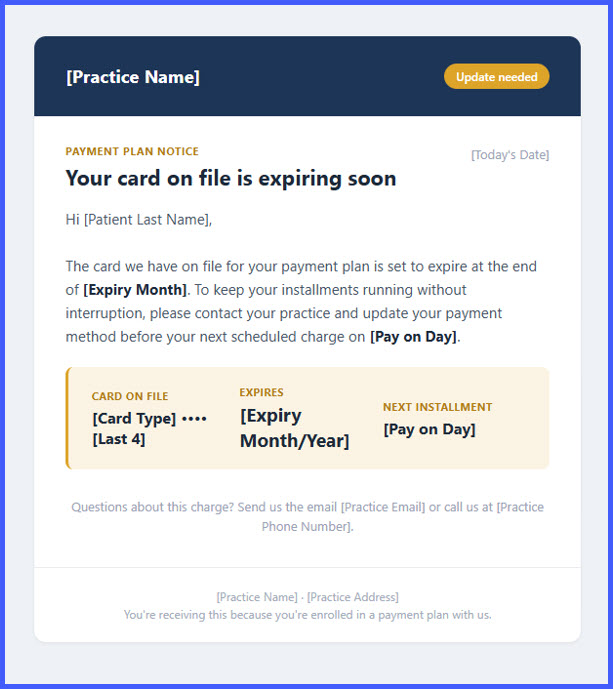
- When an active Payment Plan uses a card expiring in the upcoming month, the patient receives an expiry notification.
- Exactly one Card Expiring Soon notification of each applicable type is generated per expiry cycle.
- The installment scheduled during the card’s expiry month is still attempted; later installments may decline if the card is not updated.
- Card Expiring Soon emails include the expiry month/year, next installment date, card type and last four digits, and practice contact information. Patient emails are sent from Noreply@curemd.com.
- Card Expiring Soon SMS messages include the patient’s first name, expiry month/year, practice name, and instructions to update the payment method.
- A Payment Declined SMS is now available for patients after the complete payment retry cycle fails.
- The initial scheduled payment is attempted, followed by two additional attempts at 30-minute intervals when declined.
- If all three attempts fail, one Payment Declined SMS is sent.
- If any attempt succeeds, no decline SMS is generated.
- The SMS references the original scheduled installment date rather than the retry date.
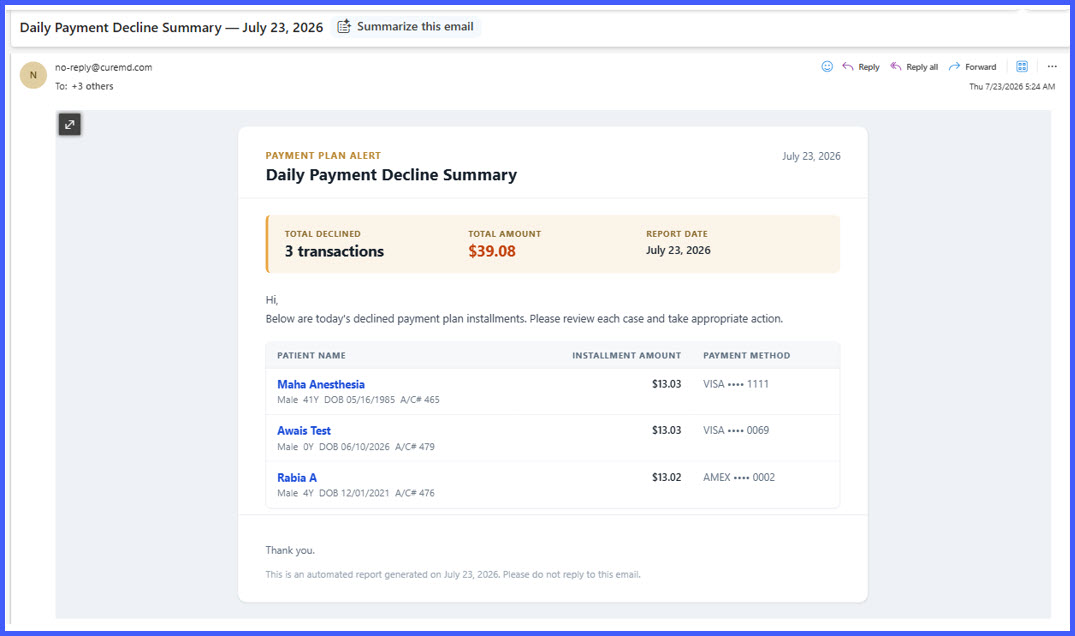
- Billing and practice staff can receive a consolidated Daily Payment Decline Summary email.
- One summary email is generated at day-end when declines occurred and the notification setting is enabled.
- Each declined installment displays:
– Patient Name
– Date and Time of Decline
– Installment Amount
– Payment Method, including card type and last four digits - The email includes the Total Declined and Total Amount.
- No summary is generated when no declines occur or when decline notification emails are disabled.
- Task assignment for individual declines continues independently when configured.
How It Works
- Configure Payment Plan Settings
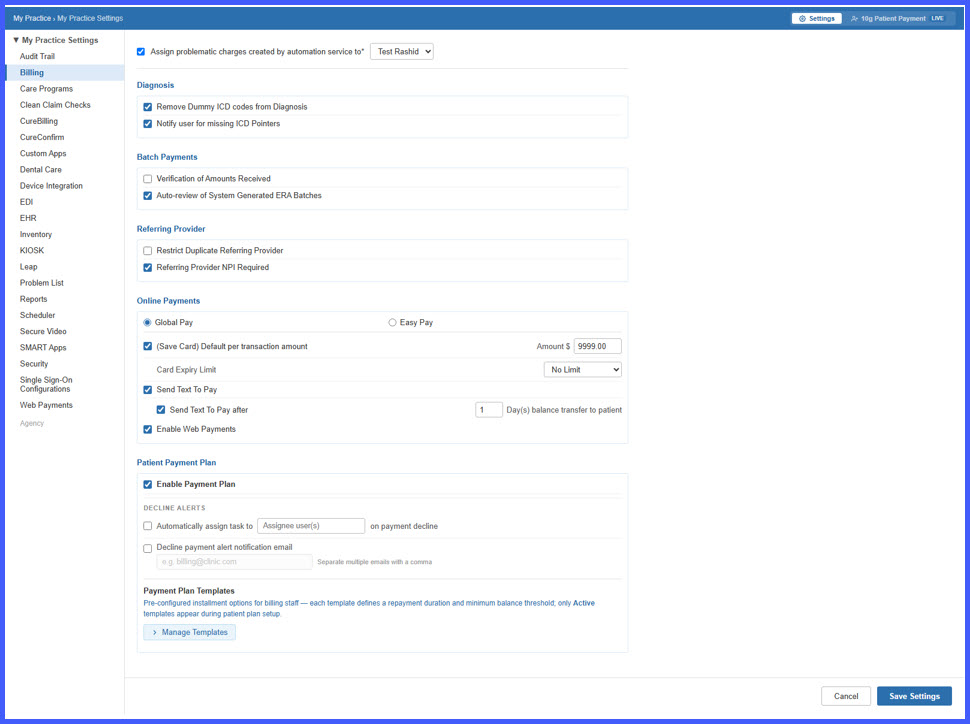
Navigate to My Practice Settings > Billing and enable Payment Plan. Once enabled, configure decline alerts, patient installment reminders, and Payment Plan Templates as required. Save Settings persists the configuration, while Cancel restores the last saved settings.
- Configure Payment Plan Templates
Open Manage Templates and configure each plan using the Number of Months and Starting Amount. Activate the templates that should be available during patient Payment Plan creation. Deactivated templates remain available within Settings but do not appear during patient plan setup.
- Create a Patient Payment Plan
Open the Patient Payment Plan workflow and select one or more eligible appointments. The Balance Due updates based on the selected appointments, and the system determines which active templates are eligible for that balance.
- Select the Applicable Plan
If one eligible template exists, it is automatically applied. If multiple templates qualify, select one plan. If no active templates are configured, enter the Payment Plan terms manually through Free-Form Mode.
- Review and Confirm the Payment Schedule
The selected template populates and locks the Installment Amount and Number of Months. Review the installment schedule preview and confirm the plan. Once confirmed, the selected plan becomes active for the applicable balance. - Send Upcoming Installment Reminders
When Patient Installment Reminder is enabled and the installment reaches the configured reminder window, the system automatically generates the applicable reminder communication. Email and SMS are delivered when the corresponding patient contact information is available. - Notify Patients of Expiring Cards
On the last day of each month, the Payment Plan Service evaluates active plans for cards expiring during the upcoming month. Eligible patients receive Card Expiring Soon notifications through the applicable configured communication channels.
- Process Scheduled Installments and Retries
When an installment is due, it is submitted to the card processor. If declined, the system retries twice at 30-minute intervals. If any attempt succeeds, the decline workflow ends without sending a patient decline SMS. - Notify the Patient After a Failed Retry Cycle
If all three payment attempts fail, one Payment Declined SMS is sent to the patient’s registered mobile number, identifying the original scheduled payment date and instructing the patient to contact the practice to update the payment method. - Review Daily Payment Declines
At day-end, if the decline notification email option is enabled and one or more declines occurred, configured staff recipients receive one consolidated Daily Payment Decline Summary showing the day’s failed installments and totals.
Benefits
- Centralizes Payment Plan configuration, templates, reminders, and decline settings within Billing Settings.
- Provides billing staff with reusable Payment Plan Templates and automatically determines eligible options based on patient balances.
- Eliminates ambiguity by allowing only one template to be applied to each Payment Plan.
- Provides a Free-Form fallback when no active templates are configured.
- Gives patients advance notice of upcoming installment charges through automated communications.
- Provides advance warning when cards are approaching expiration, helping reduce avoidable payment failures.
- Notifies patients after the complete retry cycle fails while avoiding unnecessary messages after individual failed attempts.
- Consolidates staff-facing payment declines into a single daily email, reducing inbox noise and simplifying follow-up.
- Reduces manual billing follow-up and provides more consistent communication throughout the Payment Plan lifecycle.
