Default Country Configuration in EHR Settings
Configure Default Country
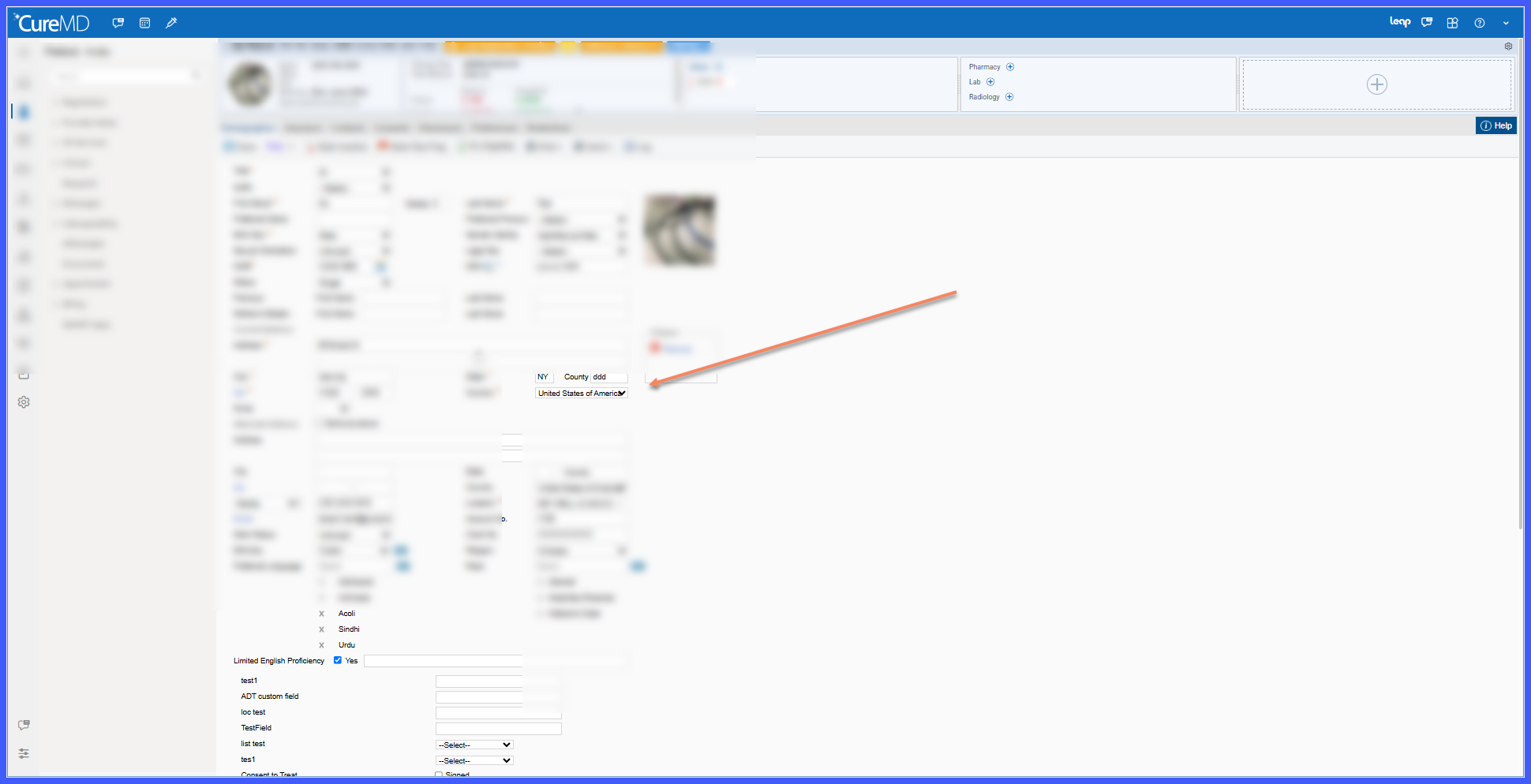
Apply Default Country During Patient Registration
Apply Default Country to Additional Demographics
What’s New
-
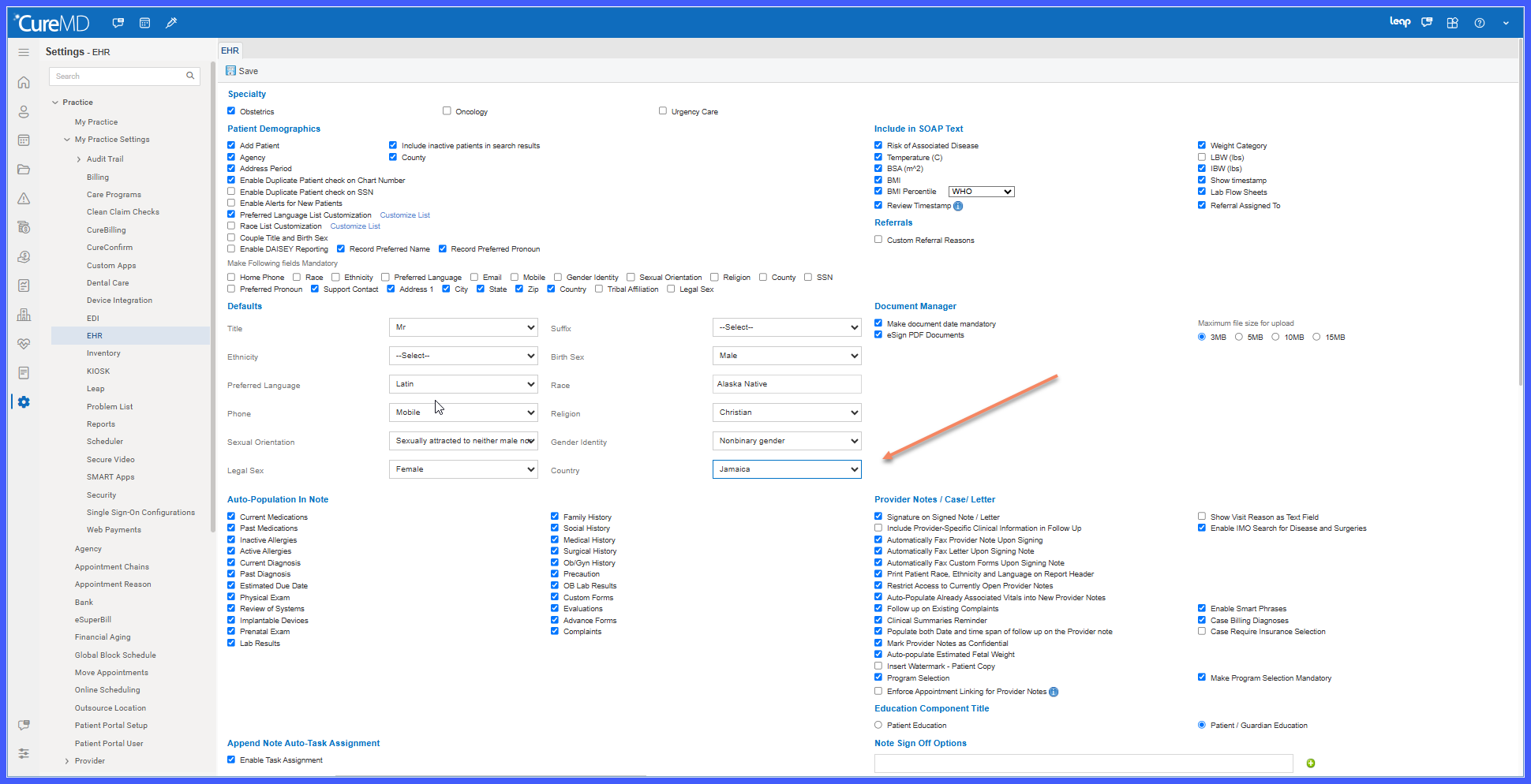
A new Default Country setting is available in 10g EHR Settings.
-
United States is configured as the default country for all practices.
-
Heart Smart Center is configured with Jamaica as its default country.
-
Administrators can update the Default Country based on practice requirements.
-
Changes to the Default Country configuration are recorded in the Audit Trail.
-
The configured Default Country automatically populates in supported workflows, including:
– Quick Add workflows
– Alternate Address
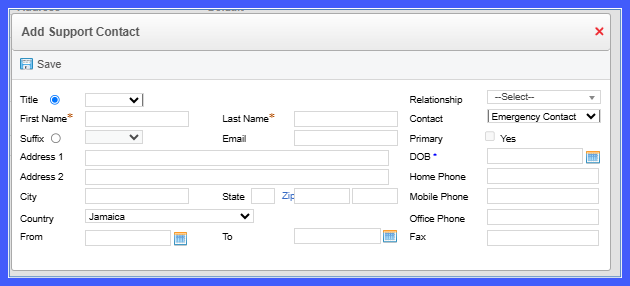
– Support Contact, when bMandatorySupportContact is enabled
– Patient Contacts (Support Contact) -
Where applicable, Patient Creation APIs apply the configured default when a Country ID is not provided.
How It Works
-
Navigate to 10g EHR Settings and locate the Default Country setting.
-
Select the country that should be used as the practice default.
-
Save the configuration.
-
The system records the configuration change in the Audit Trail.
-
When users access supported registration and demographic workflows, the configured Default Country is automatically populated.
-
Users can continue completing the remaining patient information using the existing workflow.
Benefits
-
Reduces manual data entry during patient registration.
-
Promotes consistent demographic information across supported workflows.
-
Supports ONC patient demographics compliance.
-
Provides practices with flexibility to configure the appropriate default country.
-
Improves auditability by tracking changes to the Default Country configuration.
