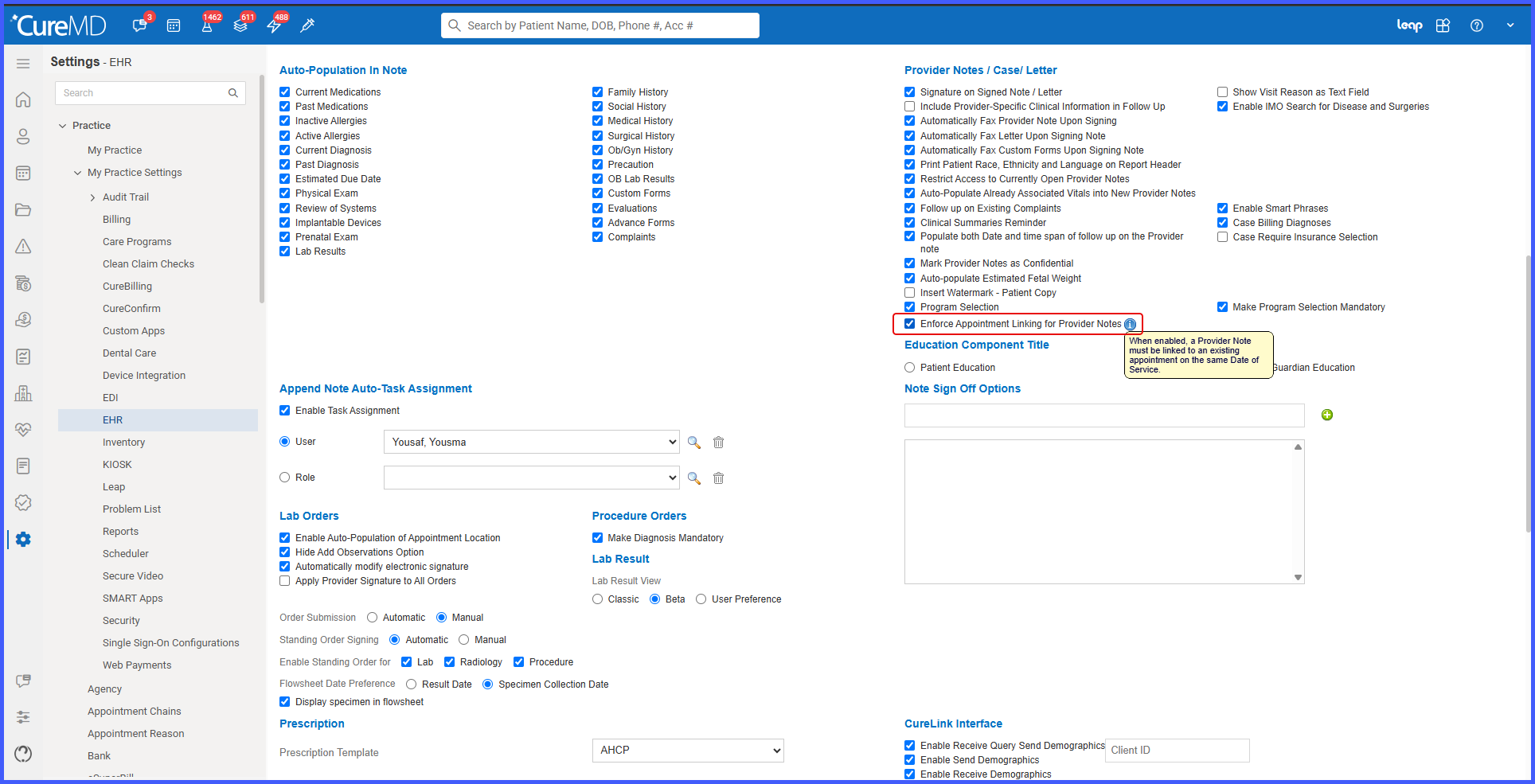
Settings > Practice > My Practice Settings > EHR > Provider Notes / Case / Letter > Enforce Appointment Linking for Provider Notes
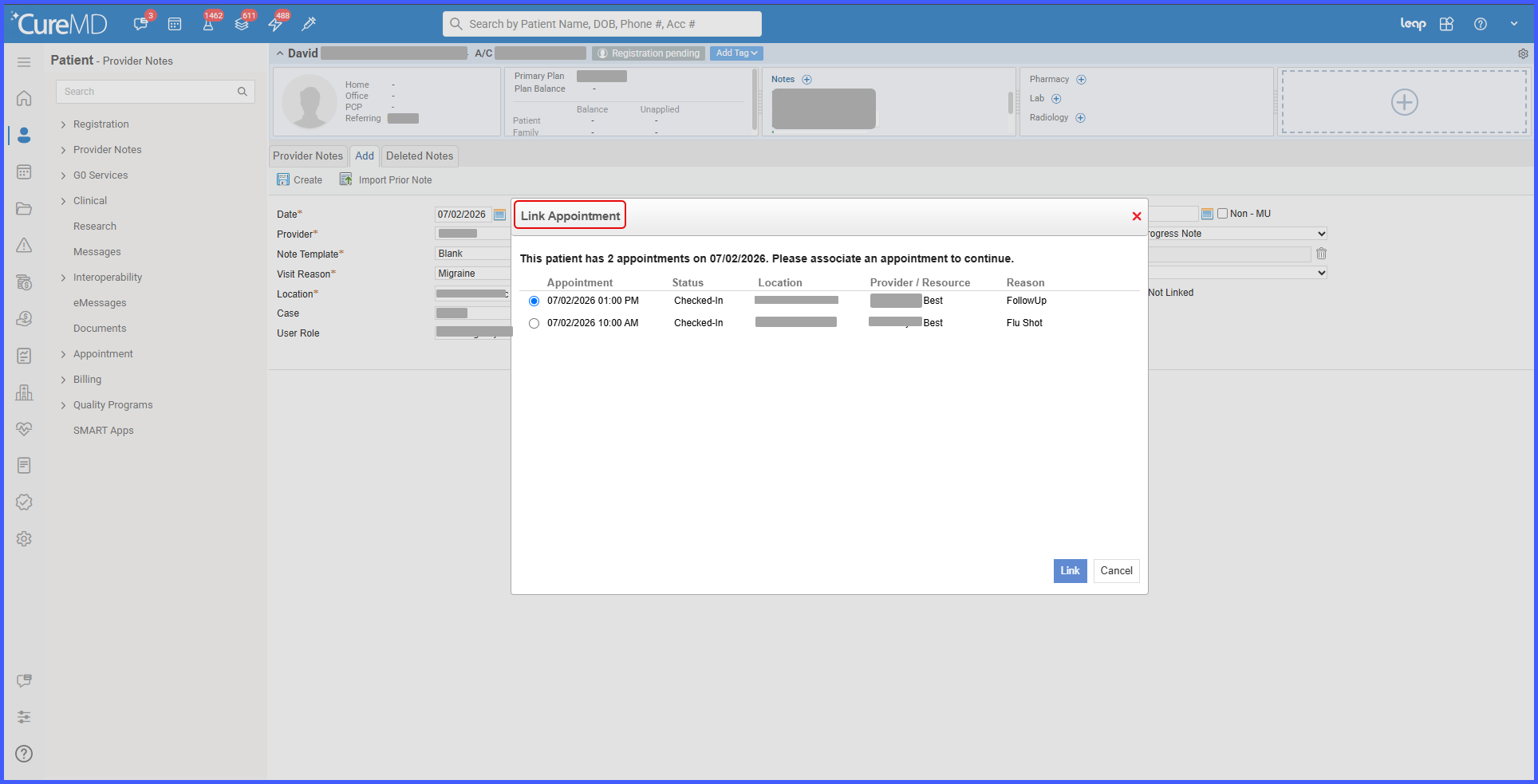
Patient > Clinical > Provider Notes > New Provider Note > Link Appointment Popup > Save
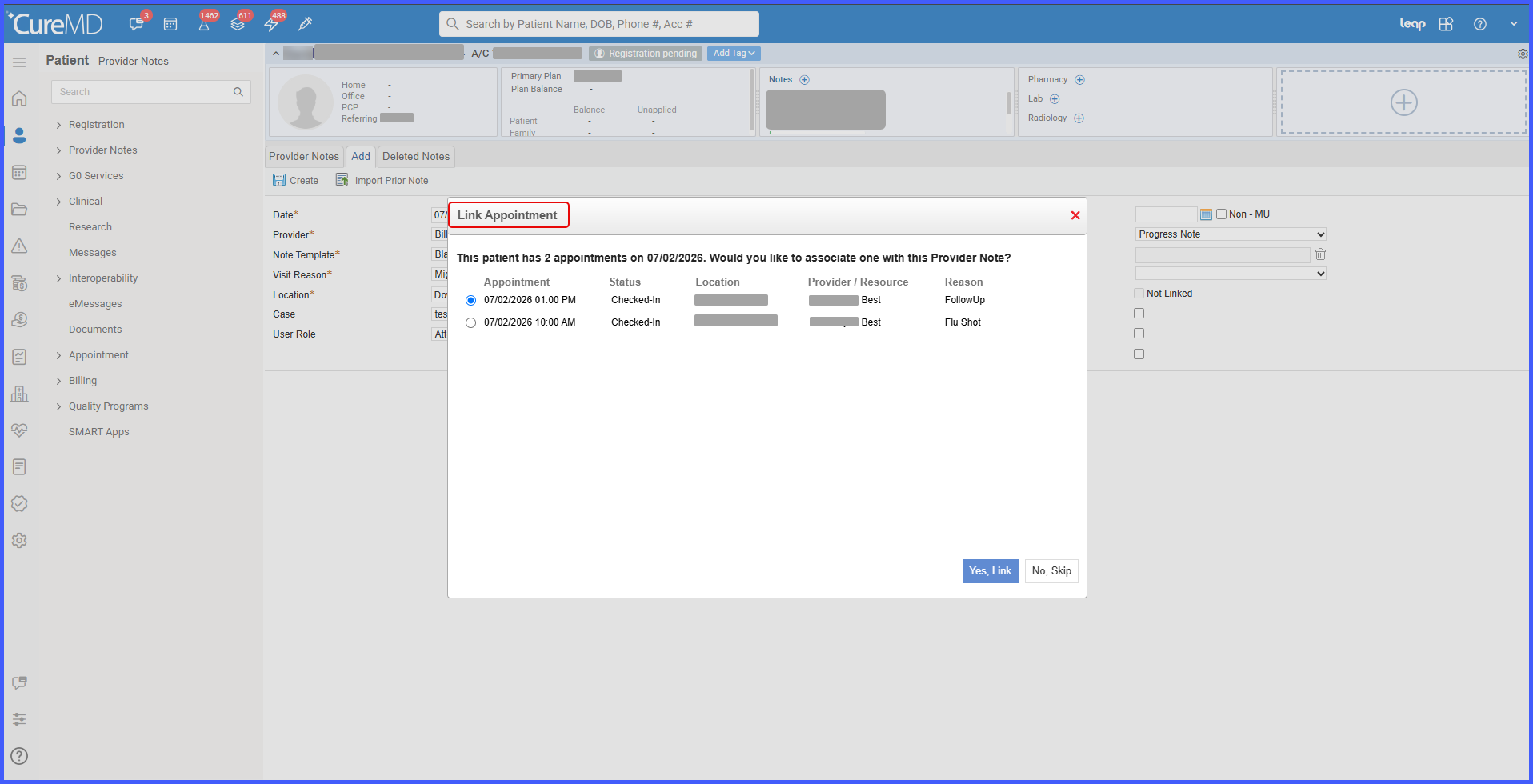
Patient > Clinical > Provider Notes > New Provider Note > Link Appointment Popup > Yes, Link / No, Skip
Patient > Clinical > Provider Notes > Note Creation / Edit Note > Link Appointment
What’s New
- A new setting, Enforce Appointment Linking for Provider Notes, is available under:
Settings > Practice > My Practice Settings > EHR > Provider Notes / Case / Letter.
- The setting is disabled by default.
- When enabled:
– Provider Notes must be linked to an eligible appointment on the same DOS.
– Only appointments that are Checked-In or Checked-Out and not already linked to another Provider Note are eligible.
– Appointments in Scheduled, Confirmed, Cancelled, Rescheduled, Waiting List, or No Show status are excluded.
– The Link Appointment to Provider Note popup is displayed when creating a new Provider Note.
– The first eligible appointment is selected by default.
– Users must link an appointment before completing Provider Note creation.
- If no qualifying appointment exists, Provider Notes can be created without restriction.
- When disabled:
– Appointment linking remains optional.
– Users can choose Yes, Link or No, Skip when prompted.
– The first eligible appointment is selected by default.
- The enhanced Link Appointment popup is also available during manual appointment linking from Note Creation and Edit Note.
How It Works
- Navigate to Settings > Practice > My Practice Settings > EHR > Provider Notes / Case / Letter.
- Enable or disable the Enforce Appointment Linking for Provider Notes setting.
- Create a new Provider Note for a patient.
- The system evaluates whether an eligible same-DOS appointment exists.
- If the setting is enabled:
• The Link Appointment to Provider Note popup is displayed.
• Users must select an eligible appointment before continuing.
• Provider Note creation cannot be completed until the appointment is linked.
- If the setting is disabled:
• The Link Appointment popup is displayed.
• Users may choose Yes, Link or No, Skip.
- If no qualifying appointment exists, the Provider Note is created without prompting.
- Users can also access the enhanced Link Appointment popup during manual appointment linking from Note Creation and Edit Note.
Benefits
- Improves encounter accuracy by associating Provider Notes with the correct same-day appointment.
- Reduces duplicate documentation by enforcing appointment linkage when configured.
- Streamlines Provider Note creation with automatic prompting or enforcement based on practice settings.
- Improves documentation traceability for clinical and billing workflows.
- Provides practices with flexible control over appointment linking requirements.
