Leap Access Management for Family Members, Caregivers, and Other Authorized Users
Manage Leap Access
Add Family Member Access
Add Caregiver Access
Add Other Authorized User
Upload Consent Form
Manage Invitations
View Access Audit History
What’s New
- A new Manage Access option has been added under the Leap menu on the Patient Demographics screen.
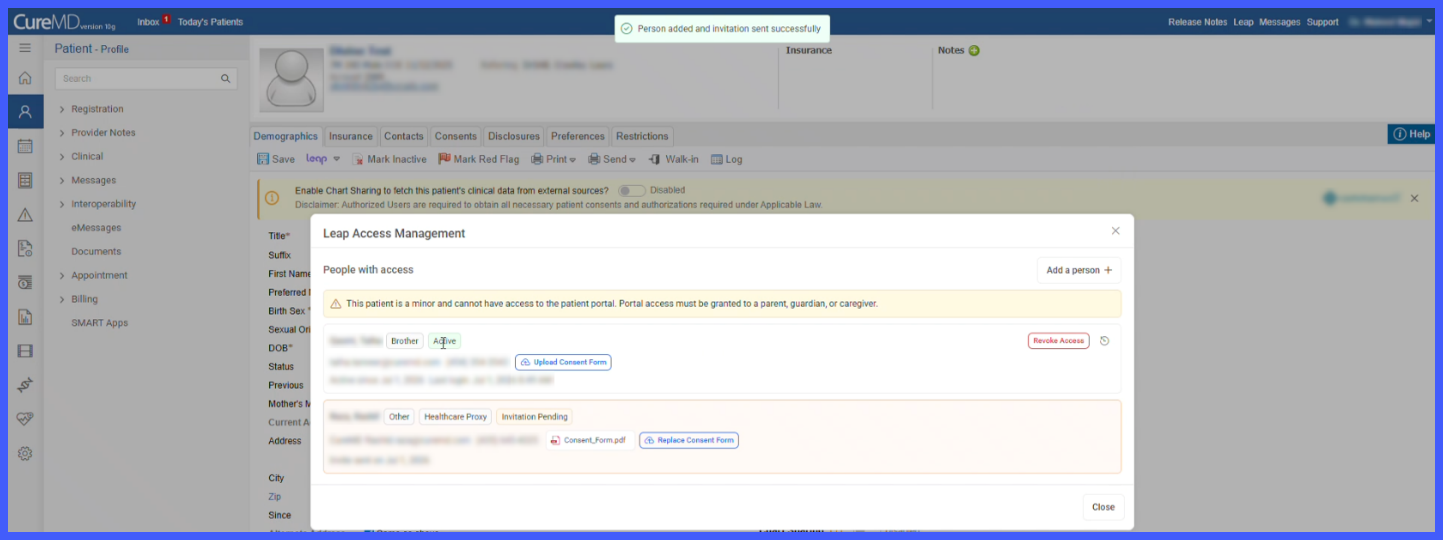
- Direct Leap enrollment is restricted for patients identified as minors, requiring portal access to be granted through an authorized individual.
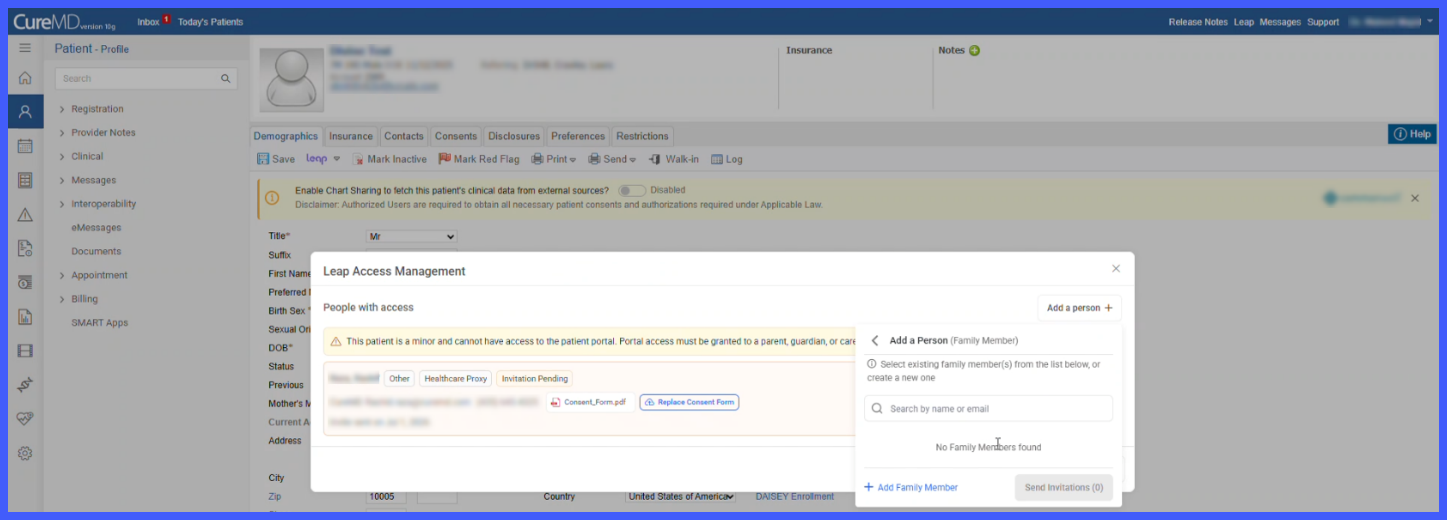
- Three access types are supported:– Family Member
– Caregiver
– Other Authorized User - Existing Family Members and Caregivers can be searched and selected, or new records can be created.
- “Other” users can be added by entering their contact information and relationship to the patient.
- Users must confirm authorization before an invitation is sent.
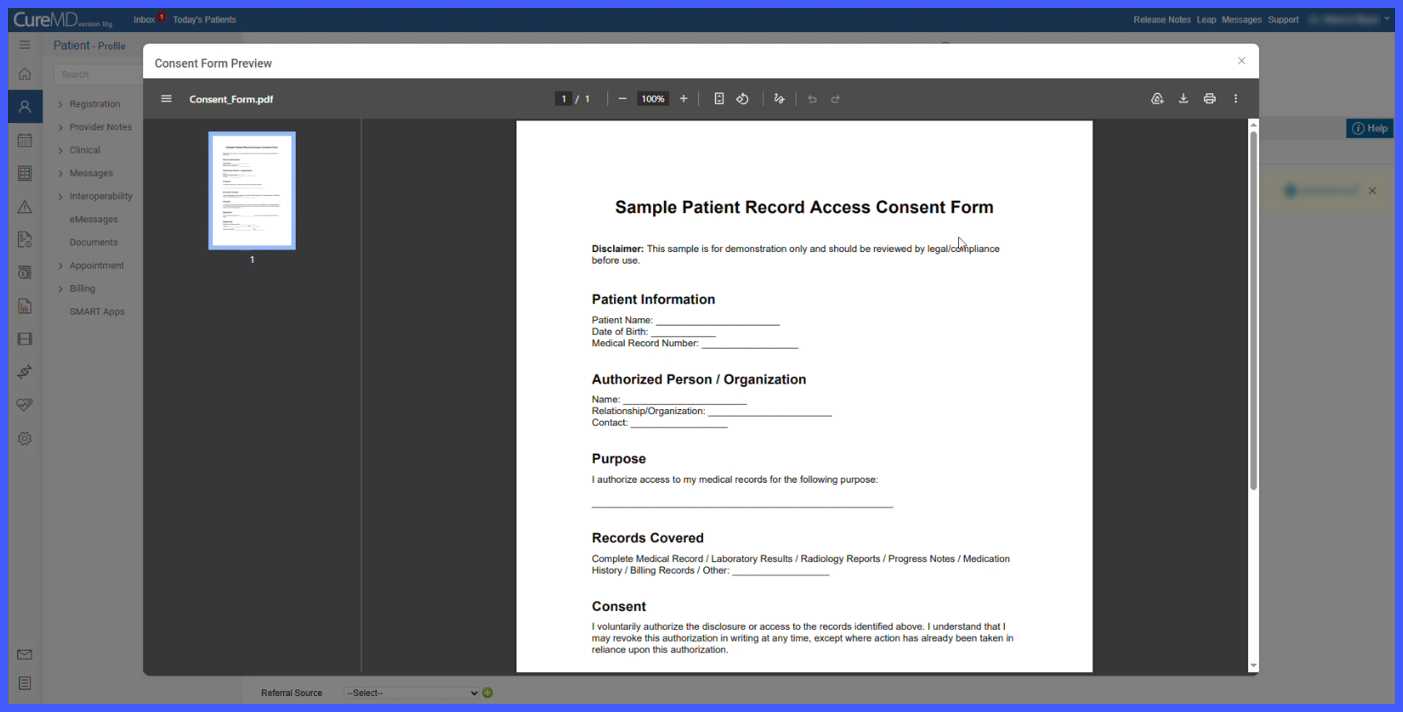
- Consent forms can be uploaded, previewed, and replaced for each authorized individual.
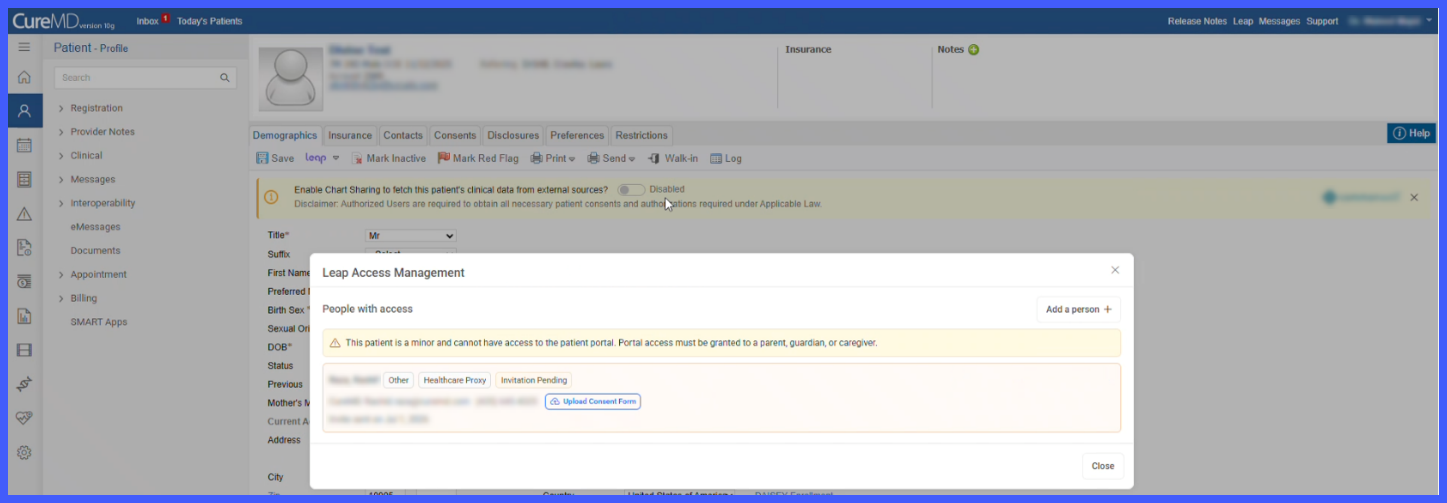
- Invitation lifecycle management includes:
– Send Invitation
– Resend Invitation
– Cancel Invitation
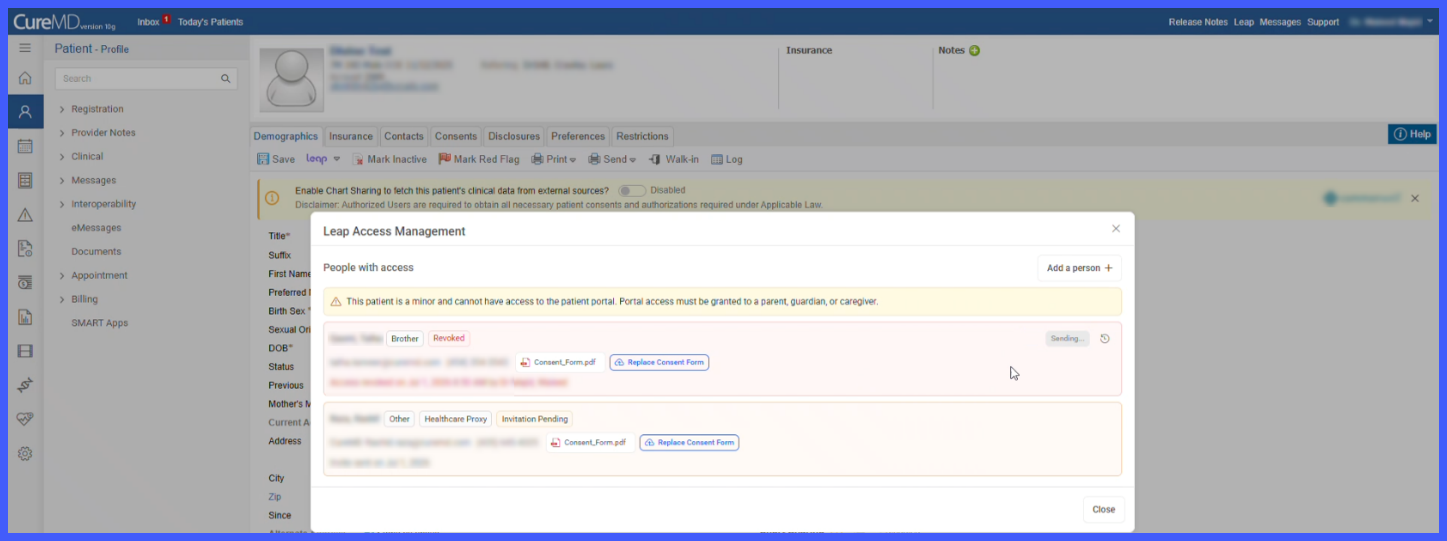
– Revoke Access - Access statuses include:
– Invitation Pending
– Active
– Not Invited (Missing Contact Info)
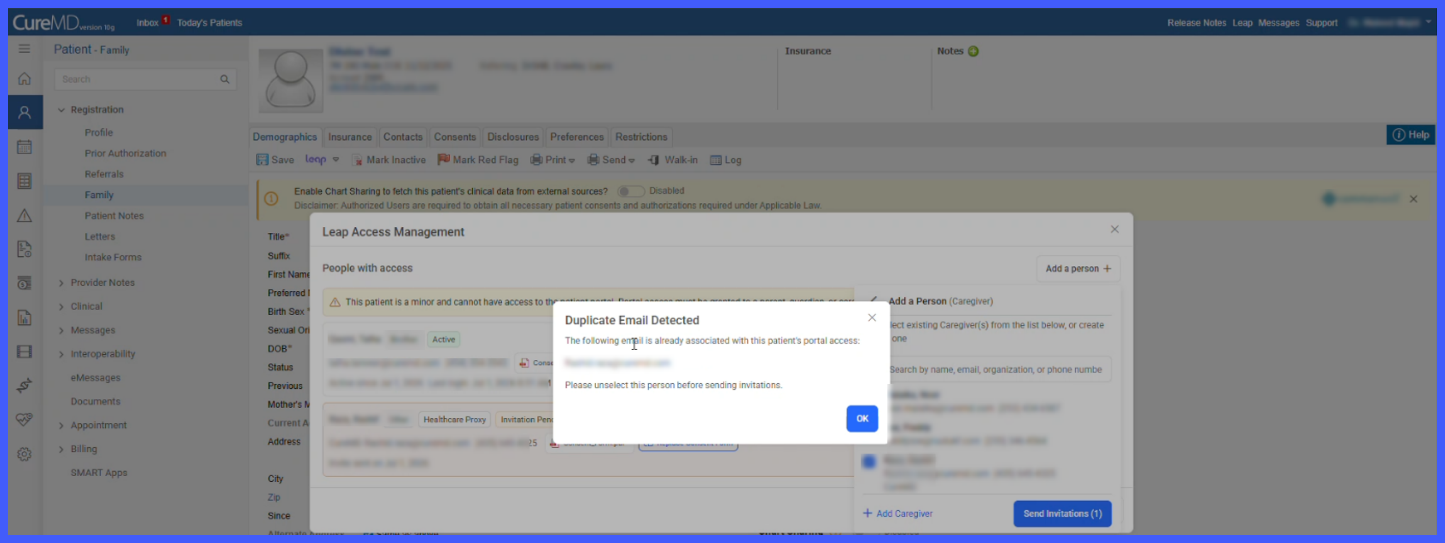
– Revoked - Duplicate email detection prevents multiple portal access records from being created for the same email address.
- Every invitation action is recorded within an audit history.
How It Works
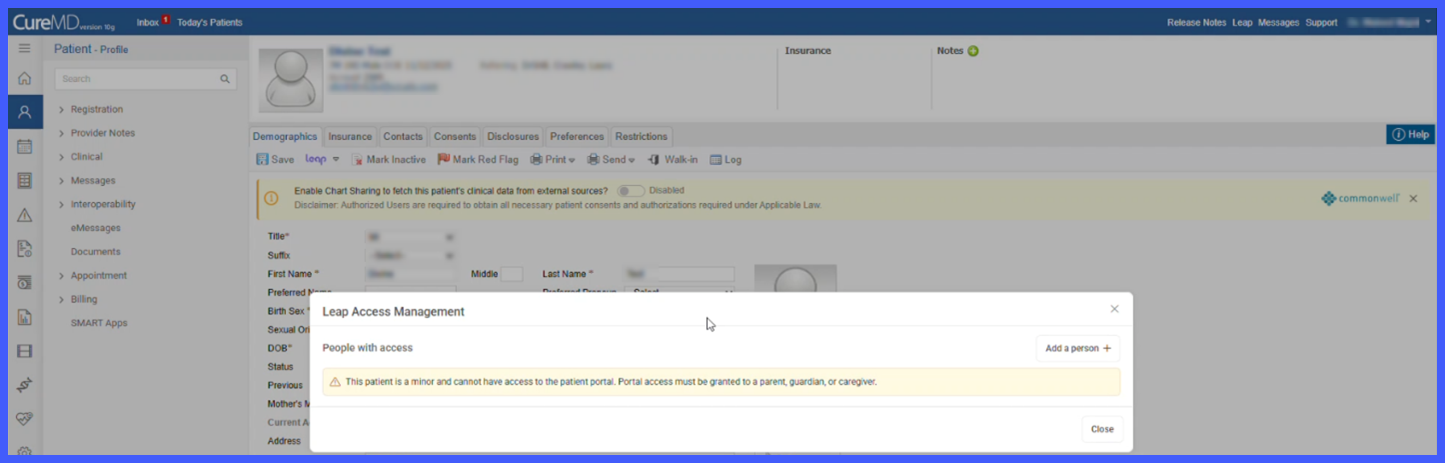
- Navigate to Patient > Demographics > Leap > Manage Access.

- If the patient is identified as a minor, the system displays a warning indicating that direct portal enrollment is unavailable and access must be granted to an authorized individual.
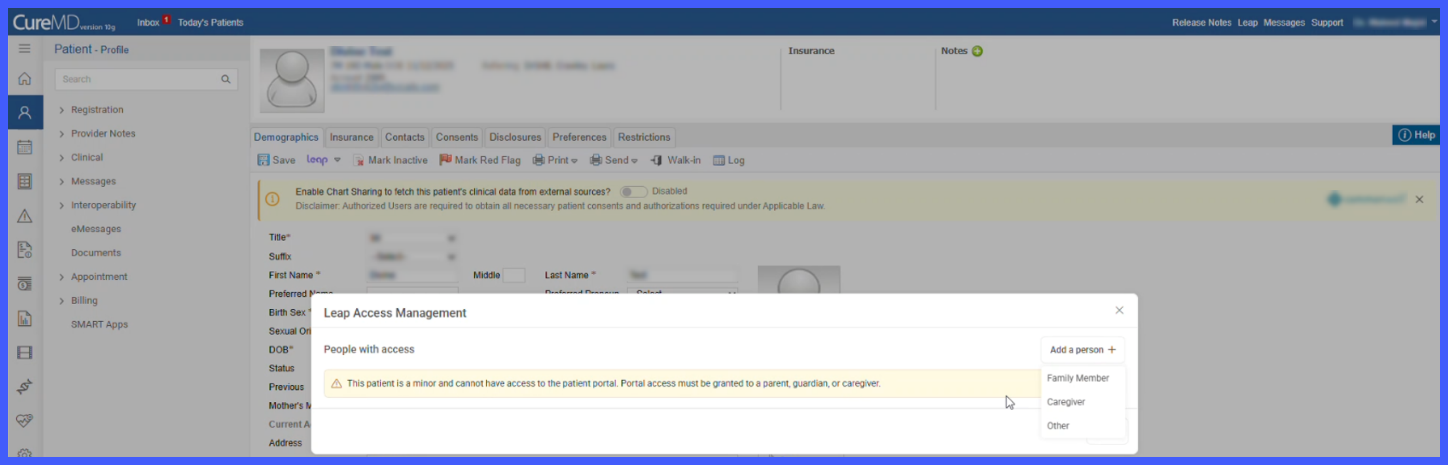
- Select Add a Person and choose one of the available access types:
– Family Member
– Caregiver
– Other Authorized User
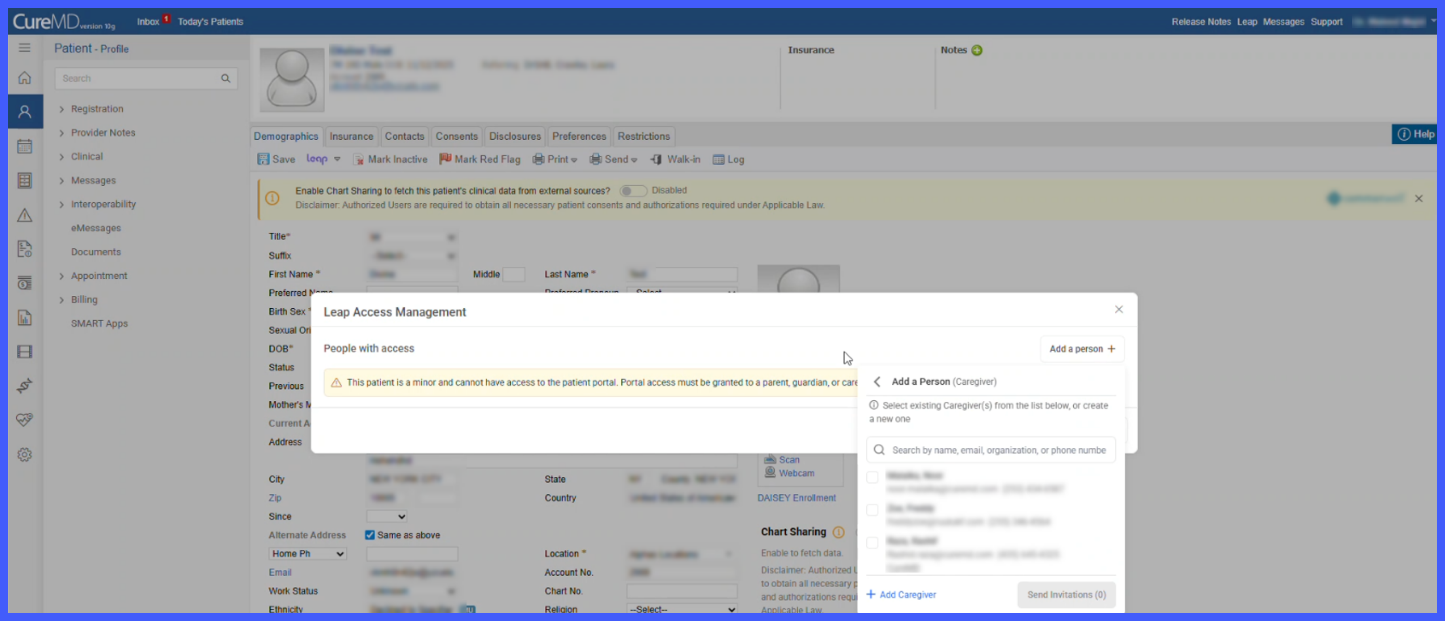
- Select an existing individual or create a new record, then provide any required contact information.
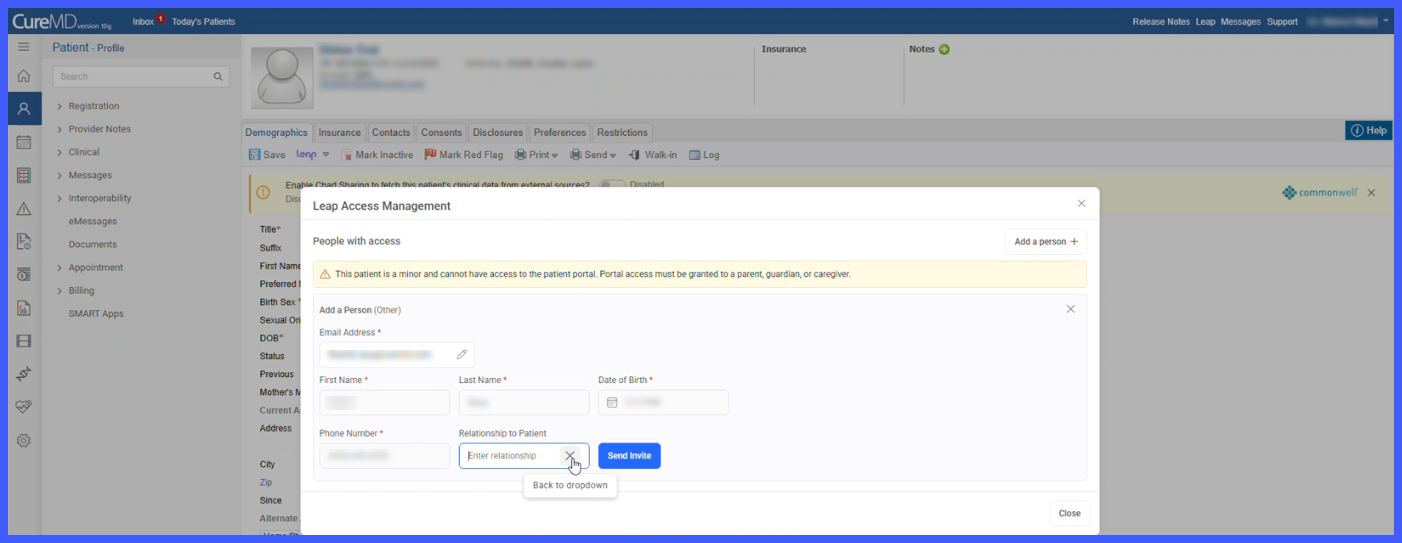
- Upload a consent form if applicable.
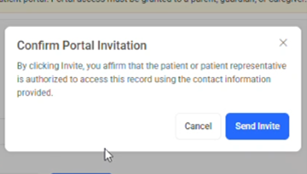
- Confirm that authorization has been obtained before sending the invitation.
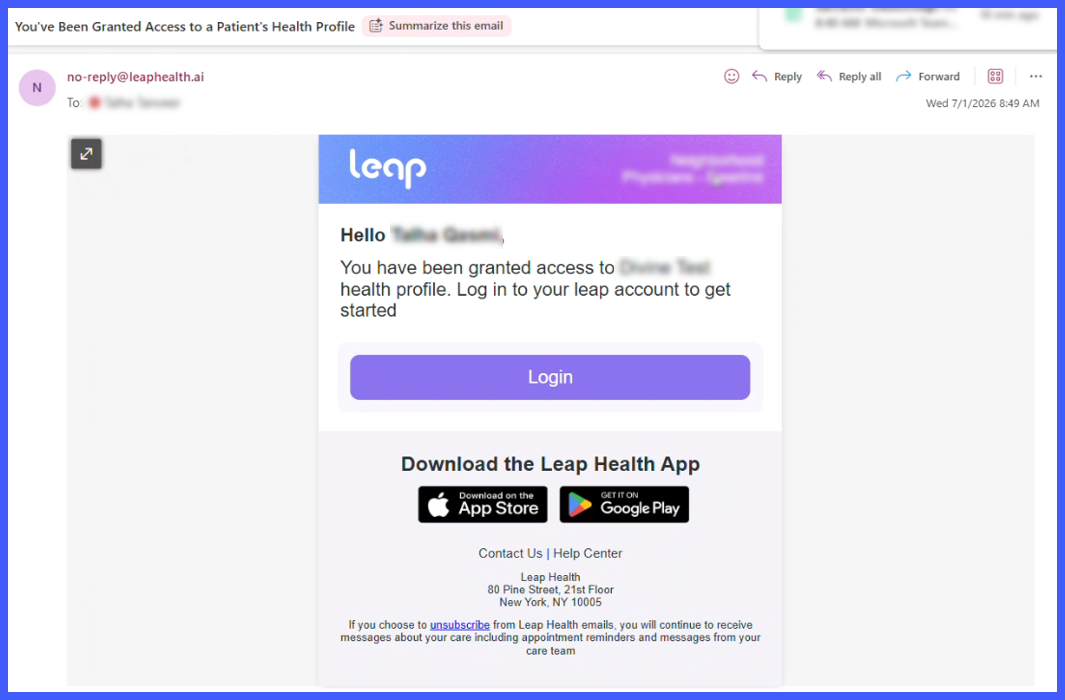
- The invited individual receives an email invitation to access Leap Health.
- Staff can monitor invitation status, resend invitations, cancel pending invitations, revoke access, or review audit history directly from the Manage Access screen.
Benefits
- Provides a secure and compliant method for granting patient portal access to parents, guardians, caregivers, and other authorized individuals.
- Supports documentation requirements through consent form management.
- Gives staff complete control over the invitation lifecycle without requiring administrator intervention.
- Improves accountability through detailed audit history for all access-related activities.
- Prevents duplicate access assignments through built-in duplicate email validation.
