Enforce Appointment Linking for Quick Superbill
Configure Appointment Linking Requirement
Create Quick Superbill with Required Appointment Linking
Create Quick Superbill with Optional Appointment Linking
Manage Linked Appointment Details
What’s New
-
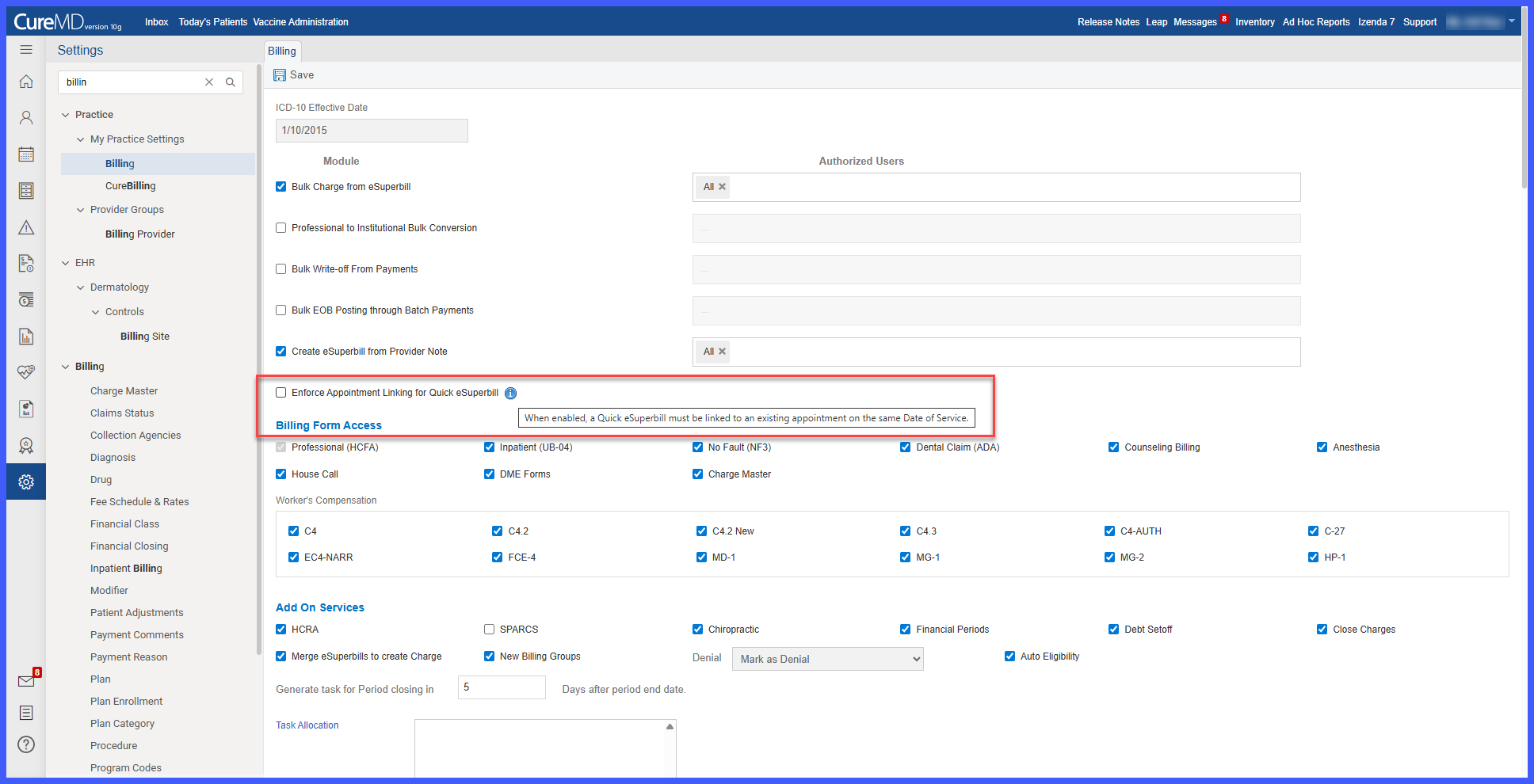
A new setting, Enforce Appointment Linking for Quick Superbill, is available under: Settings > Practice > Billing.
-
The setting is disabled by default.
-
When enabled:
-
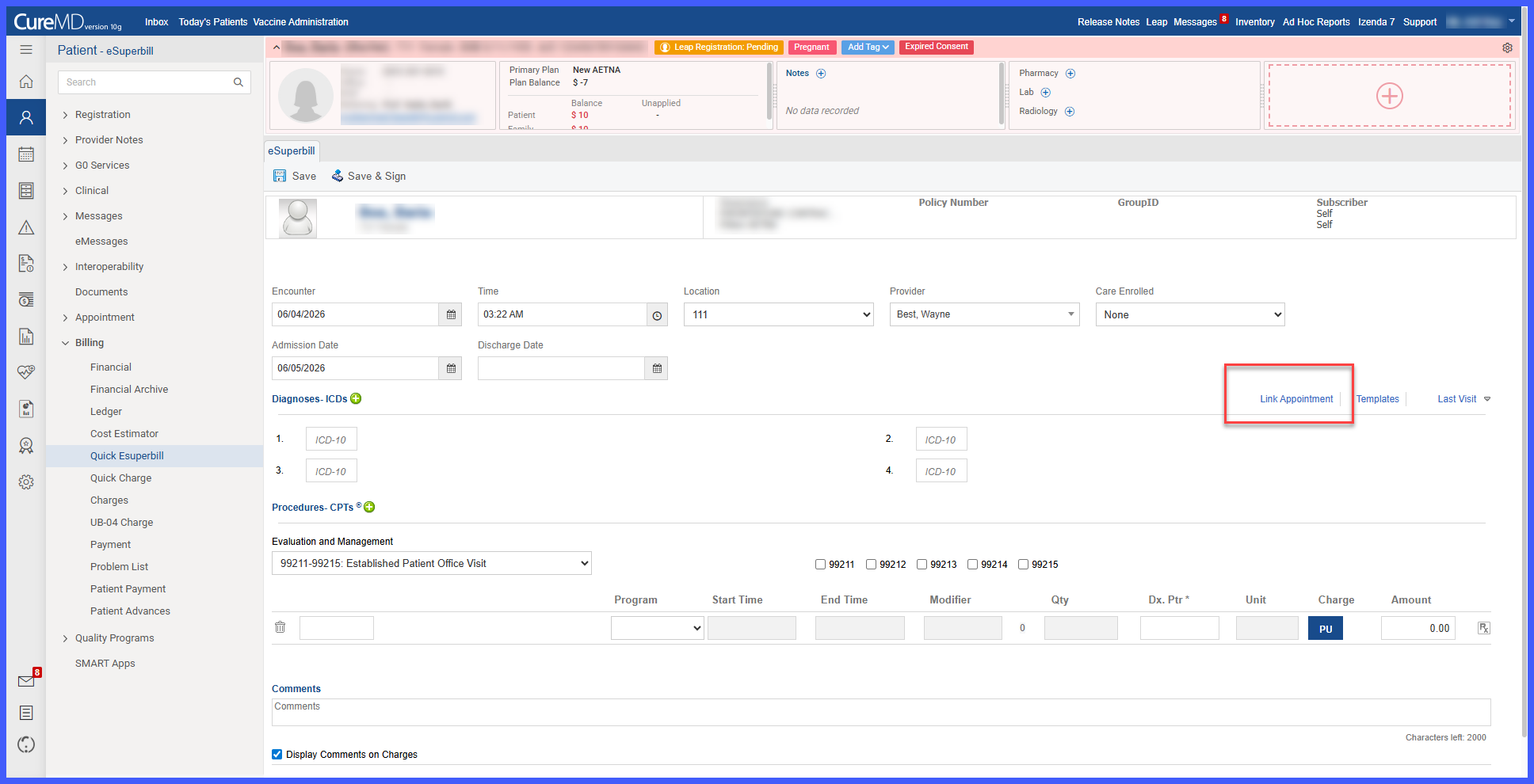
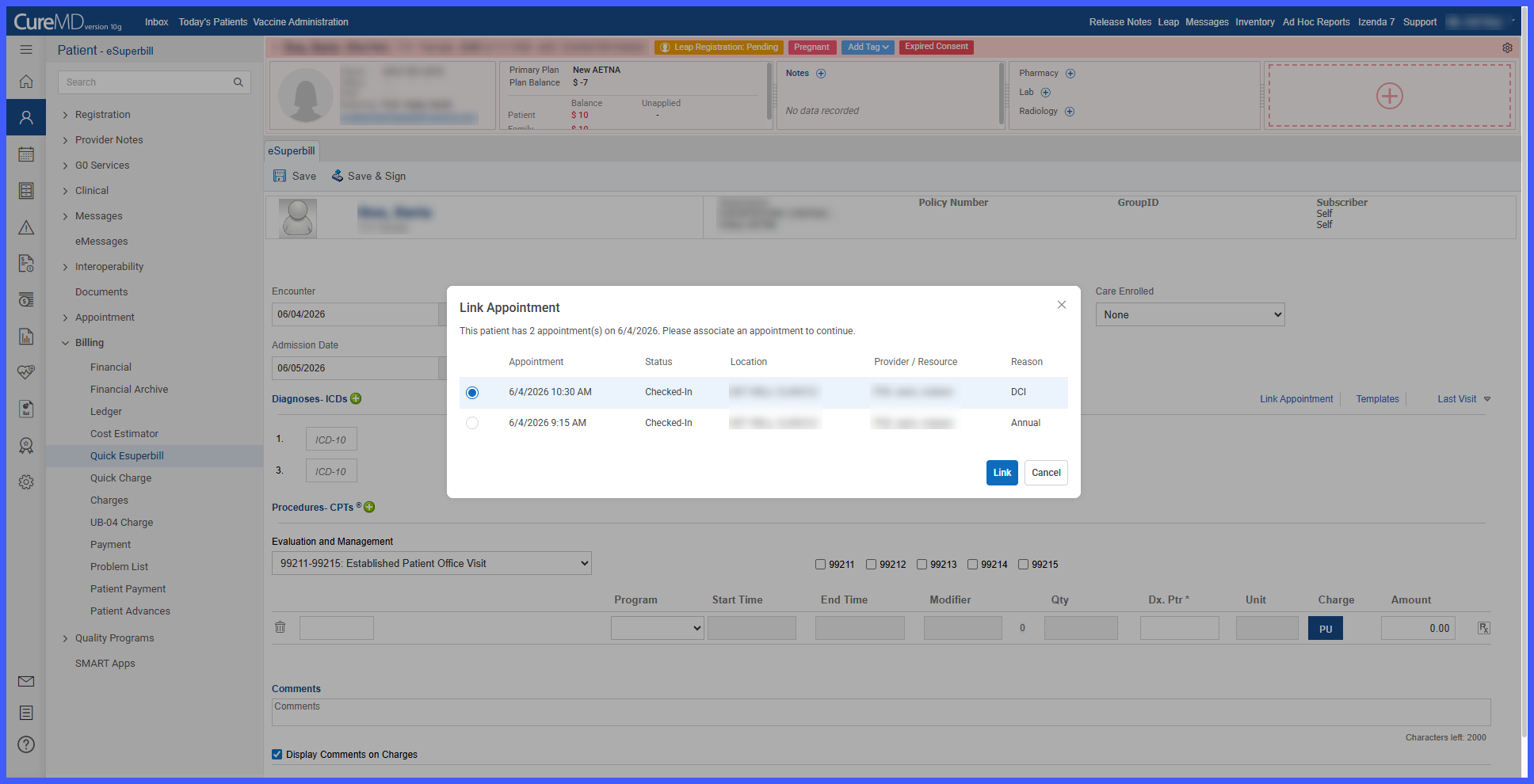
Quick Superbills must be linked to an eligible appointment on the same Date of Service (DOS).
-
Saving is blocked until an appointment is linked.
-
If no qualifying appointment exists, no restriction is applied.
-
-
Eligible appointments must:
-
Match the same DOS.
-
Not already be linked to a provider note or eSuperbill.
-
Have a status of Checked-In or Checked-Out.
-
Not be in Scheduled, Confirmed, Cancelled, Rescheduled, Waiting List, or No Show status.
-
-
When disabled:
-
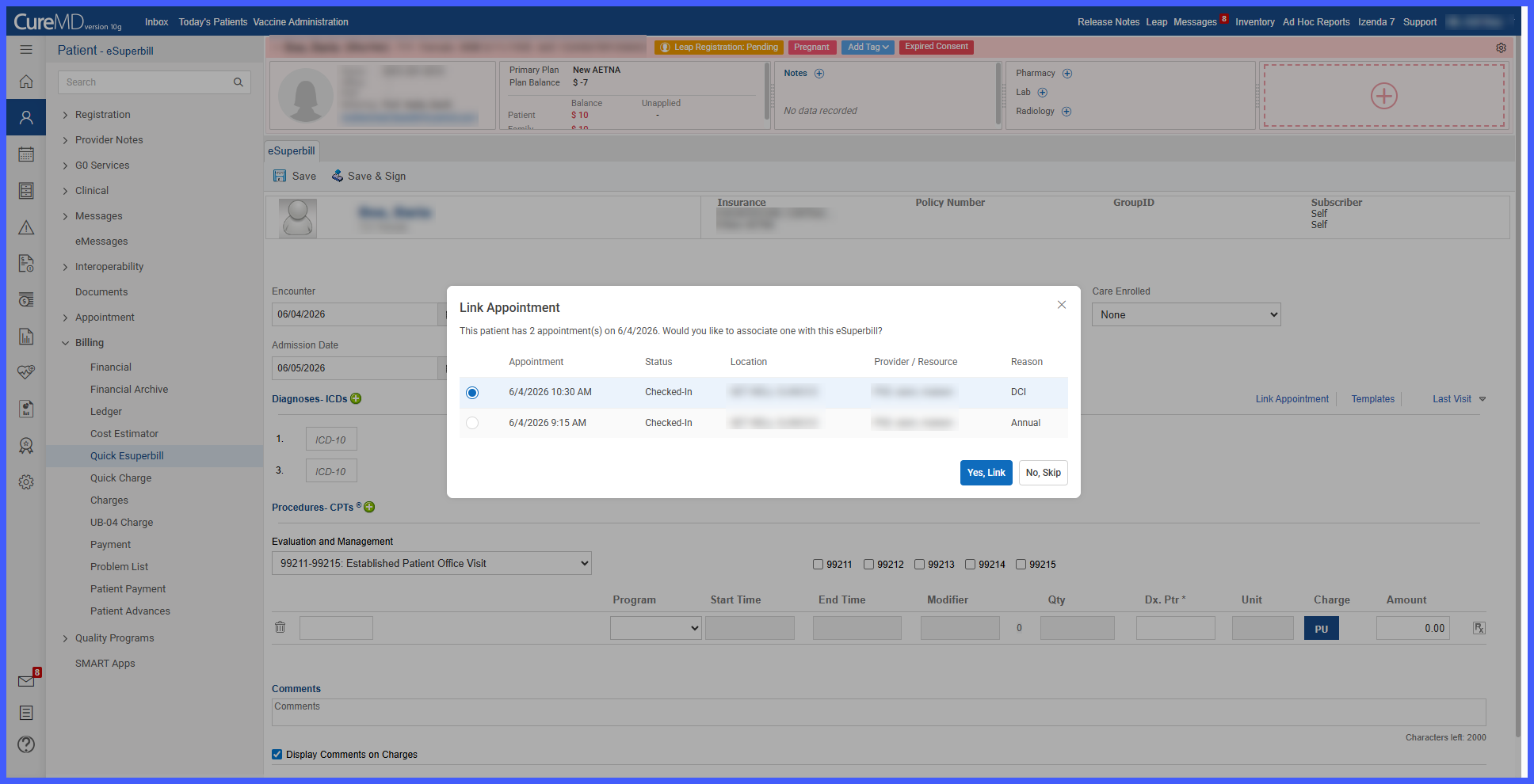
Users receive a soft prompt when entering or saving a Quick Superbill if a qualifying appointment exists.
-
Users can choose to Link or Skip.
-
A Link Appointment option remains available in Encounter Details.
-
-
Linking automatically populates and locks:
-
Encounter Date
-
Encounter Time
-
Location
-
Provider
-
-
Unlinking re-enables these fields for editing.
How It Works
- Navigate to Settings > Practice > Billing.
- Enable or disable the Enforce Appointment Linking for Quick Superbill setting.
- Create or edit a Quick Superbill.
- The system evaluates whether a qualifying same-DOS appointment exists.
- Depending on the configuration:
– If enabled, an eligible appointment must be linked before the Superbill can be saved.
– If disabled, users are prompted to link the appointment but may choose to continue without linking.
- When an appointment is linked, encounter details are automatically populated and locked.
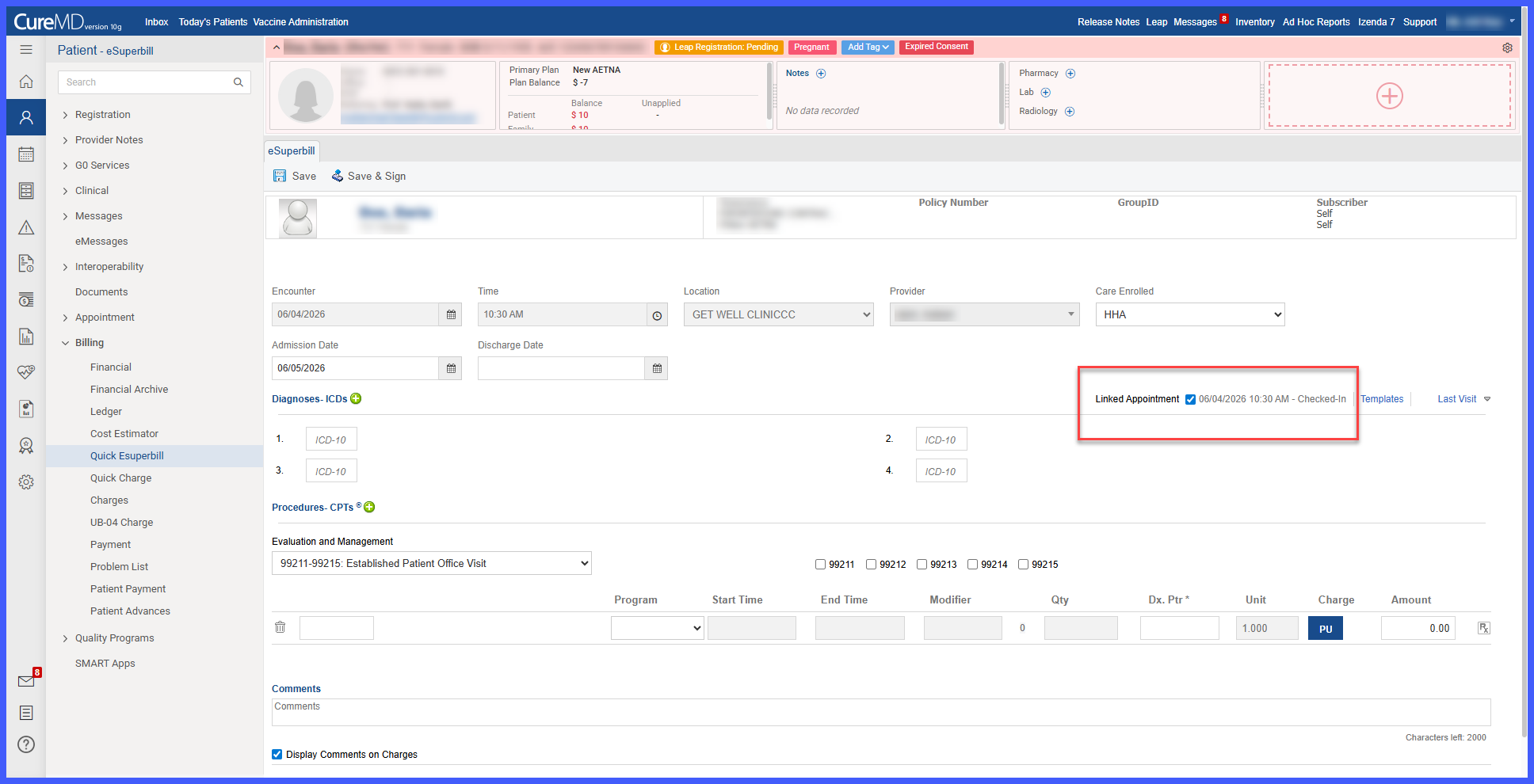
- If the appointment is unlinked, the encounter fields become editable again.
Benefits
-
Provides immediate visual awareness of the current time within the schedule.
-
Improves scheduling efficiency by helping users orient themselves within the day’s calendar.
-
Reduces reliance on the time axis for determining the current time.
-
Maintains a clean interface by displaying the indicator only on the current date.
-
Ensures accurate positioning through real-time updates based on local system time.
