Kiosk > Launch Check-In > Accessibility Toggle (Normal / 150% / 200%) > Proceed with Check-In
What’s New
- Three accessibility levels added: Normal, 150%, and 200%.
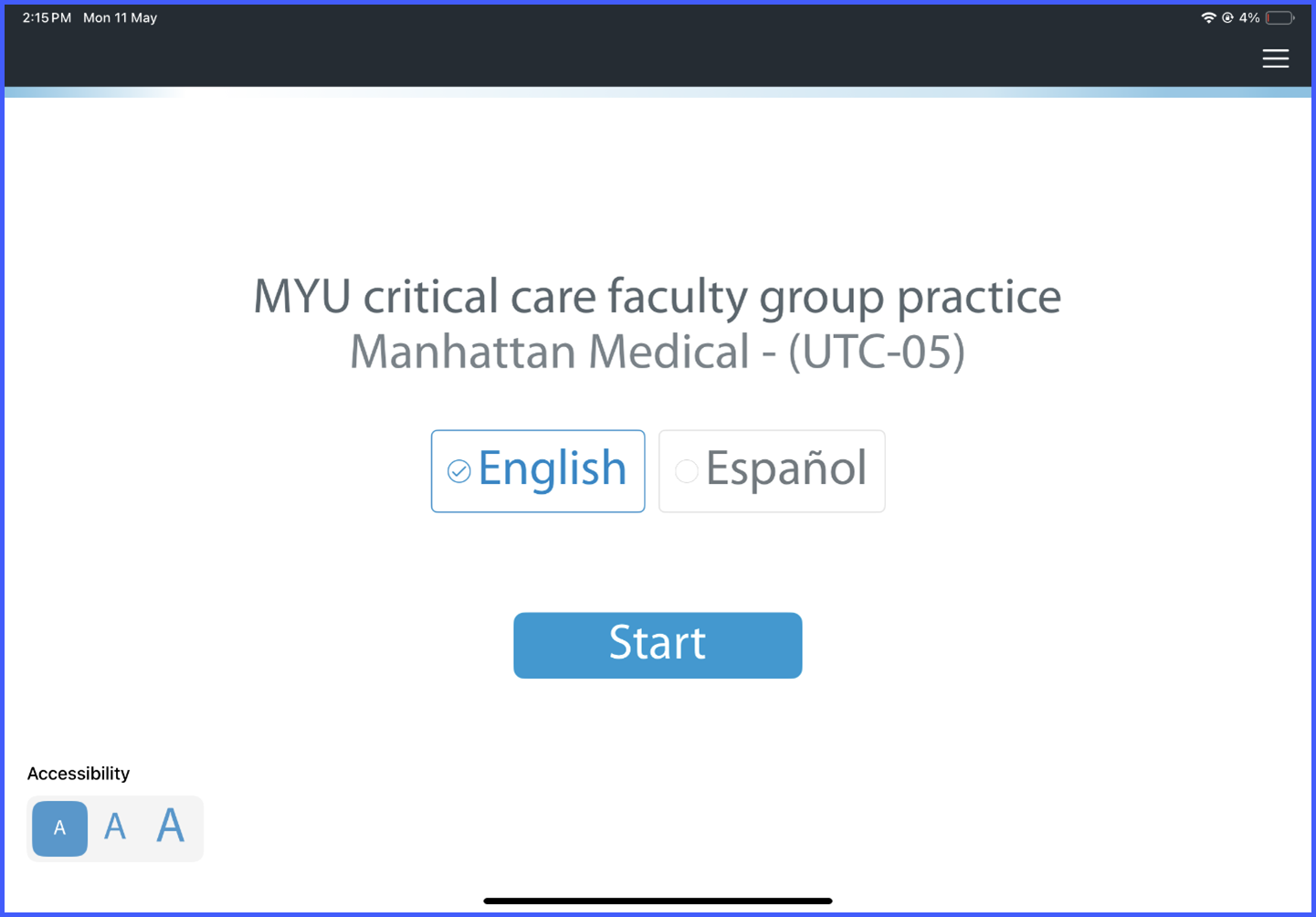
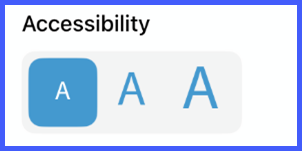
- Accessibility toggle introduced at the start of the check-in workflow.
- UI dynamically adjusts based on selected level (text size, layout, spacing).
- Improvements aligned with WCAG standards, including:
- Enhanced contrast ratios
- Scalable text
- Responsive layouts
- Improved interaction patterns
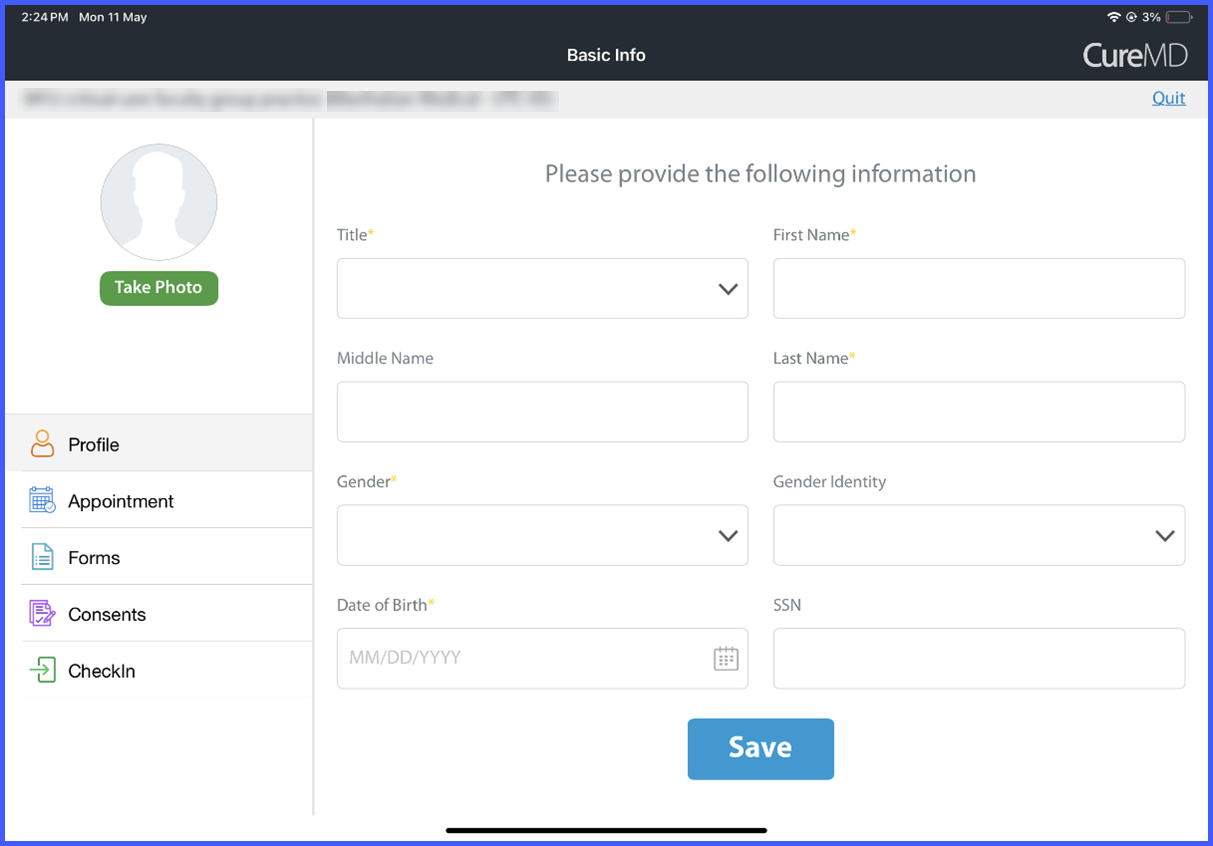
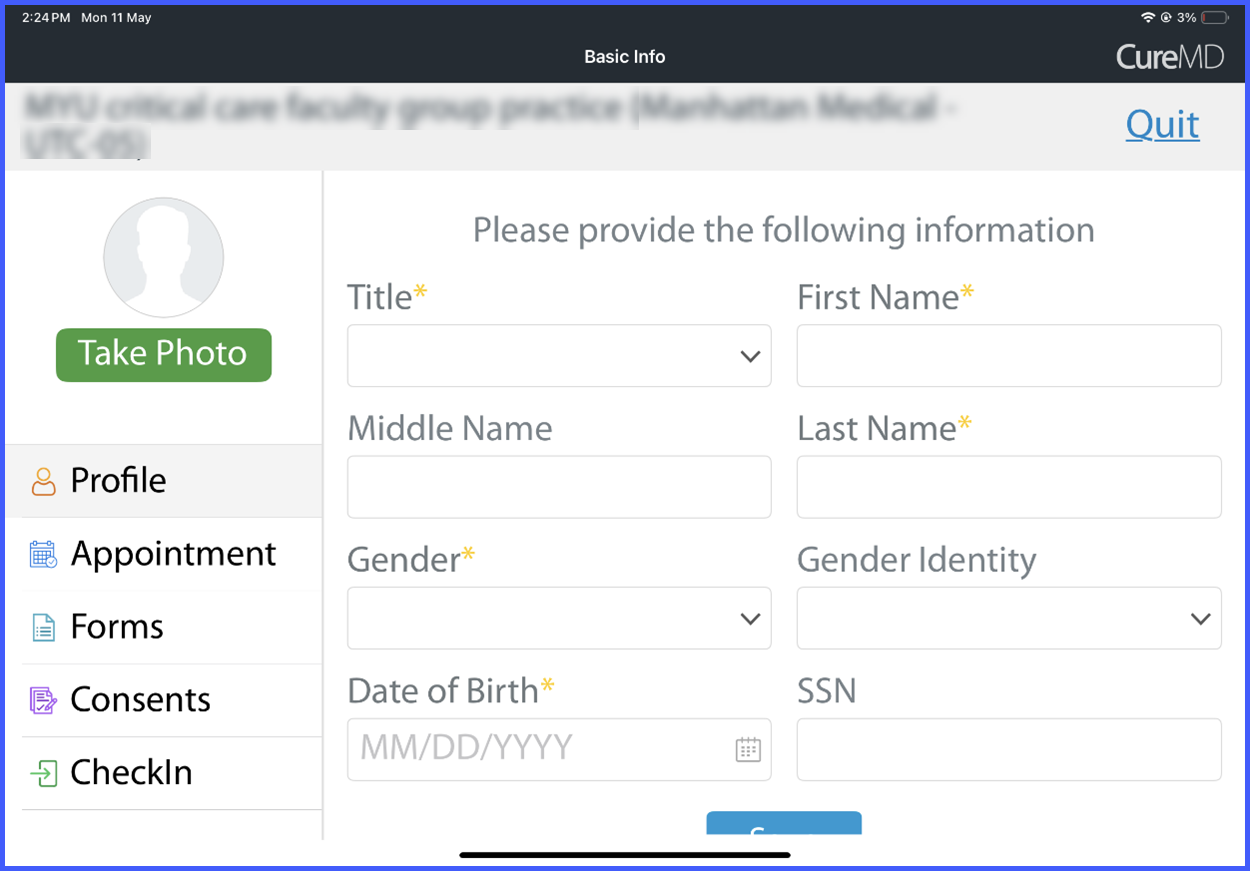
- Labels repositioned above input fields for better readability and larger input areas.
- Spacing refined for improved readability, especially at higher zoom levels.
- Color adjustments implemented to support better contrast.
- Vertical scrolling enabled for longer forms.
- Consent forms support pinch-to-zoom functionality.
- Images remain fixed in size to maintain layout consistency.
How It Works
- Launch the Kiosk check-in application.
- On the initial screen, select an accessibility level: Normal, 150%, or 200%.
- The system applies the selected setting across the entire check-in workflow.
- All UI elements—including text, spacing, and layout—adjust dynamically for improved readability.
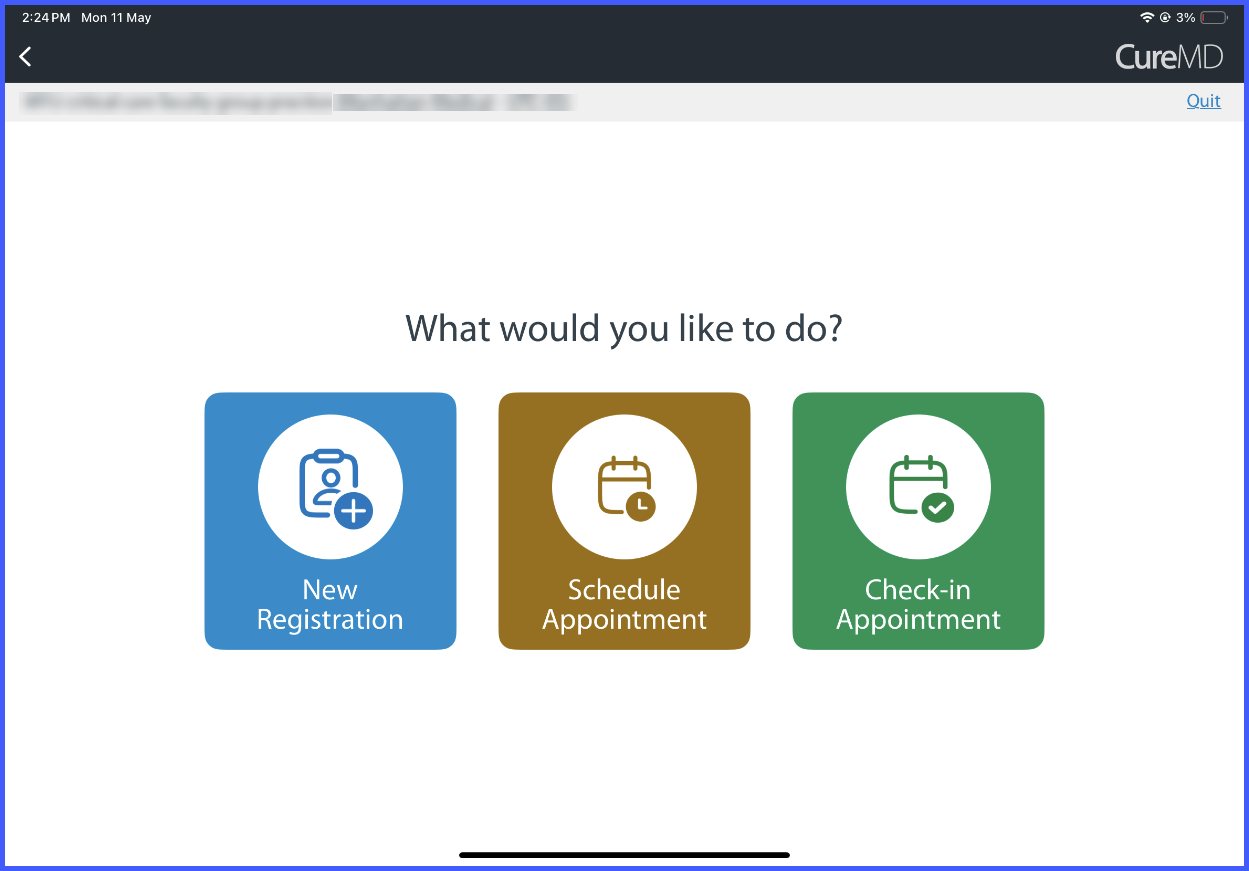
- Continue the check-in process with the updated display settings applied consistently across all screens.
Benefits
- Improves accessibility for patients with visual challenges.
- Enables independent completion of the check-in process.
- Enhances readability through scalable UI and improved contrast.
- Maintains a consistent and familiar workflow while improving usability.
- Aligns the Kiosk experience with WCAG accessibility standards.
