Manage Custom Views (Charges): Billing > Charges > Custom Views > Create/Edit View
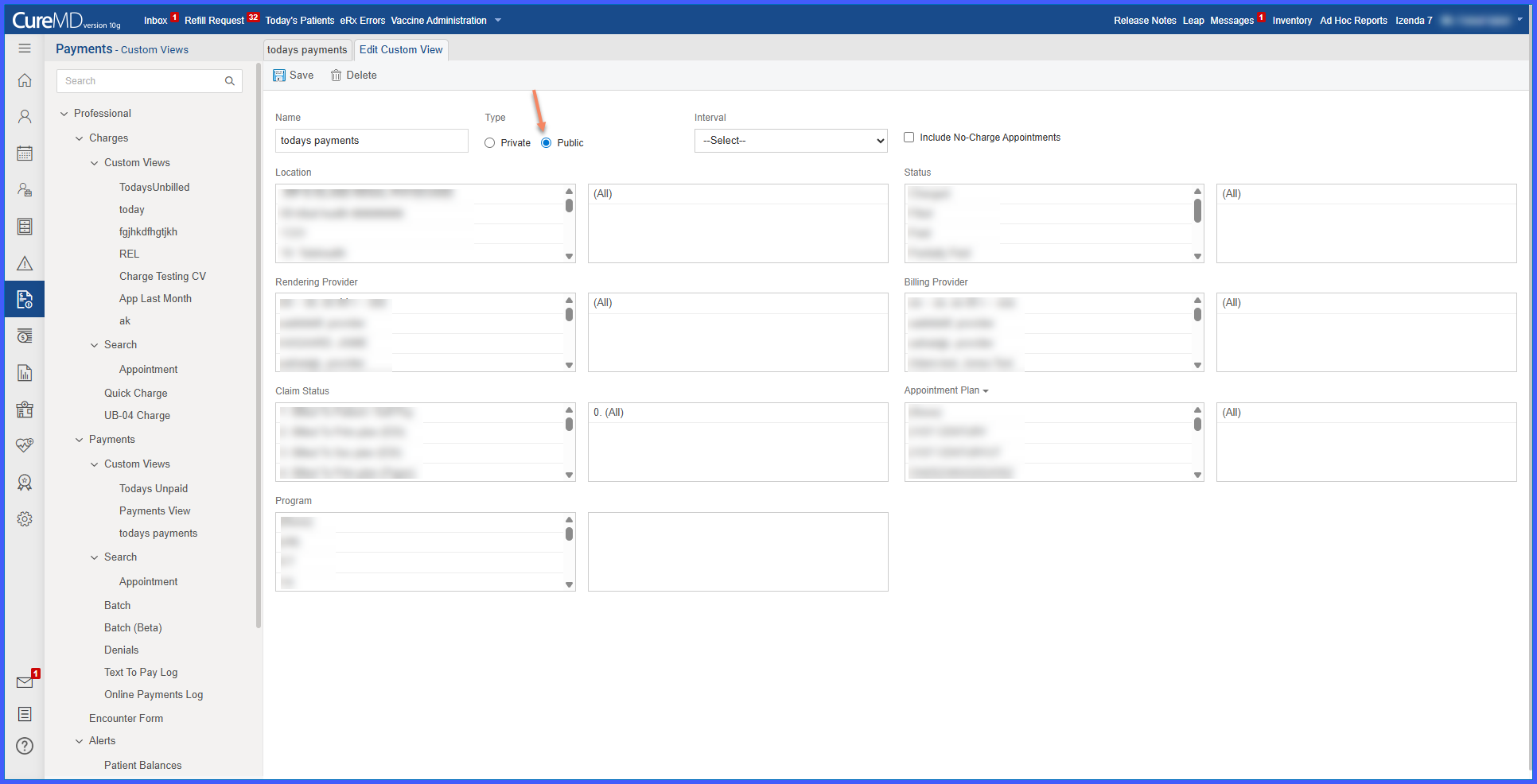
Manage Custom Views (Payments): Billing > Payments > Custom Views > Create/Edit View
Configure User Permissions: Settings > User Roles > Billing Permissions > Edit Public View
What’s New
- A unified Edit Public View permission now controls access across Charges and Payments
- Users without permission can view public custom views but cannot edit them
- When creating new custom views without permission:
- The Private option is selected by default
- The option is locked and cannot be changed
- Users with permission can:
- Edit existing public custom views
- Choose between Public and Private when creating new views
- Applies consistently across both Charges and Payments modules
How It Works
- Navigate to either:
- Billing > Charges > Custom Views
- Billing > Payments > Custom Views
- The system checks whether the user has the Edit Public View permission enabled.

- If the permission is disabled:
- Public custom views are visible but not editable
- While creating a new view:
- The Private option is auto-selected
- The option is locked
- If the permission is enabled:
- Users can edit public custom views
- Users can select either Public or Private when creating a new view
Benefits
- Prevents unauthorized modification of shared billing views
- Ensures consistent control across Charges and Payments
- Improves governance of billing configurations
- Reduces accidental changes to public views
- Supports role-based access and better operational control
