Scheduler > Select Date (Daily / Weekly / Multiple View) > Header Displays Date + Time Range > Hover for Tooltip
What’s New
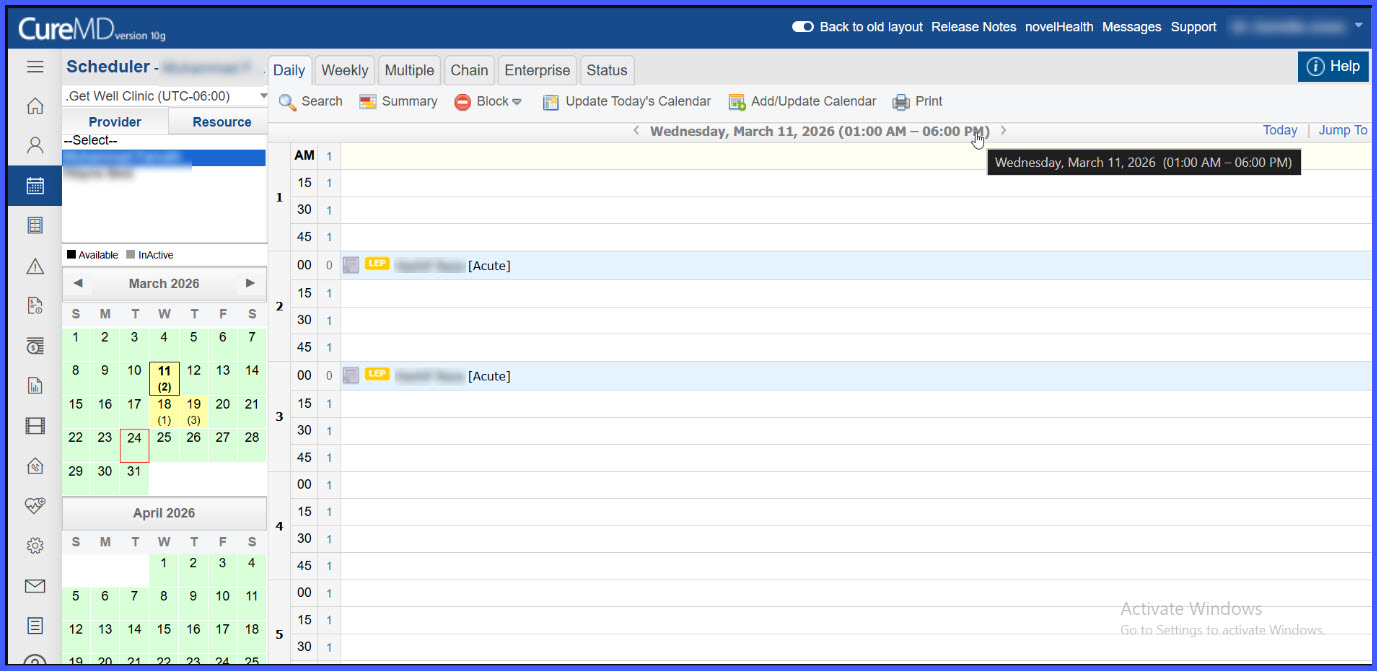
- Scheduler header now displays date with time range in the format:
“Thursday, February 12, 2026 (08:00 AM – 06:00 PM)”
- Header update applies to:
- Daily view
- Weekly view
- Multiple view
- Hovering over the header shows a tooltip with:
- Full date
- Calendar timing in the format: “Timings: 08:00 AM – 06:00 PM”
- Time range dynamically reflects configured start and end times of the selected calendar
- If no calendar is configured, time range is not displayed (existing behavior retained)
- Tooltip behavior aligned with existing calendar tooltips
- Localization applied to time values only (date format remains unchanged)
How It Works
- Navigate to the Scheduler module.
- Select a calendar and date.
- View the scheduler header at the top of the screen.
- The header displays the selected date along with the configured time range (if available).
- Hover over the header to view additional details in the tooltip, including full date and timing information.
- If no calendar is configured for the selected date, the header will display only the date without time range.
Benefits
- Provides immediate visibility into calendar working hours
- Reduces the need to access schedule settings for time range information
- Improves efficiency in appointment scheduling
- Maintains consistency with existing tooltip behavior
- Enhances usability across scheduler views
