Signature Renewal Configuration, Expiry Management, and Expired Consent Banner Indicator
Configure Renewal Interval
Add Patient Consent
View Expired Consent Alert
What’s New
- A configurable Signature Renewal Interval is available for Consent letter templates.
- Consents automatically calculate and manage effective end dates based on template settings.
- Expired consents are automatically marked and locked from further modification.
- A new “Expired Consent” banner tag appears in the patient chart when applicable.
- Only one active consent per template is permitted at any time.
- Renewal logic is inherited at the time of consent creation and does not apply retroactively.
How It Works
Configure Signature Renewal Interval (Template Level)
-
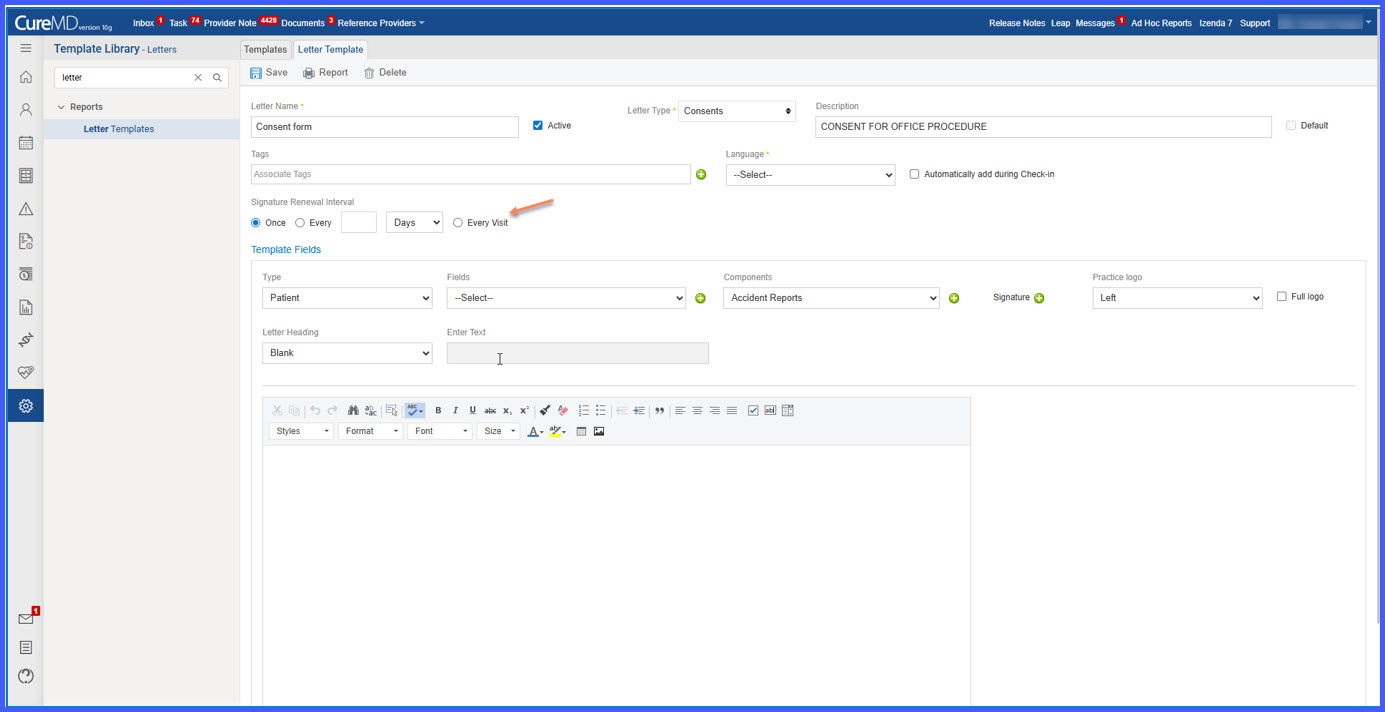
Navigate to Settings > Reports > Letter Templates.
-
Create or edit a template with Type set to Consent.
-
Configure the Signature Renewal Interval using one of the following options:
-
Once (default)
-
Every <define interval> (days, months, or years)
-
Every Visit
-
-
Save the template.
The selected renewal interval is stored with the template and applied to all new consents created from it.
2. Consent Creation and Automatic End Date Handling
When adding a consent via:
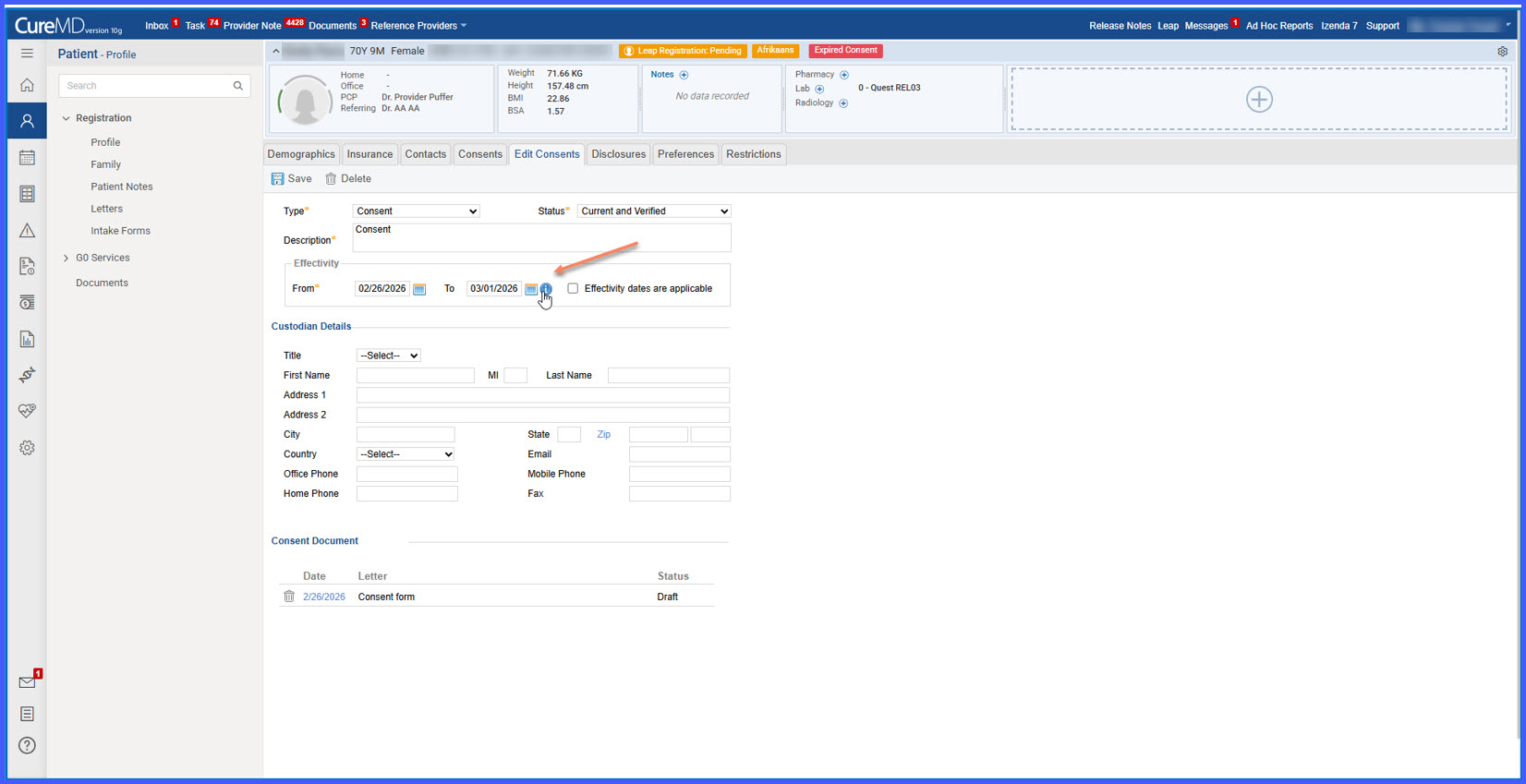
Patient > Profile > Registration > Consents
The system applies the renewal logic defined in the template:
If set to “Every <interval>”:
• The effective end date is auto-calculated from the start date.
• Changing the start date updates the end date automatically.
• The end date can be edited while the consent is active.
If set to “Every Visit”:
• The end date matches the start date.
• Changing the start date updates the end date.
• Editable while active.
If set to “Once”:
• The end date remains blank by default.
• The user may manually enter an end date while active.
An info icon appears next to the end date when renewal is configured.
Hover tooltip:
“This consent requires signature every <interval>. Expiry date is automatically calculated based on effective start date.”

3. Automatic Expiration Logic
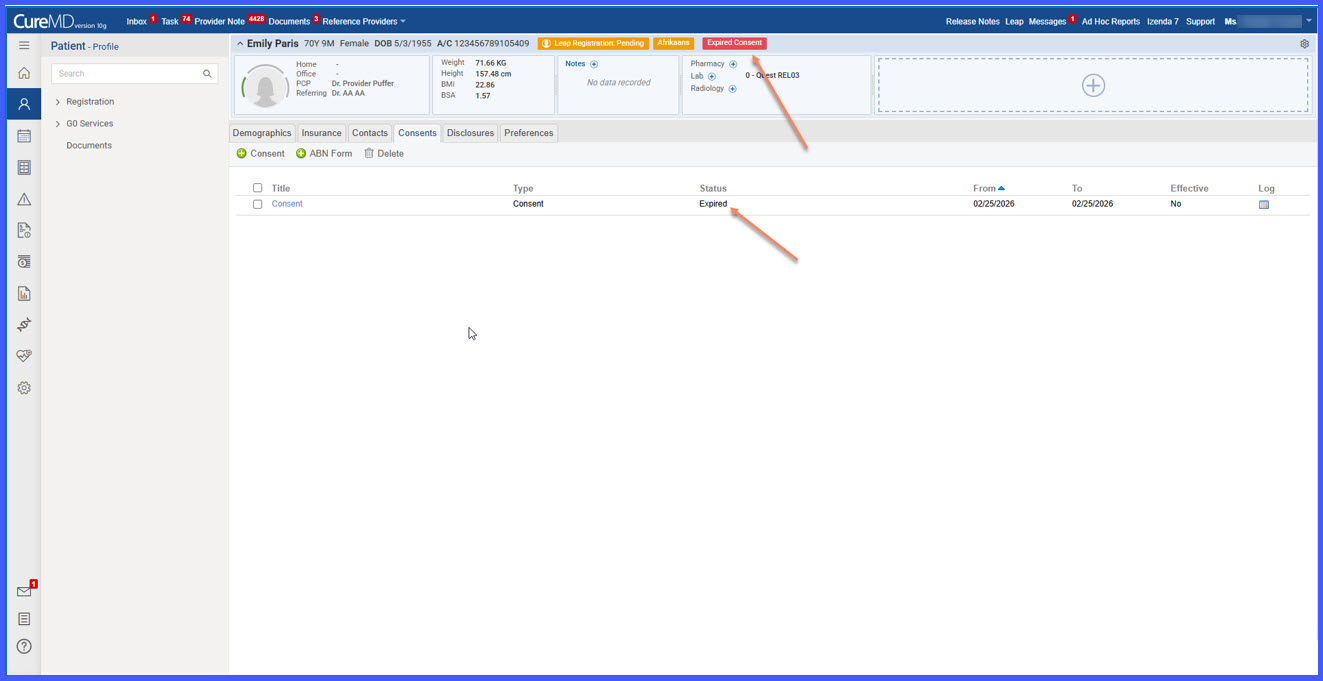
• When the current date exceeds the effective end date, the system automatically sets the consent status to Expired.
• Status and end date fields become read-only.
• Tooltip displayed:
“This consent is expired. Please create a new one.”
• The Expired status becomes visible in the dropdown.
If manually marked as Expired:
• The current date is recorded as the expiration date.
• Future end dates are blocked.
• Error displayed if future date entered.
• Once saved as Expired, status cannot be modified again.
4. Expired Consent Banner Indicator
When viewing a patient chart:
• If at least one consent is expired and not replaced, an “Expired Consent” tag appears in the patient banner.
• The tag cannot be manually dismissed.
• Hovering over the tag displays a tooltip listing all expired consent forms requiring attention.
• Once the same consent form is re-added and active, the expired version is removed from the alert list.
• If no expired consents remain, the banner tag is automatically removed.
5. Duplicate Prevention Rule
• If a user attempts to add a new consent using a template that already has an active consent, the system prompts the user to expire the existing consent first.
• Only one active consent per template is permitted.
Benefits
- Standardizes consent renewal requirements at the template level.
- Automates end date calculation and expiration enforcement.
- Prevents duplicate active consents.
- Improves compliance with signature renewal policies.
- Provides immediate visual indication of expired consents.
- Maintains audit integrity and lifecycle traceability.
