Drag and Drop Actions For True Component Folders in Document Manager
What’s New
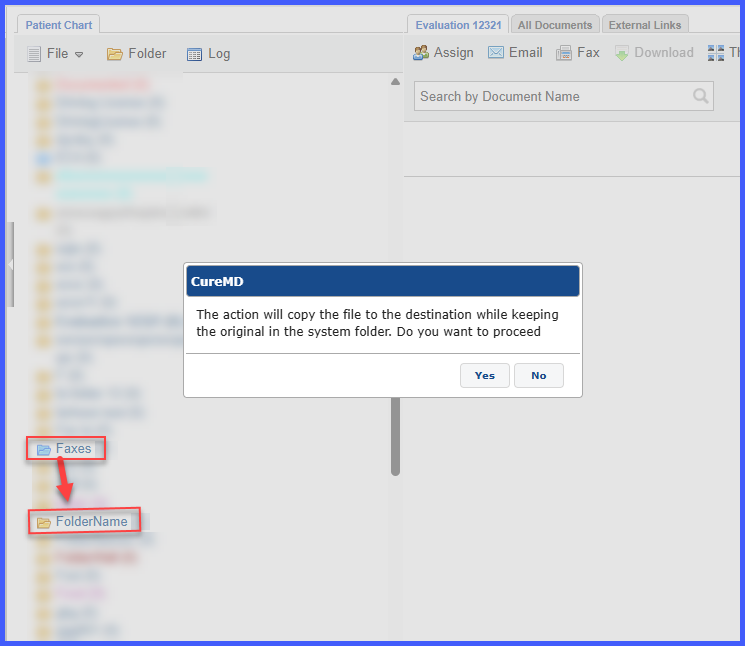
- A confirmation popup appears when a file is dragged from a System folder (Blue) to another regular folder.
-
The popup message explains that the action will copy the file and will also keep the original in the true component folder.
- The original file always remains unchanged in the source folder.
How It Works
-
Open Document Manager.
-
Select a file located in a System (Blue) folder.
-
Drag the file to a custom folder (Yellow) or another system folder.
-
A confirmation popup appears with the message: “The action will copy the file to the destination while keeping the original in the system folder. Do you want to proceed.”
-
Select Yes to create a copy of the file in the destination folder while retaining the original.
-
Select No to cancel the action.
Benefits
-
Prevents unintended file movement from system folders.
-
Clearly communicates system behavior before completing the action.
-
Protects original system-managed documents from accidental changes.
-
Improves user confidence when organizing documents across folders.
