Apply Specimen Details Across Multiple Lab Tests
What’s New
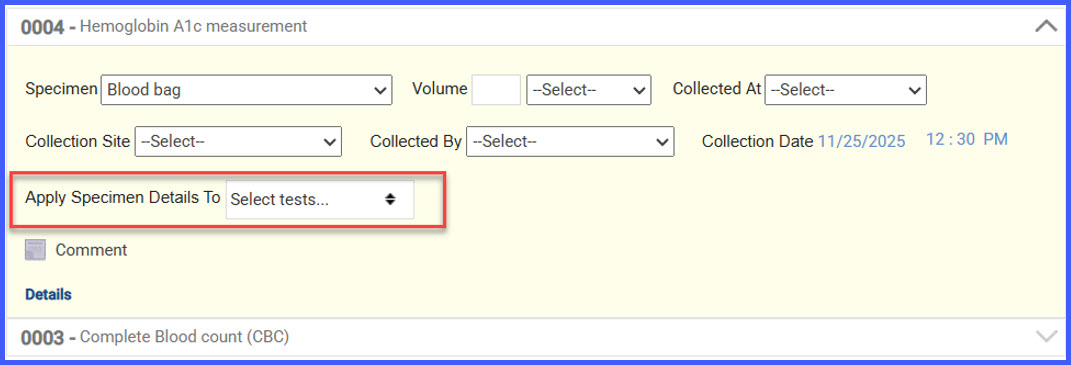
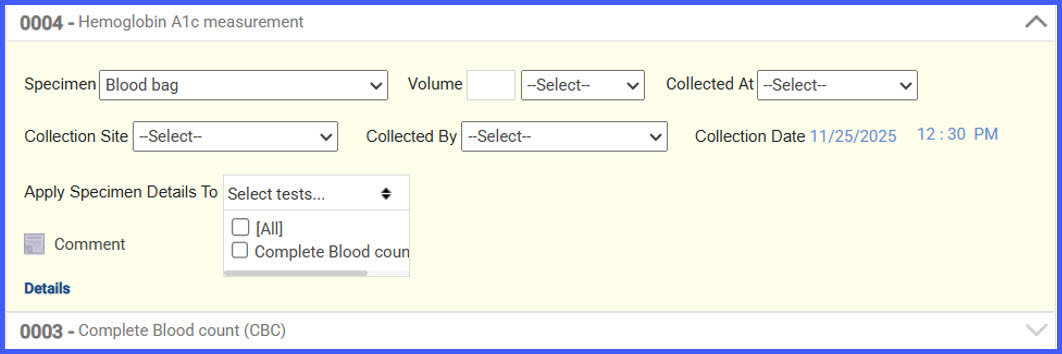
• A new Apply specimen details to dropdown multiselect is available on the source test when more than one test exists in the order.
• Users can select one or more target tests to automatically receive the same specimen details entered on the source test.
• The applied specimen details are saved across selected tests once the order is saved.
• The Apply specimen details to option is available only during order creation and is hidden in edit mode.
• Previously applied specimen details remain intact if edits are made later.
• UI updates include:
– “Reaction (If any)” label renamed to “Comment.”
– Stat checkbox relocated to the test tile header for improved visibility.
How It Works
-
Create a new lab order that includes multiple tests.
-
Enter specimen details on the source test tile.
-
Open the Apply specimen details to dropdown multiselect.
-
Select one or more target tests to copy the details to.
-
Save the order; the specimen details are automatically populated on the selected tests.
-
During later edits, the option is hidden, and previously applied details remain unchanged.
Benefits
• Reduces repetitive data entry when working with multi-test lab orders.
• Ensures consistent specimen documentation across all selected tests.
• Improves workflow clarity with refined UI labels and repositioned Stat indicator.
• Maintains data integrity by preserving previously applied details during later edits.