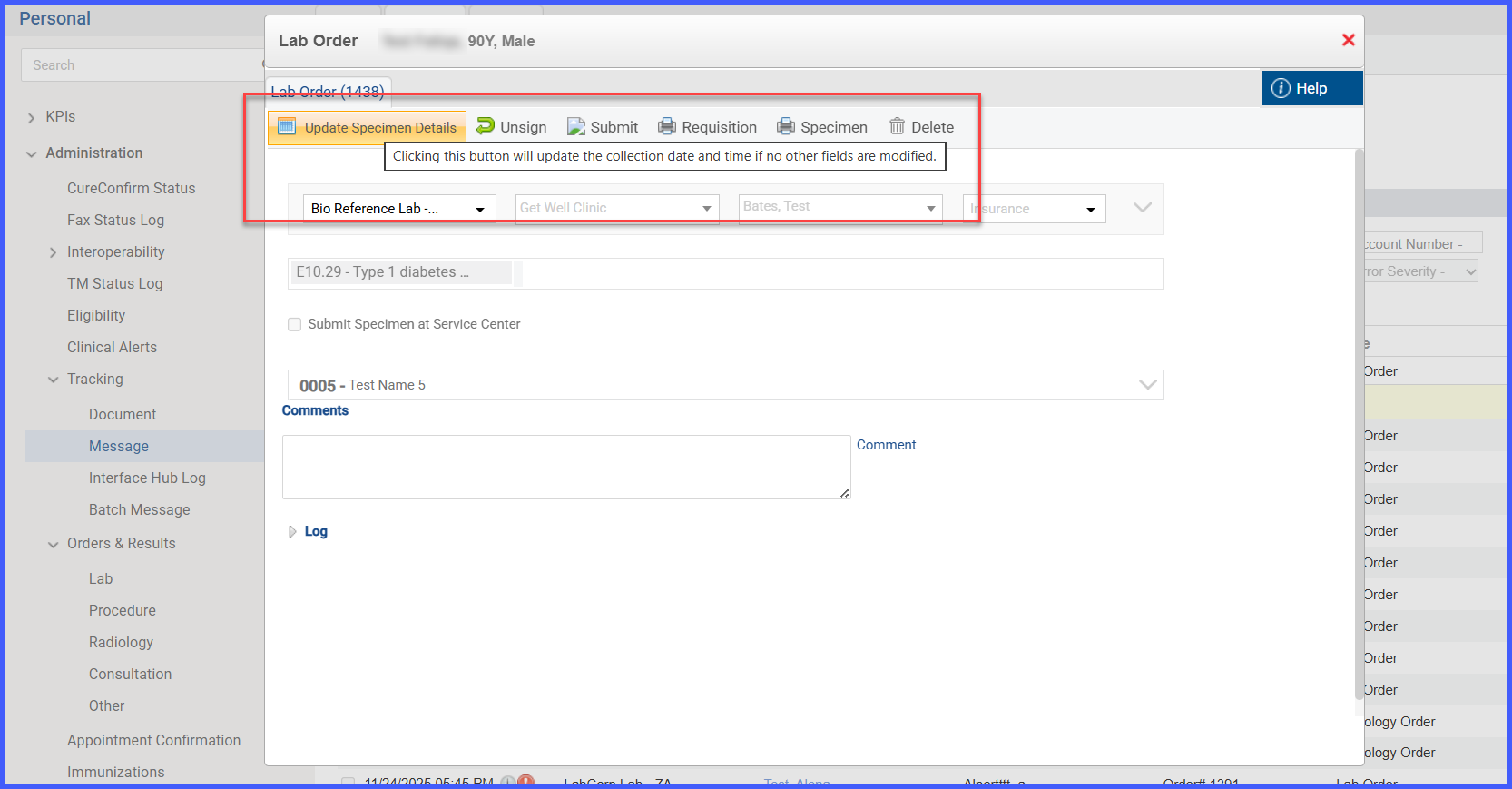
Update Specimen Details – Enhanced Button Label and Functionality
What’s New
-
The button Update Collection Date & Time has been renamed to Update Specimen Details.
-
A new tooltip appears when hovering over the button: “Clicking this button will update the collection date and time if no other fields are modified.”
-
Updated button logic determines whether only the collection date/time should be updated or whether additional specimen fields should be saved.
-
If no specimen-related fields are changed, the system updates only the collection date and time.
-
If any specimen-related fields are modified, the system saves all updated specimen information along with the collection date and time.
How It Works
- Navigate to Personal > Administration > Tracking > Messages > Outbound (Lab Orders).
-
Open a lab order and view the specimen details section.
-
Locate the renamed button: Update Specimen Details.
-
Hover over the button to view the tooltip explaining the update behavior.
-
Click Update Specimen Details:
-
When no specimen fields are changed, only the collection date/time is updated.
-
When any specimen fields are changed, the system saves all updates and also updates the collection date/time.
-
Benefits
-
Provides a clearer label that reflects the full scope of what the button updates.
-
Reduces user confusion by explaining behavior through a tooltip before action is taken.
-
Ensures accurate specimen documentation based on whether fields were modified.
- Improves consistency across lab order workflows by aligning update logic with user actions.