Provider note template visibility by provider
What’s New
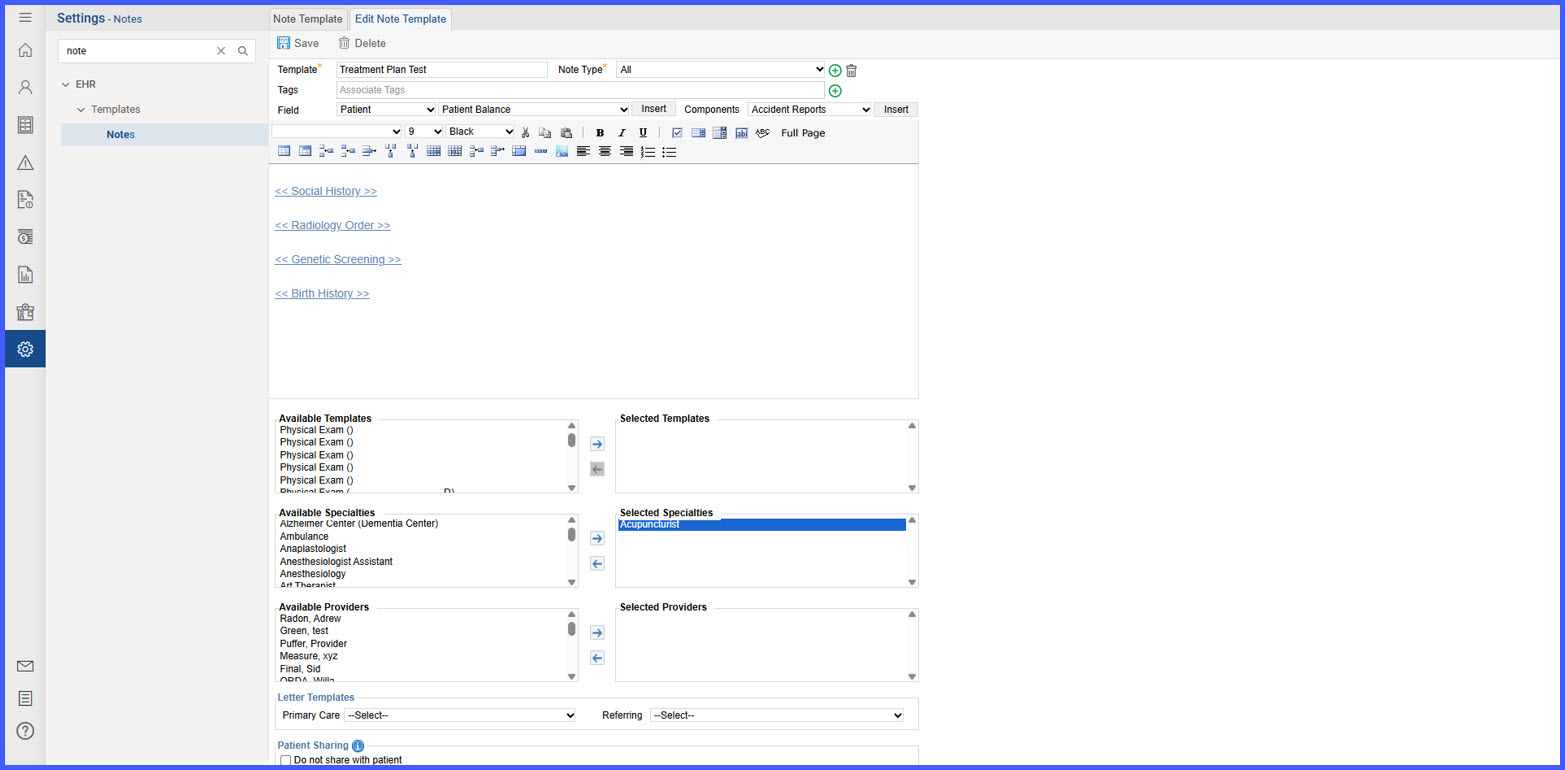
• Specialties can now be selected for each note template on the Notes Templates page.
• Two new fields—Available Providers and Selected Providers—have been created to improve the specialty association workflow.
• Providers associated with the selected specialty populate within the Available Providers list.
• Users can move one or more providers into the Selected Providers list to configure template availability.
• Templates with selected providers display in the provider note dropdown only for those providers.
• Specialties without selected providers continue to show the template to all providers who hold that specialty.
How It Works
- Navigate to Settings > EHR > Templates > Notes.
- Select a note template from the list.
- Choose one or more specialties for the template.
- Click a selected specialty to populate the Available Providers list.
- Move desired providers into the Selected Providers field.
- Save the template to apply visibility rules.
- Providers see only the templates configured for them when creating a note; templates without selected providers display for all providers with the assigned specialty.
Benefits
• Reduces dropdown clutter by limiting templates to only the relevant providers.
• Ensures more efficient documentation workflows tailored to specialty-specific needs.
• Allows granular control without requiring changes to general specialty assignments.
• Maintains flexibility—templates without selected providers remain available to all providers with that specialty.