Enhanced Scheduler Comments: View User and System Notes Inline
What’s New
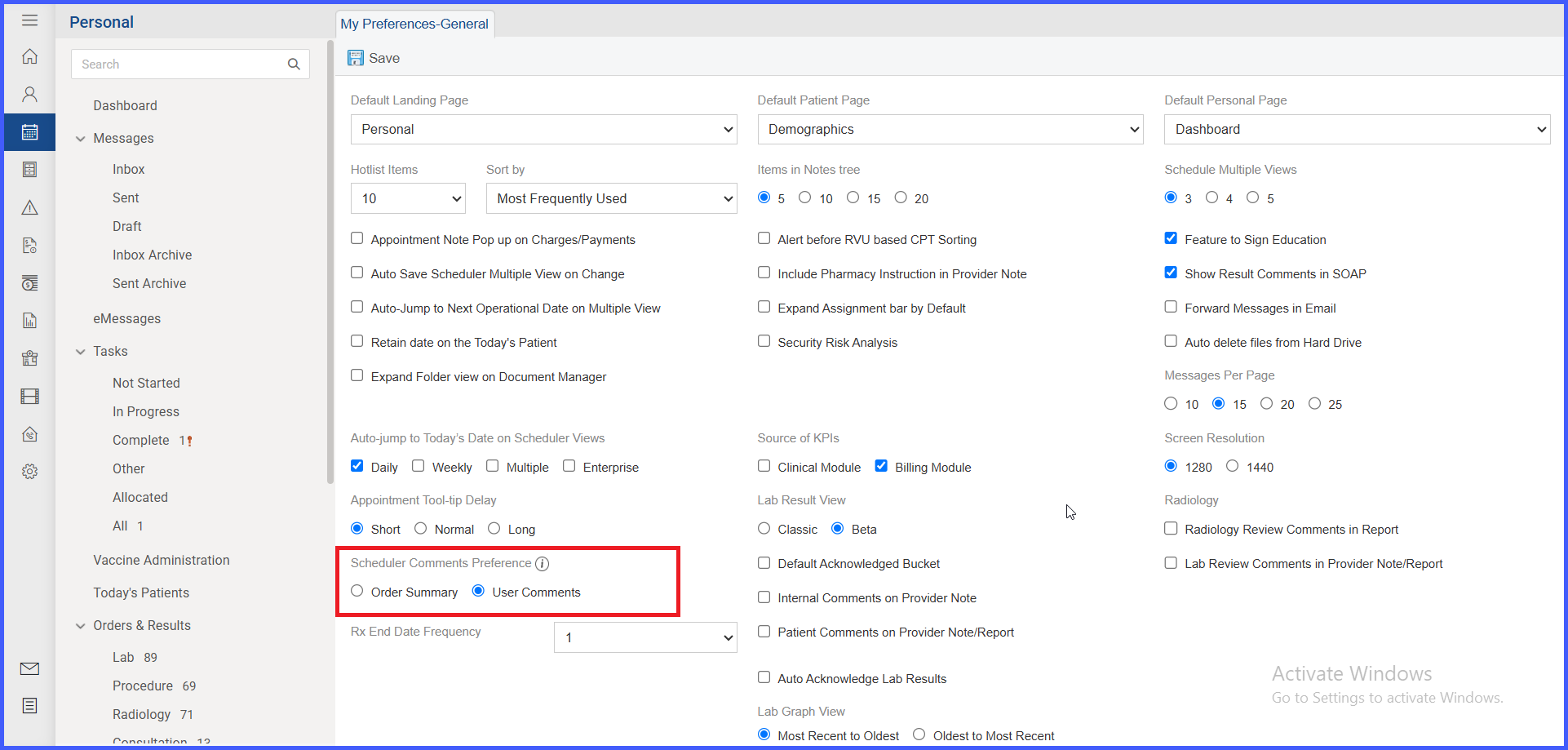
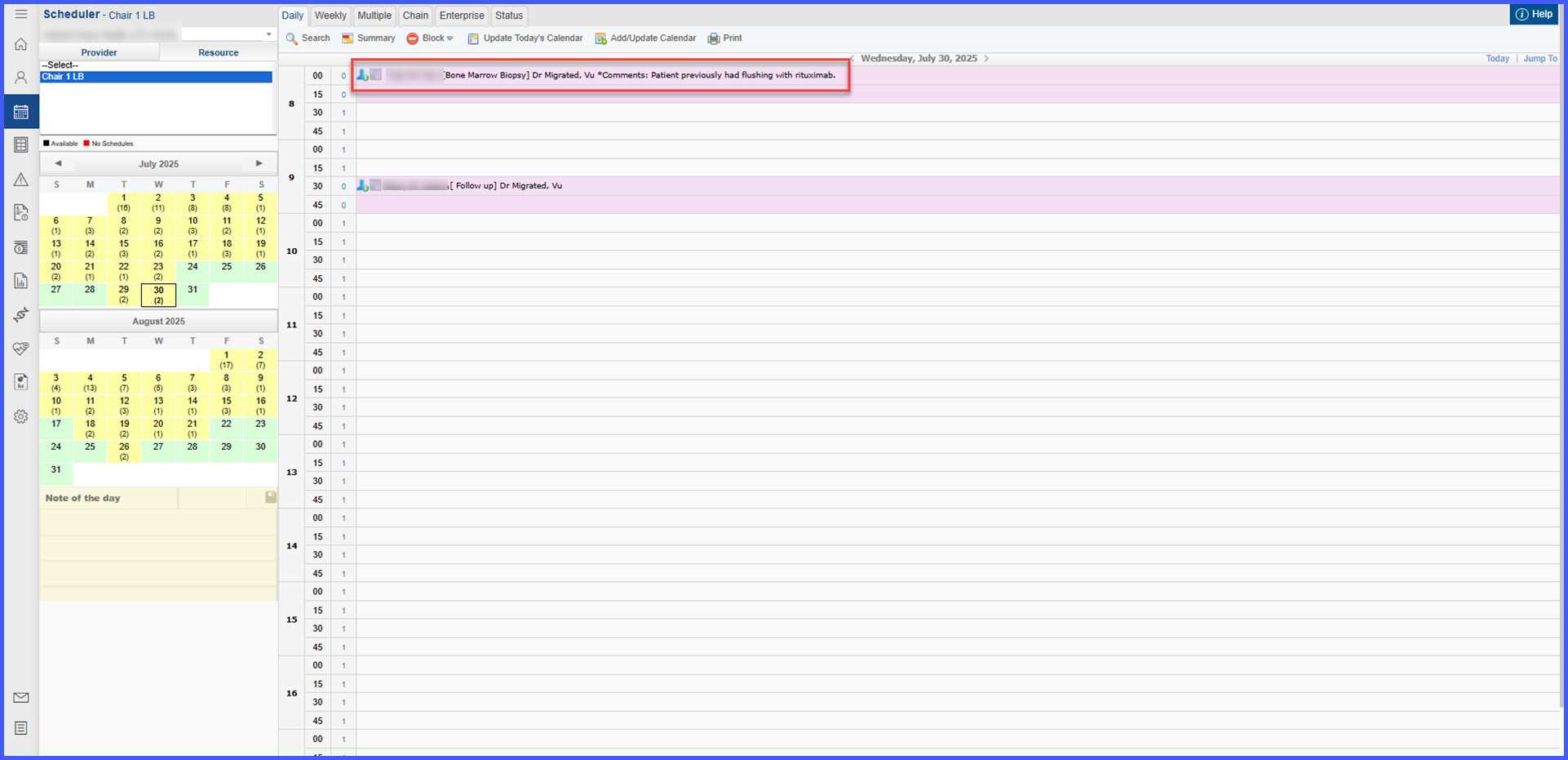
Scheduler comment display now supports both user-entered comments and system-generated order summaries. Users can configure their preferred comment type to appear inline within appointment slots. When comments exceed the visible character limit, they are truncated with an ellipsis, and the full content can be viewed on hover.
How It Works
-
Navigate to Personal > My Preferences > General to select the preferred scheduler comment type.
-
Open the Scheduler to view appointment slots displaying the selected comment type inline.
-
For oncology-specific practices, the displayed comment can be customized to show either user-entered or system-generated order summaries.
-
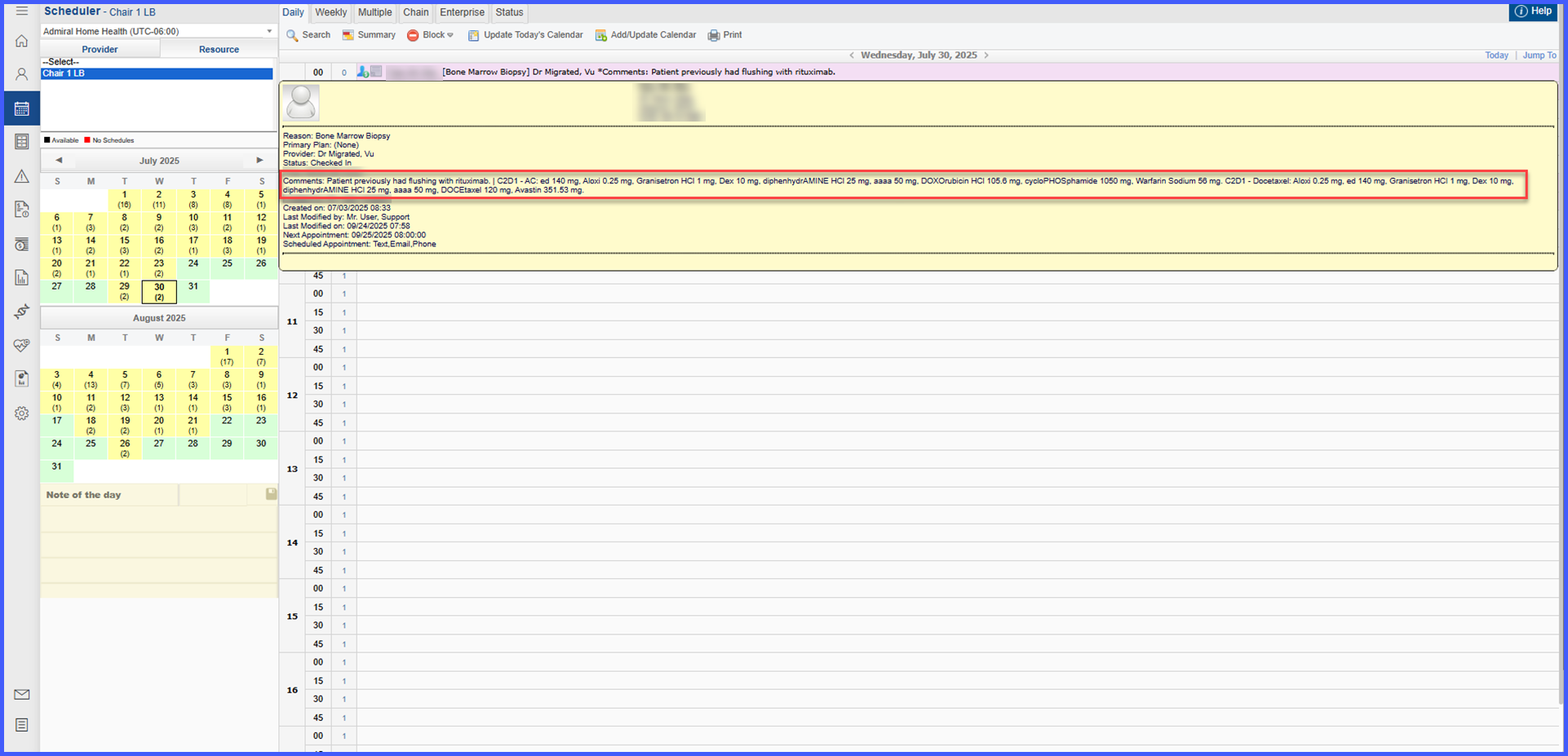
Hovering over an appointment slot displays both comment types in a tooltip, separated by a pipe (
|), allowing users to read the complete text without navigating away.
-
Inline comments are displayed based on the preference selected in user settings.
-
If the comment text exceeds the visible limit, it appears truncated with an ellipsis (
...). -
Hovering over the appointment slot shows a tooltip containing both the full system-generated order summary and user-entered comments.
-
The enhancement ensures that all relevant information remains accessible, even when the display is space-constrained.
Benefits
-
Improves visibility of critical appointment-related notes directly within the scheduler.
-
Reduces time spent navigating between screens to view comments or order summaries.
-
Offers flexibility for oncology practices to display the most relevant information inline.
-
Ensures no data loss by providing a tooltip with the complete text of all comments.
