Custom Forms in AI Scribe
What’s New
In AI Scribe > Transcriptions, a button labeled Add Custom Forms appears in the bottom sticky banner next to Start Recording. The primary button Generate Note remains available in blue below.
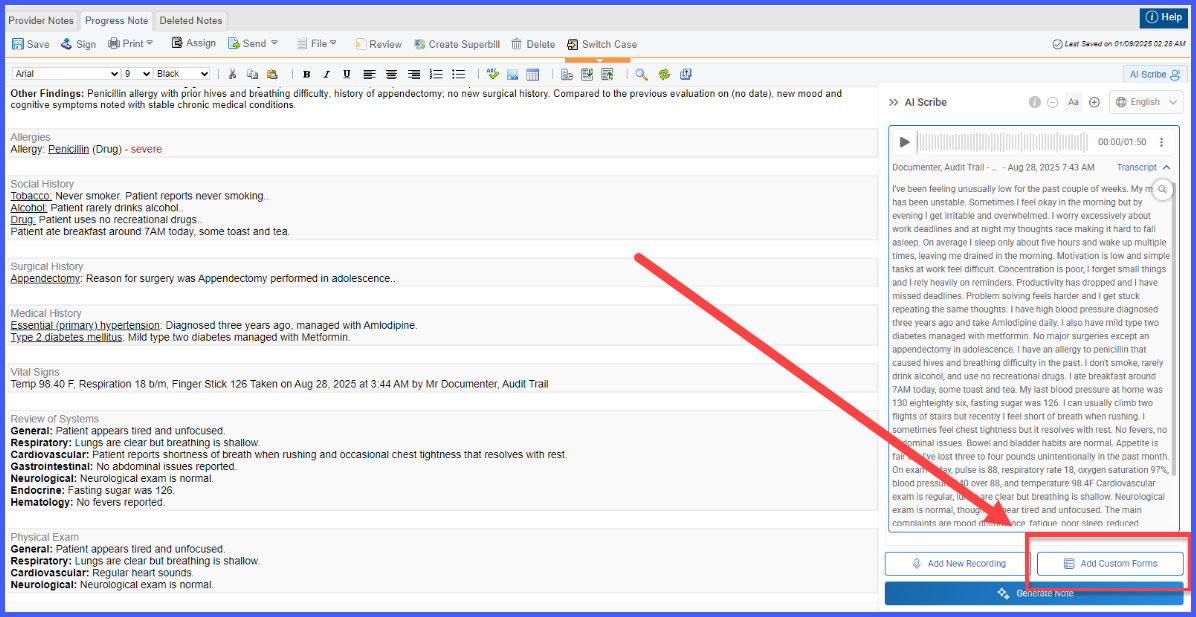
Clicking Add Custom Forms opens a dropdown:
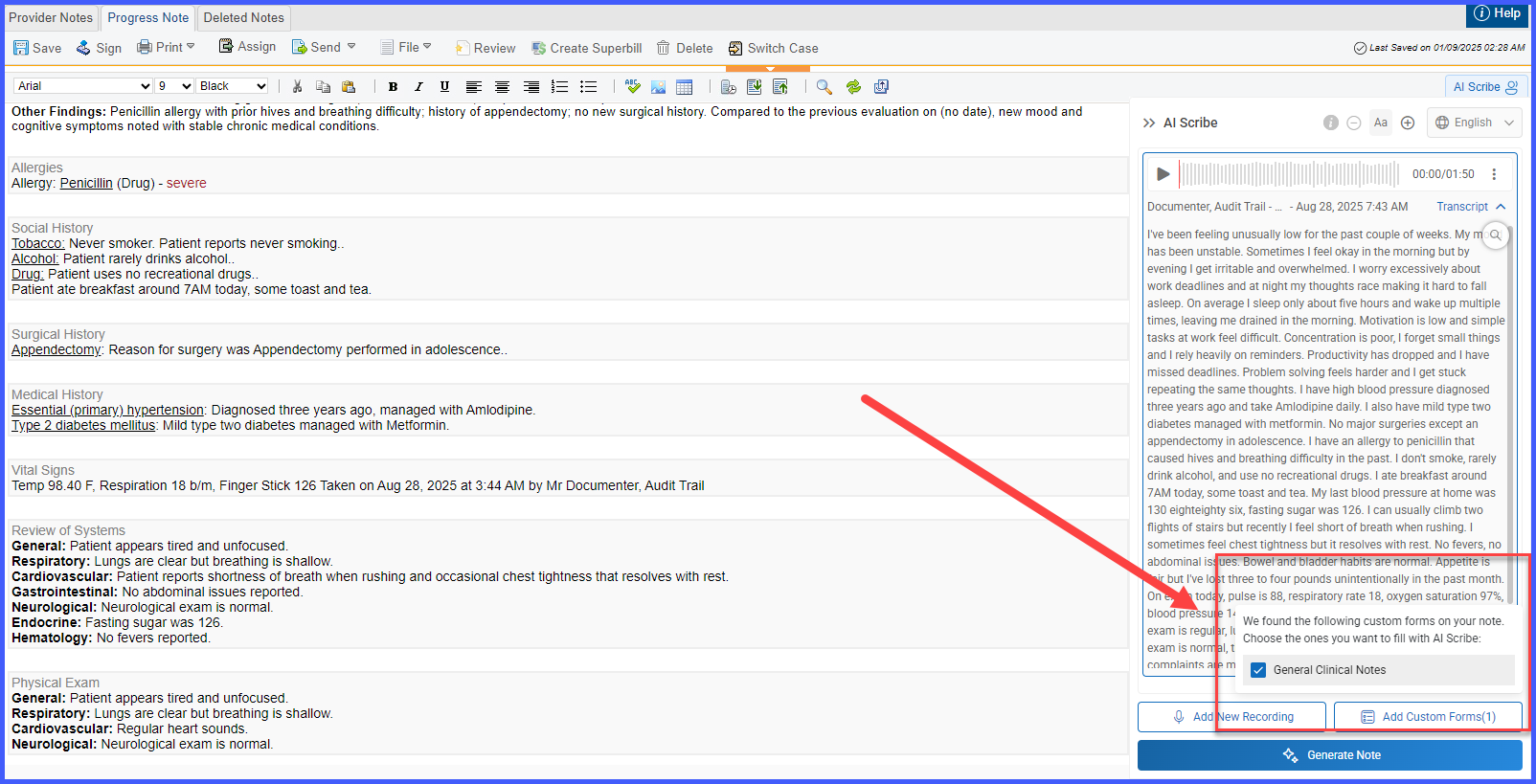
Within the dropdown, you’ll find:
- Custom Forms related to the note (from templates or left-tree additions) appear as multi-select options.
- As selections are made, the button dynamically updates to reflect the count, e.g., Add Custom Forms (1), Add Custom Forms (2).
- Clicking outside the dropdown closes it and saves selections.
When Generate Note is clicked:
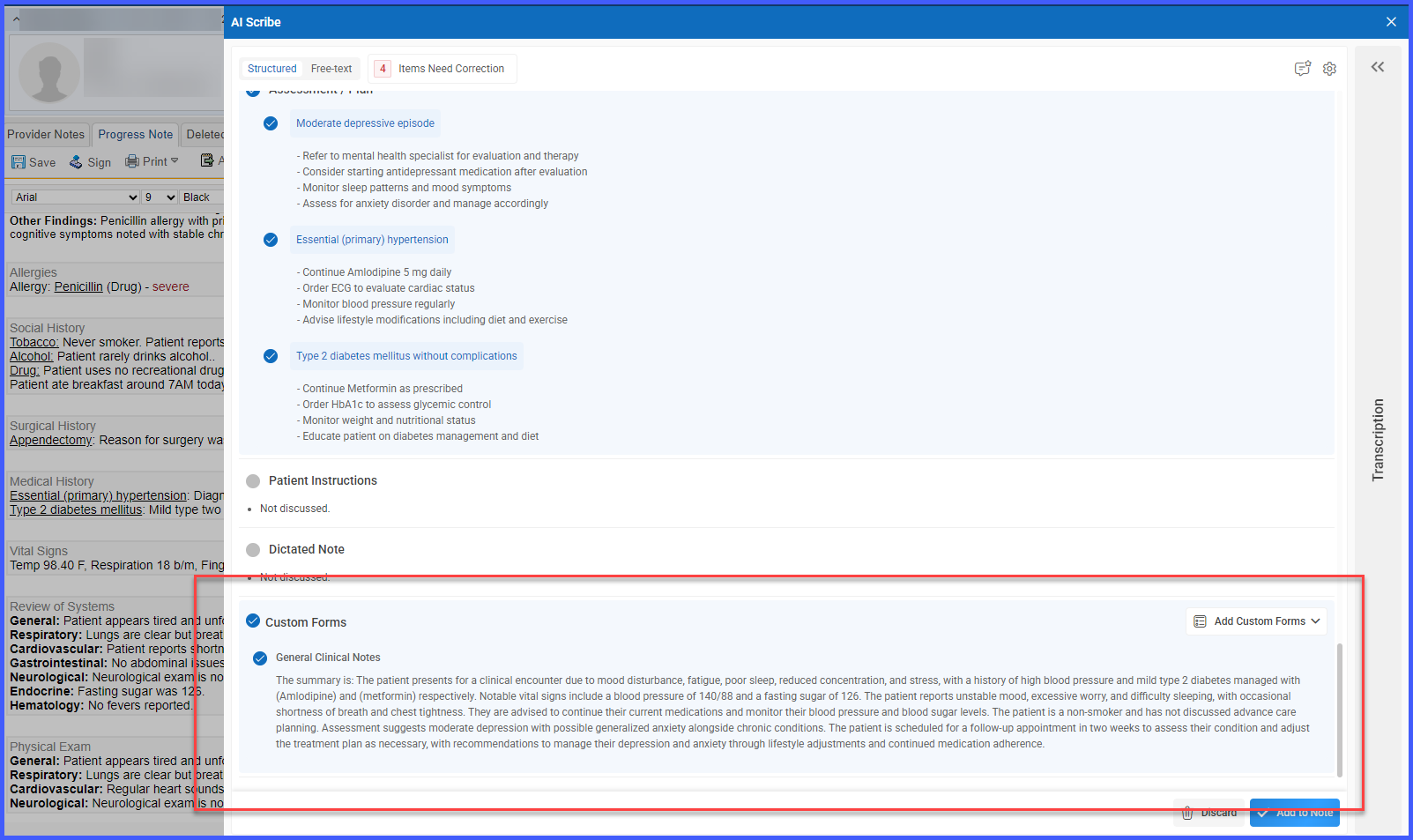
- Selected forms are filled and displayed in read-only format within the AI Scribe overlay’s Custom Forms
- Each form is preselected (highlighted in blue) but can be deselected individually or in bulk.
- If no forms were selected, a subtext displays: “No custom forms added yet. Click Add Custom Forms to get started.”
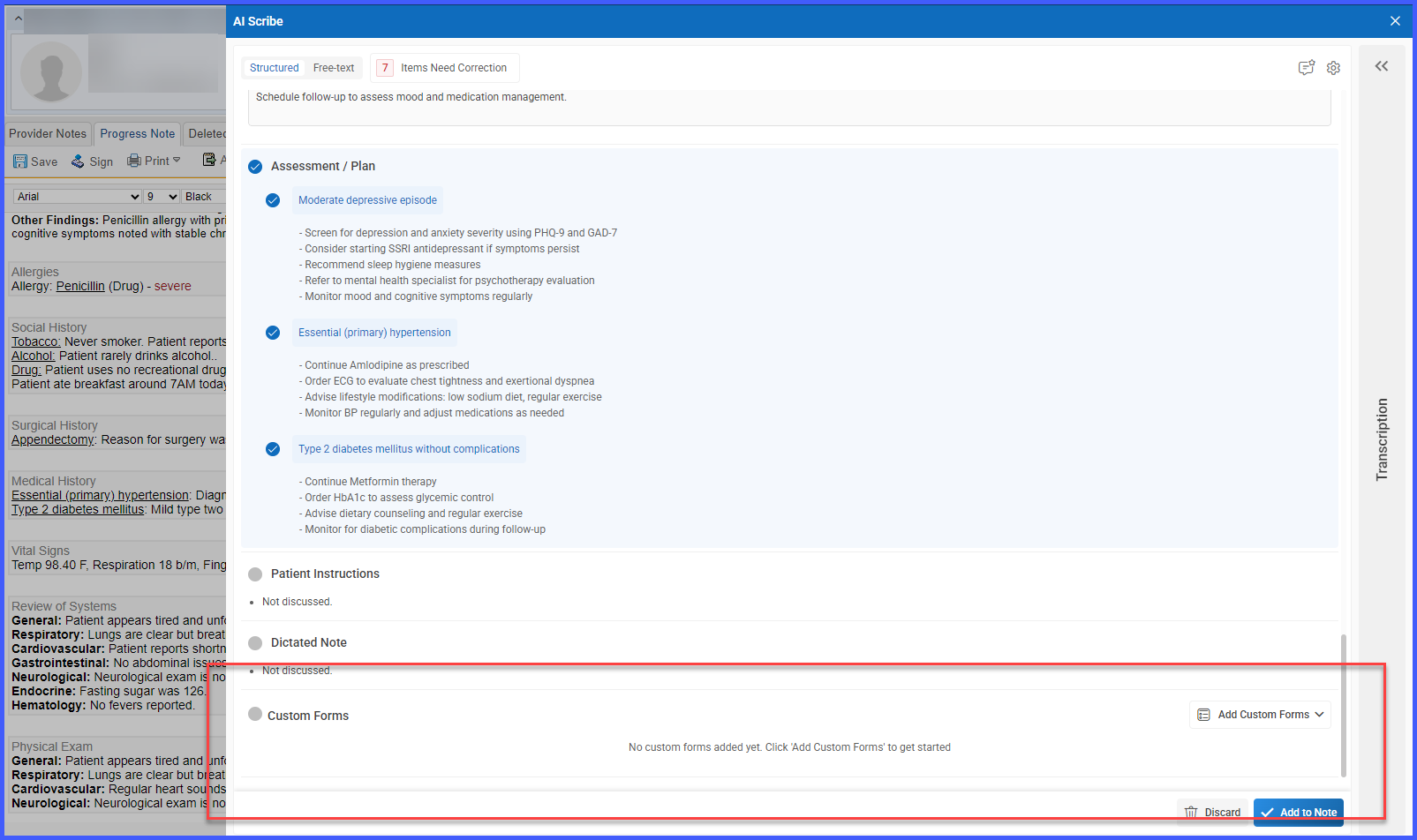
- Additional forms can be added via the Add Custom Forms dropdown in the overlay’s top right corner. Previously added forms appear disabled in the dropdown.
- The Add Selected Forms button remains disabled until a form is chosen, and selections update the count dynamically.
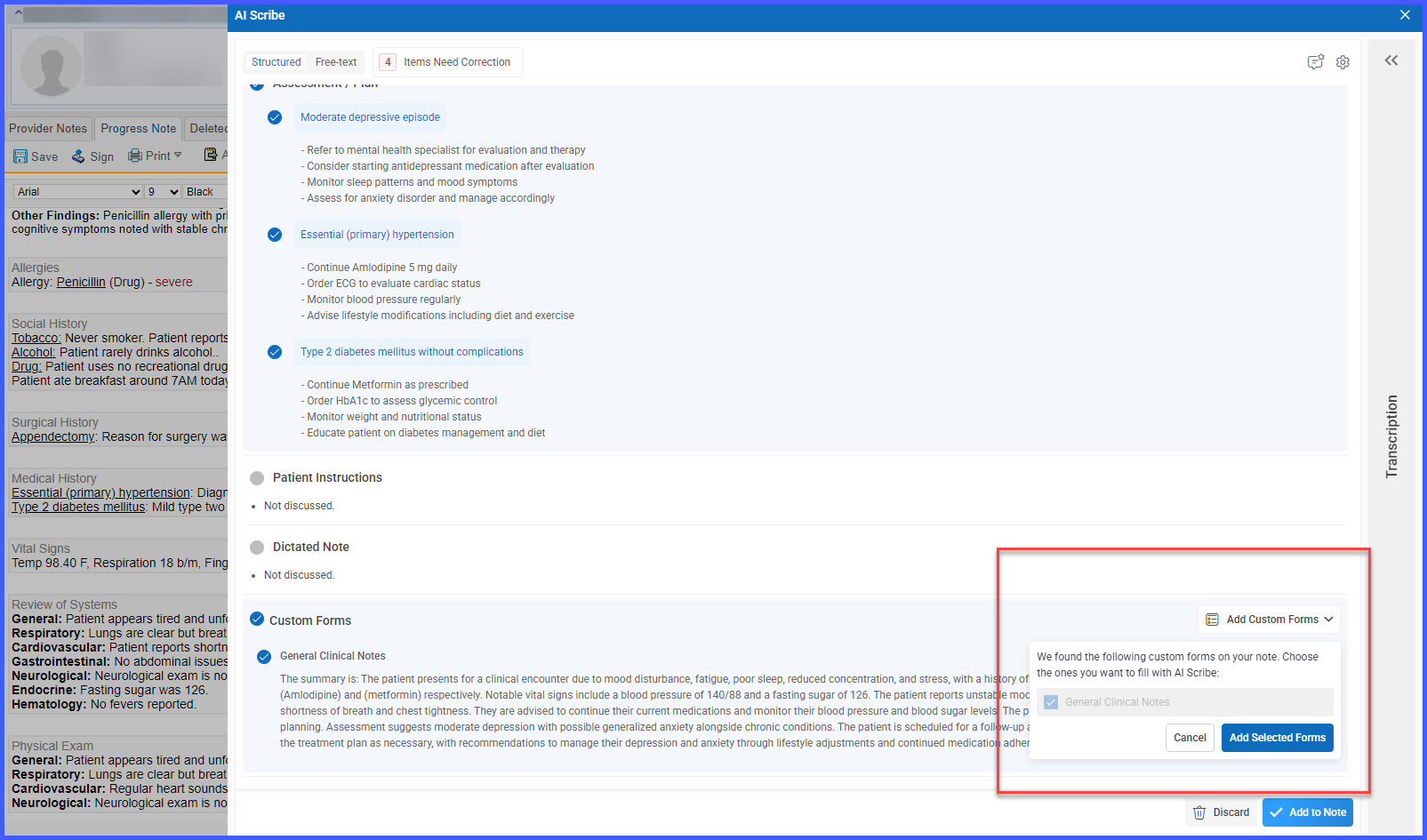
- Clicking Add to Note pushes the populated outputs into their respective flags in the provider note.
