Bulk Print eSuperbills by Signed Date
What’s New?
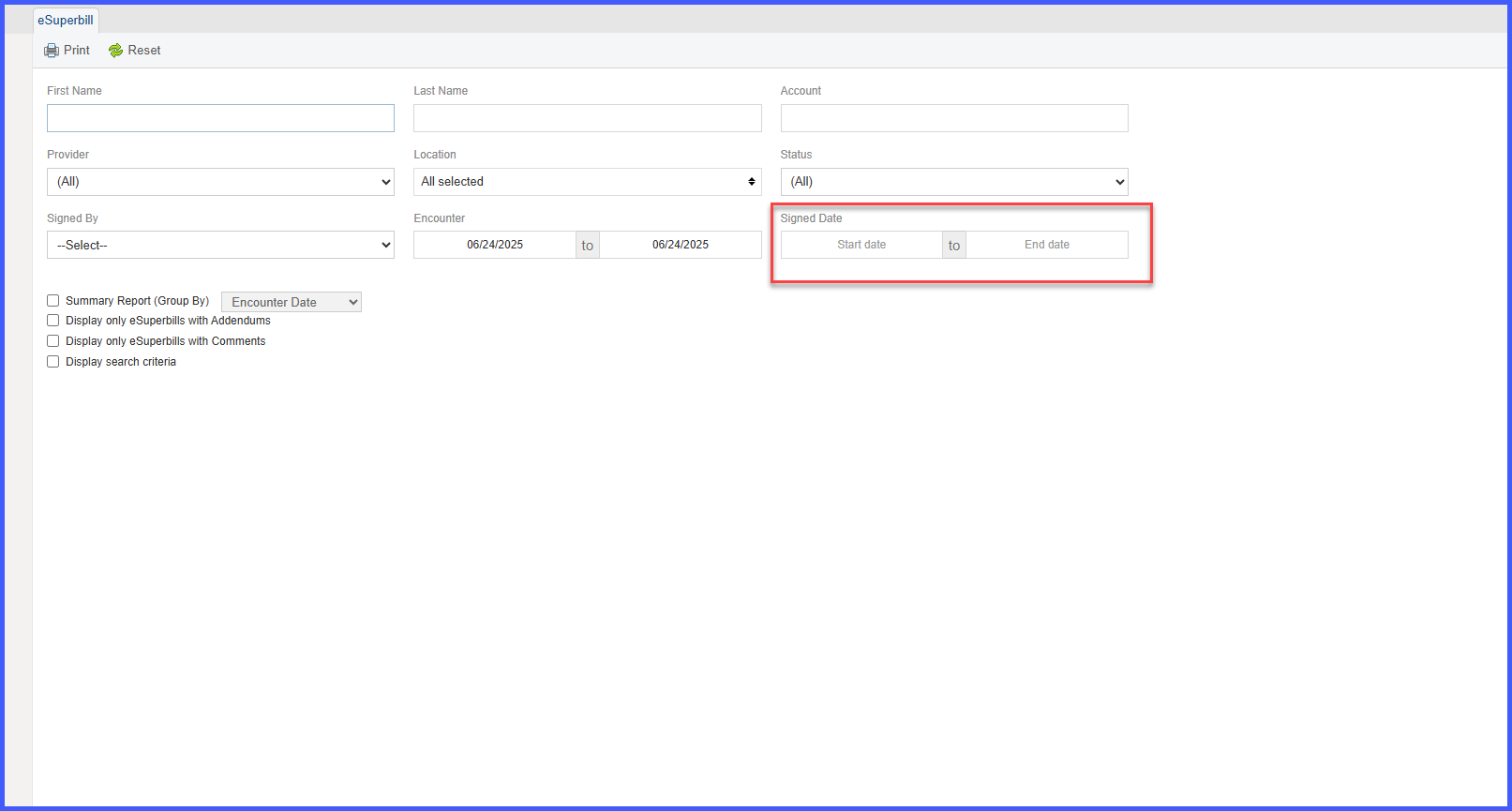
You can now filter and bulk print eSuperbills based on the Signed Date — making it faster and easier to find exactly what you need without the manual hassle.
Previously, bulk printing from this screen only worked with Encounter Date filtering. Practices relying on Signed Date had to manually select each superbill one by one — a time-consuming and frustrating process, especially for high-volume practices.
How This Benefits You
✅ Saves Time — Quickly pull and print all eSuperbills signed within your desired date range, no more clicking through one by one.
✅ Simplifies Workflow — Designed for practices where Signed Date is the key indicator for finalization and billing readiness.
✅ Reduces Errors — Focus only on what’s signed and ready, no risk of printing incomplete or unsaved data.
✅ Built for You — A direct response to clinical staff needs, helping you stay efficient without extra steps.
How It Works
- Go to Reports > Miscellaneous > eSuperbill.
- You’ll now see a new “Signed Date” filter.
- Enter a start and end date.
- The system will return all eSuperbills signed within that range.
- Use the bulk print option to download and print in one go.
This enhancement empowers clinical and billing teams to work smarter, so you spend less time filtering and more time focusing on what matters; your patients and your practice.