How to Add a Superbill?
Superbill is an itemized list of all services provided to a client. It contains additional information about the patient visit including practice information, CPT codes, ICD-10 codes and so on.
Follow the workflow above to land on the ‘Superbill’ screen.
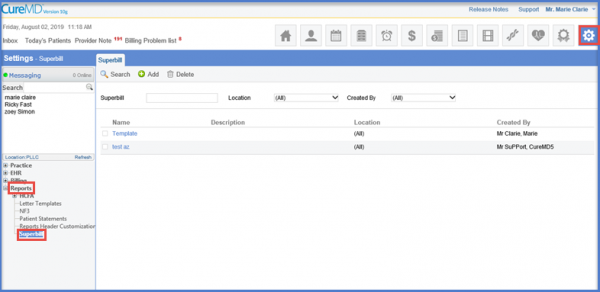
Click ‘+Add’ button to display the ‘Add Superbill’ screen.
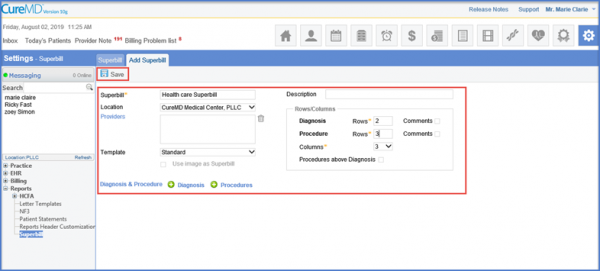
Insert the relevant details and click ‘Save’ when done.
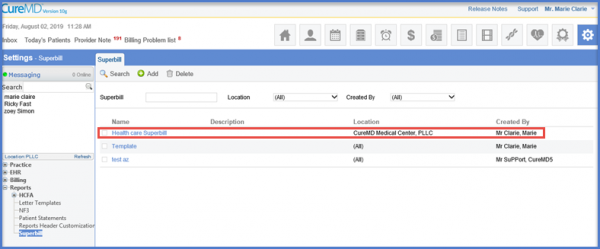
The ‘Superbill’ will be added and displayed in the ‘Superbill’ list.
Users have the option to add an NDC with a procedure code in the ‘Superbill Template’. 
This ensures that appropriate codes are used while billing for the rendered services.
Click ‘+ Procedures’. Add an NDC in the ‘NDC’ textbox and click ‘Save’.
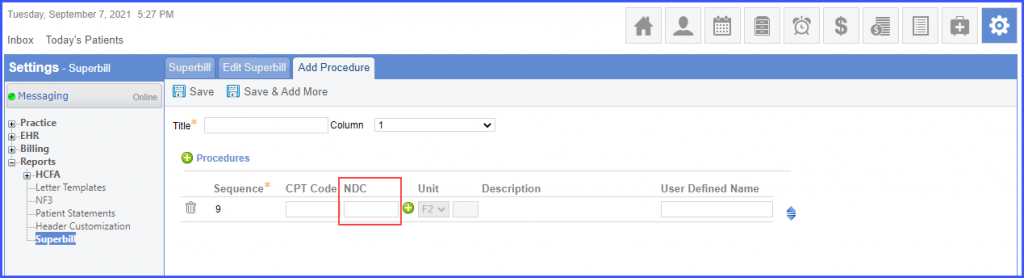
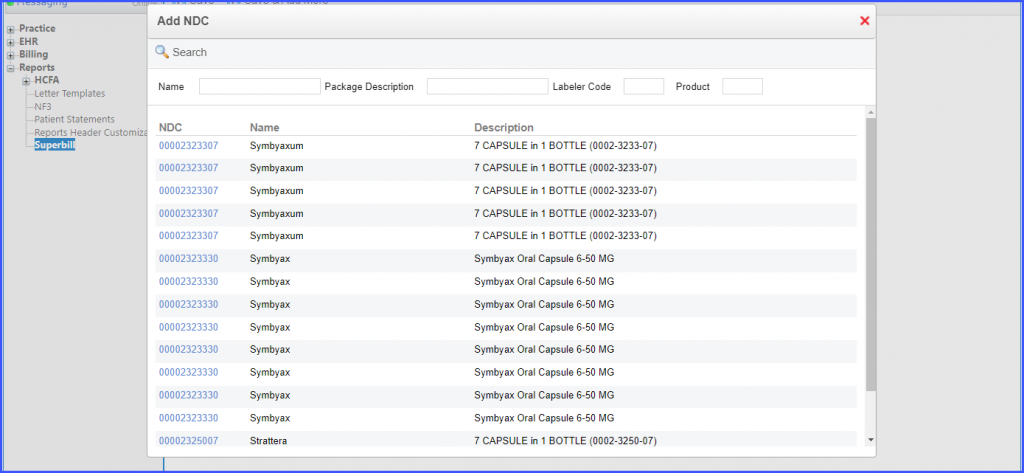
Alternatively, users can search for an NDC. Click the ‘+’ icon next to the NDC textbox.
In the ‘Add NDC’ pop-up, search for and select an NDC. The selected NDC is populated on the superbill template.
To see how to access this Superbill template on the ‘eSuperbill’ page, click here.
