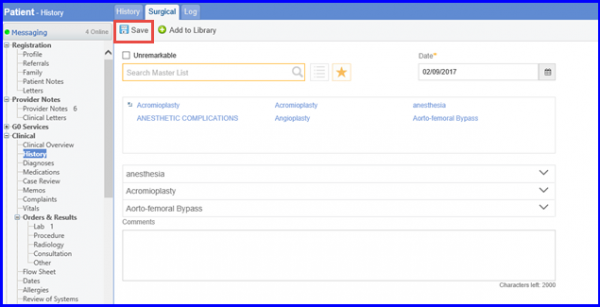
How to Record Surgical Procedures?
This section is used to record the surgical procedures performed on a patient.
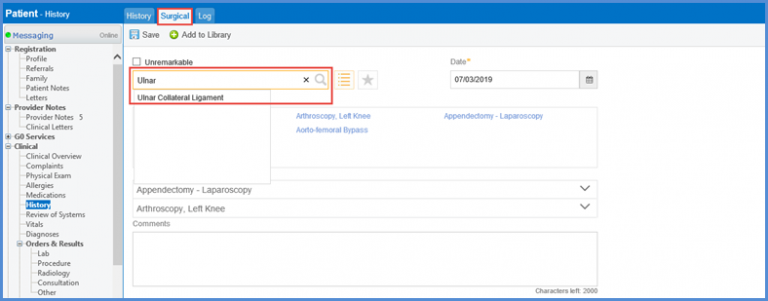
To add a surgical procedure, users can search a surgical procedure by typing in the search bar. Once a procedure is selected from the search, it is also populated in the most recent search list.
To add a procedure, click on the search result.
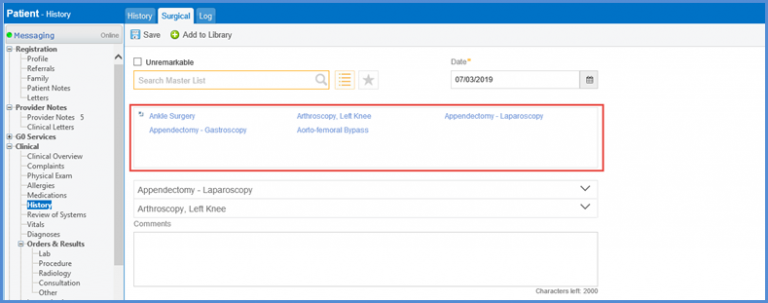
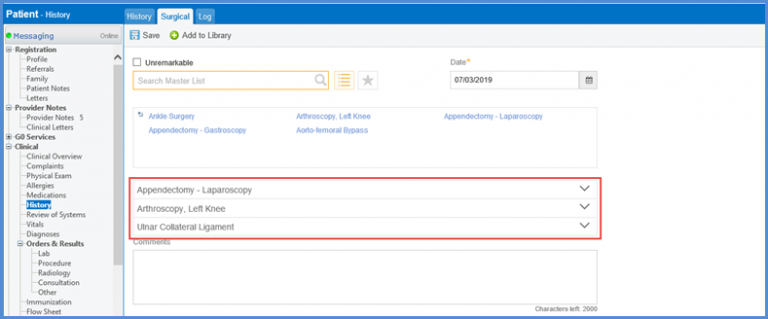
All the surgeries can be selected by clicking on ( ) icon in the top-left corner of the search hot list box.
Surgical history can be marked as inactive by check marking the ‘Unremarkable’ check box.
Click the arrow on the right of a search result to expand it.
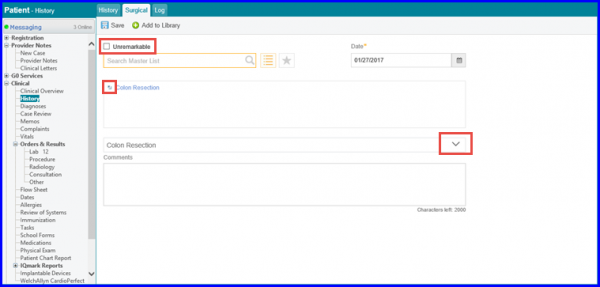
Here, user can add details of a surgery.
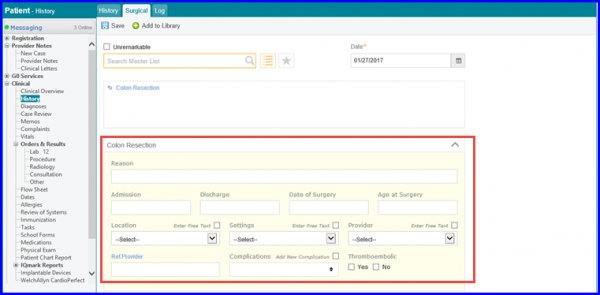
User can add the following details for a ‘Surgical History’:
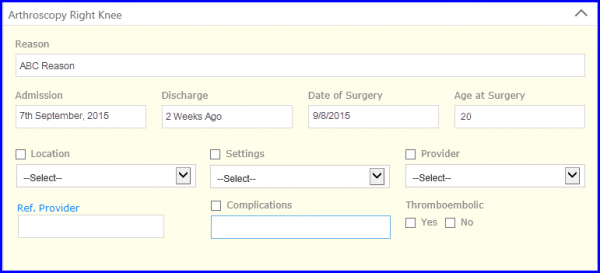
Moreover, anesthetic complications and associated reactions can be recorded from this section.
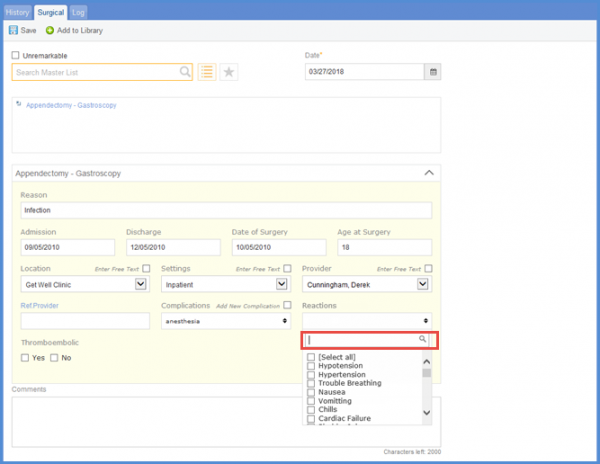
In the ‘Complications’ drop-down, ‘Anesthesia’ checkbox is added. This option is selected by default.
If the user selects ‘Anesthesia’ as a complication, a multi-select drop-down named ‘Reactions’ is displayed. Reactions from the Adverse Reactions page are shown here.
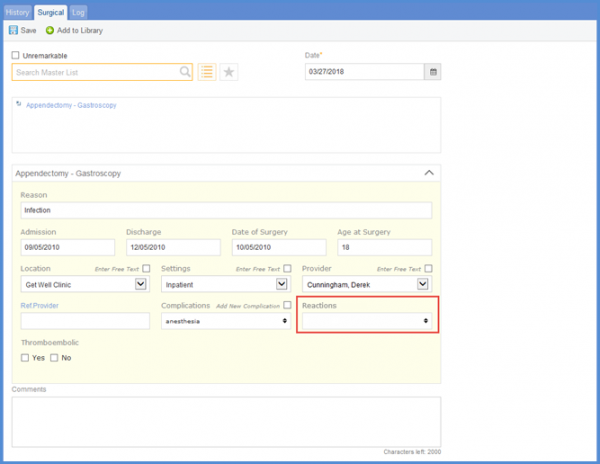
In addition, reactions can also be searched from the ‘Reactions’ drop-down.
The user can add reactions to a Provider Note. To see that, click here.
Moreover, the surgical complications and reactions also have an impact on the ACOG Report. To view that, please click here.
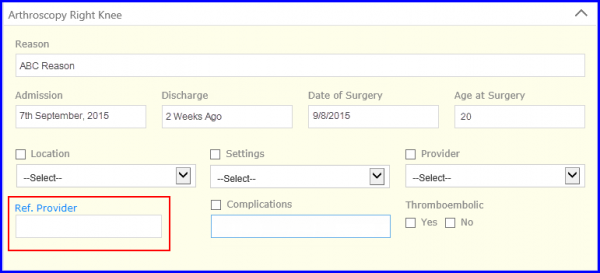
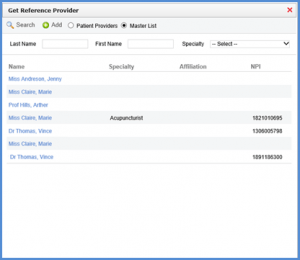
Similarly, for reference provider user can either enter the provider name manually by typing in the textbox, or they can select from the list by clicking on the “Ref. Provider” hyperlink.
A pop-up is displayed. From here a user can search for a reference provider.
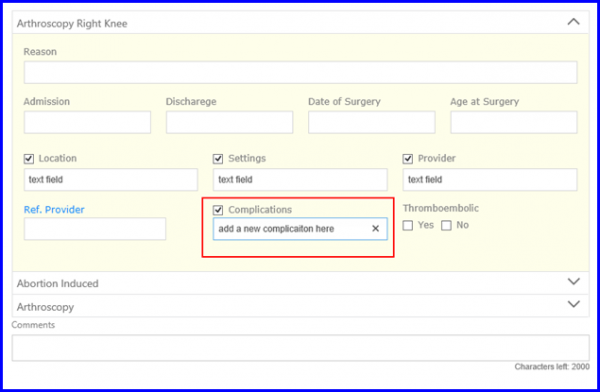
In order to add Complications, user can click on the text field which displays a multi-select drop-down.
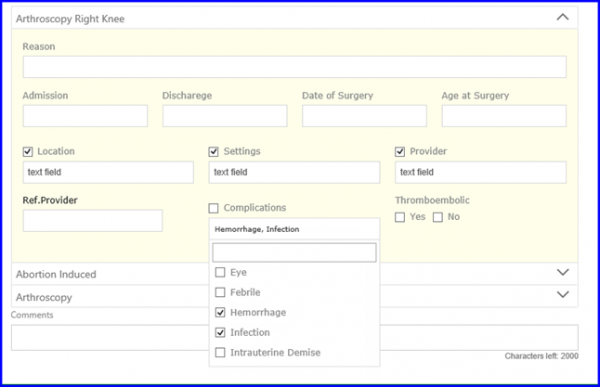
User can add a custom complication if it’s not present in the dropdown. For this, user can enable the checkbox and type in the text field. Hitting the ‘Enter’ key saves the changes.
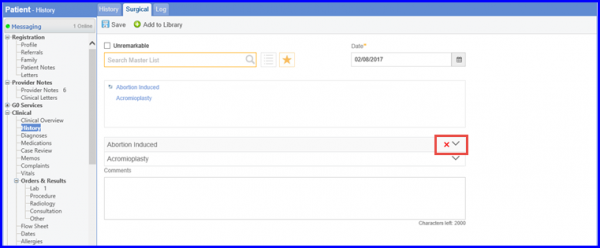
User can delete a surgery by clicking on the delete icon next to the expansion icon.
When done, click ‘Save’.