How to View Unsubmitted Files?
To send claims electronically, there are 3 basic steps:
- Generate Claim
- Update Claim Status
- Upload
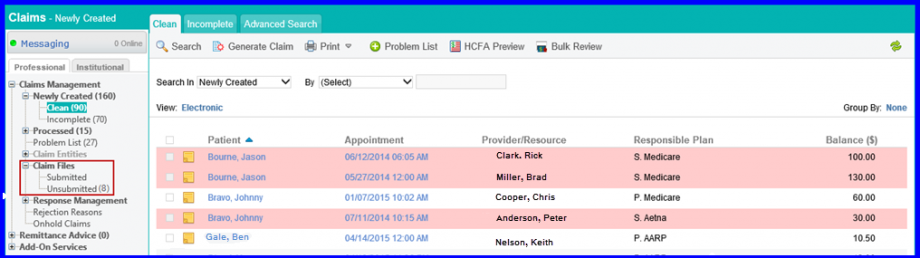
The application provides this folder as a warning that these claims were not uploaded (sent) to the clearinghouse. Until they are uploaded, they are not processed or paid. Next to Unsubmitted is a counter that shows the number of files yet to be submitted.
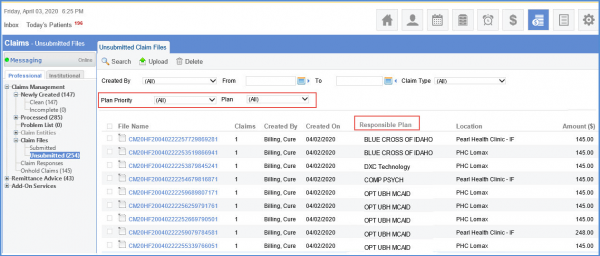
Users can filter claims in the un-submitted claims bucket on the basis of their plan and plan priority.
User selects a specific Plan and plan Priority from the drop downs and clicks search.
System displays the results according to the selected criteria in plan priority and plan filters.
A column ‘Responsible Plan’ is introduced in listing page. Users can view EDI files according to the responsible plan.
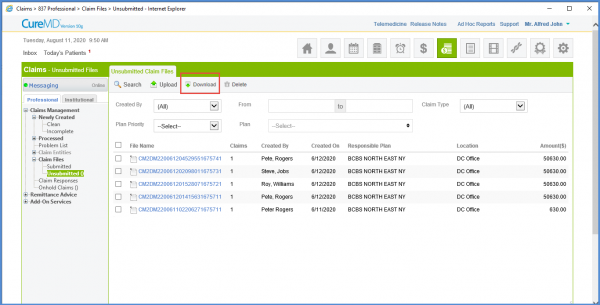
Users can disable the download button in the Unsubmitted Claims Tab. 
Once this option is disabled, the download button disappears from this screen.
To see how to disable this, click here.
