Calendar Block Activity Logs for Improved Scheduling Visibility
Access Calendar Block Logs
Locate a Specific Block
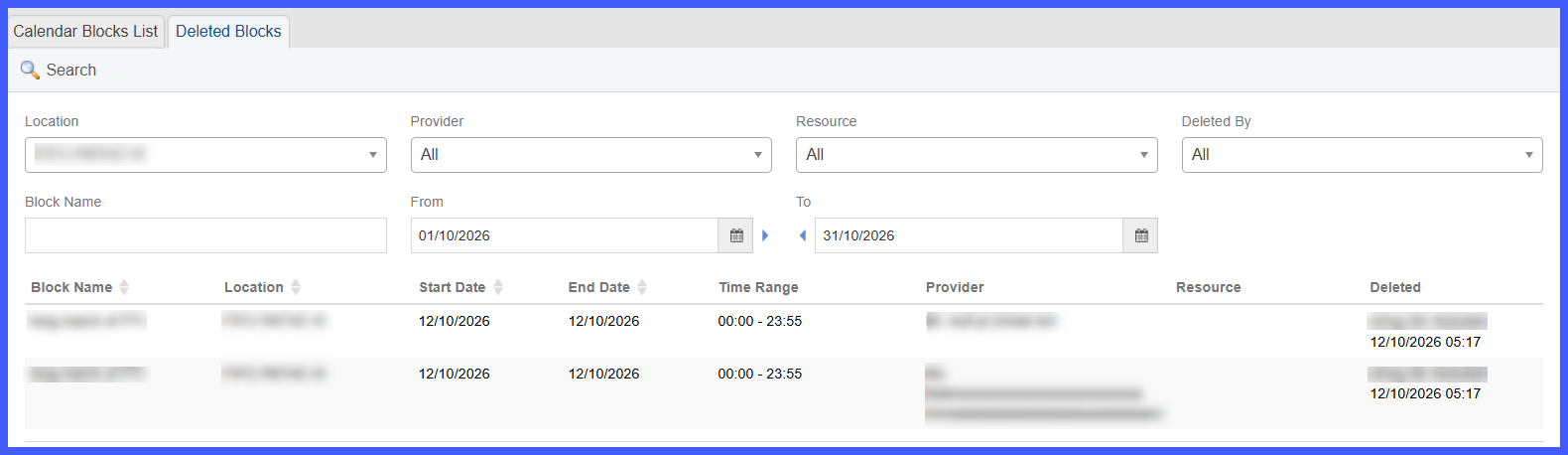
Review Deleted Blocks
What’s New
- Added a new Log column to the Calendar Blocks List within the Block Calendar window.
- Each calendar block now displays a log icon for accessing its activity history.
- Clicking the log icon expands an activity history directly beneath the selected block.
- The expanded history appears in a light-yellow highlighted row for easy identification.
- The log records the following actions:
-
Block Created
-
Block Modified
-
Block Deleted
-
-
- Block Unblocked
- Each recorded activity displays the user responsible and the date and time of the action.
- Additional details are displayed when available, including:
- Block Unblocked
-
-
Block Name
-
Block Type (Slot, Calendar, or Global)
-
Start Date and Time
-
End Date and Time
-
-
- Reason or Comment
- Clicking the log icon again collapses the activity history.
- Activity logs are loaded on demand and retained for quick access when reopened.
- Multiple block histories can be expanded independently.
- When no history is available, the system displays “No log entries found.”
- Reason or Comment
-
Calendar Block activity logs display actions recorded since the logging functionality was introduced. For blocks without recorded activity history, the system displays “No log entries found.”
How It Works
-
Open the Scheduler.
-
Navigate to the Block Calendar window.
- Select the Calendar Blocks List tab.
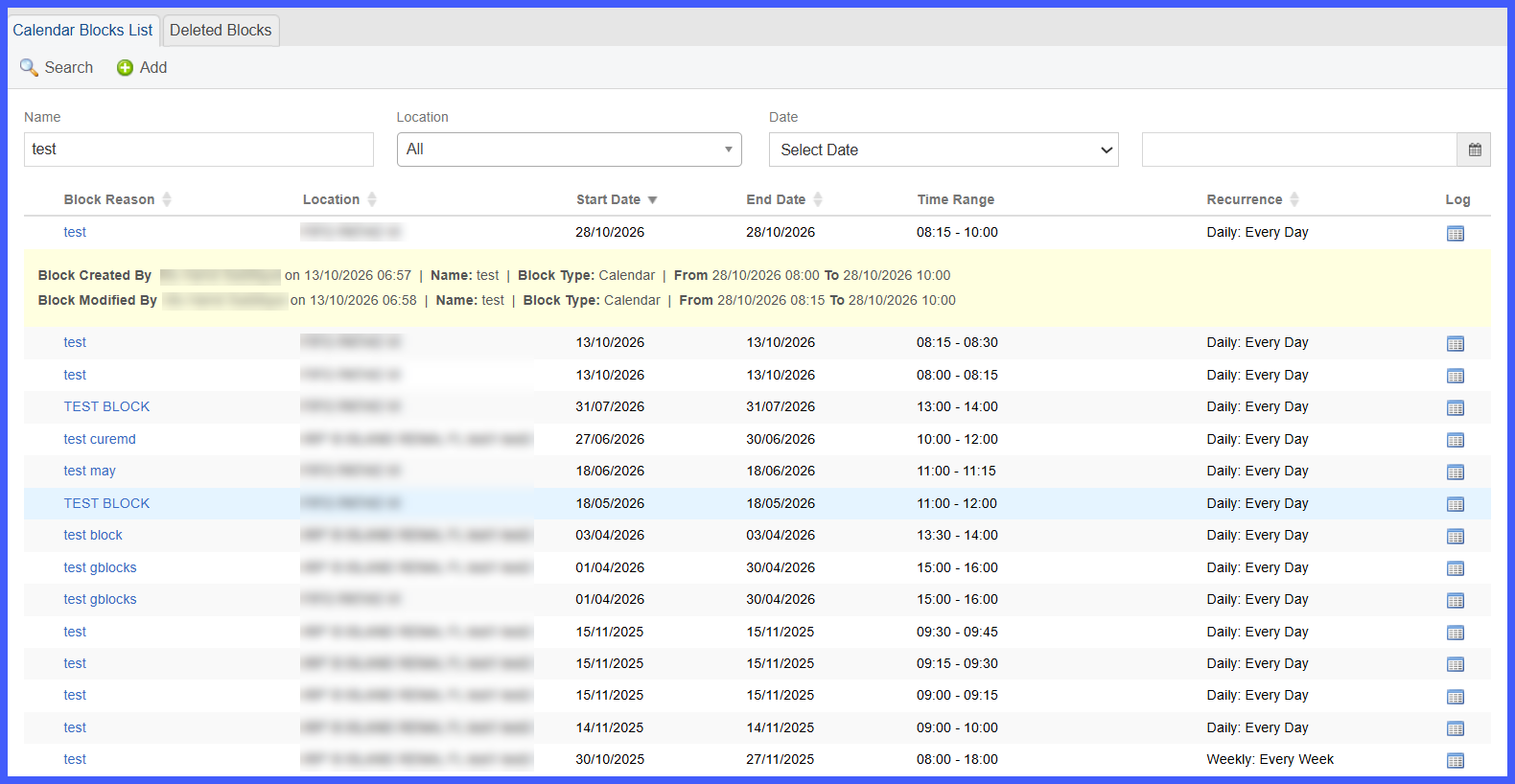
- Use the existing Name, Location, or Date filters to locate the applicable calendar block.
- Click the log icon in the Log column.
- Once a log is loaded, its entries are temporarily cached. Any subsequent changes made by other users will be reflected after the page is refreshed.
-
CureMD expands the selected block’s activity history directly beneath its row.
-
Review the recorded actions, including the responsible user, timestamp, block details, and any available reasons.
-
Click the same log icon again to collapse the history.
Benefits
-
Provides greater accountability by identifying users responsible for calendar block changes.
-
Allows scheduling staff to investigate changes to provider or location availability directly from the Scheduler.
-
Reduces the need to contact support or request database investigations to identify scheduling changes.
-
Helps explain why previously blocked appointment slots have become available or unavailable.
-
Preserves recorded reasons and comments associated with block modifications.
-
Improves transparency when reviewing changes to scheduling availability.
-
Provides a convenient activity history without disrupting existing calendar management workflows.
