Authorized User Controls for Billing Group Management
Configure Authorized Users
Create Billing Group
Edit Existing Billing Group
View Billing Group Without Editing Permission
What’s New
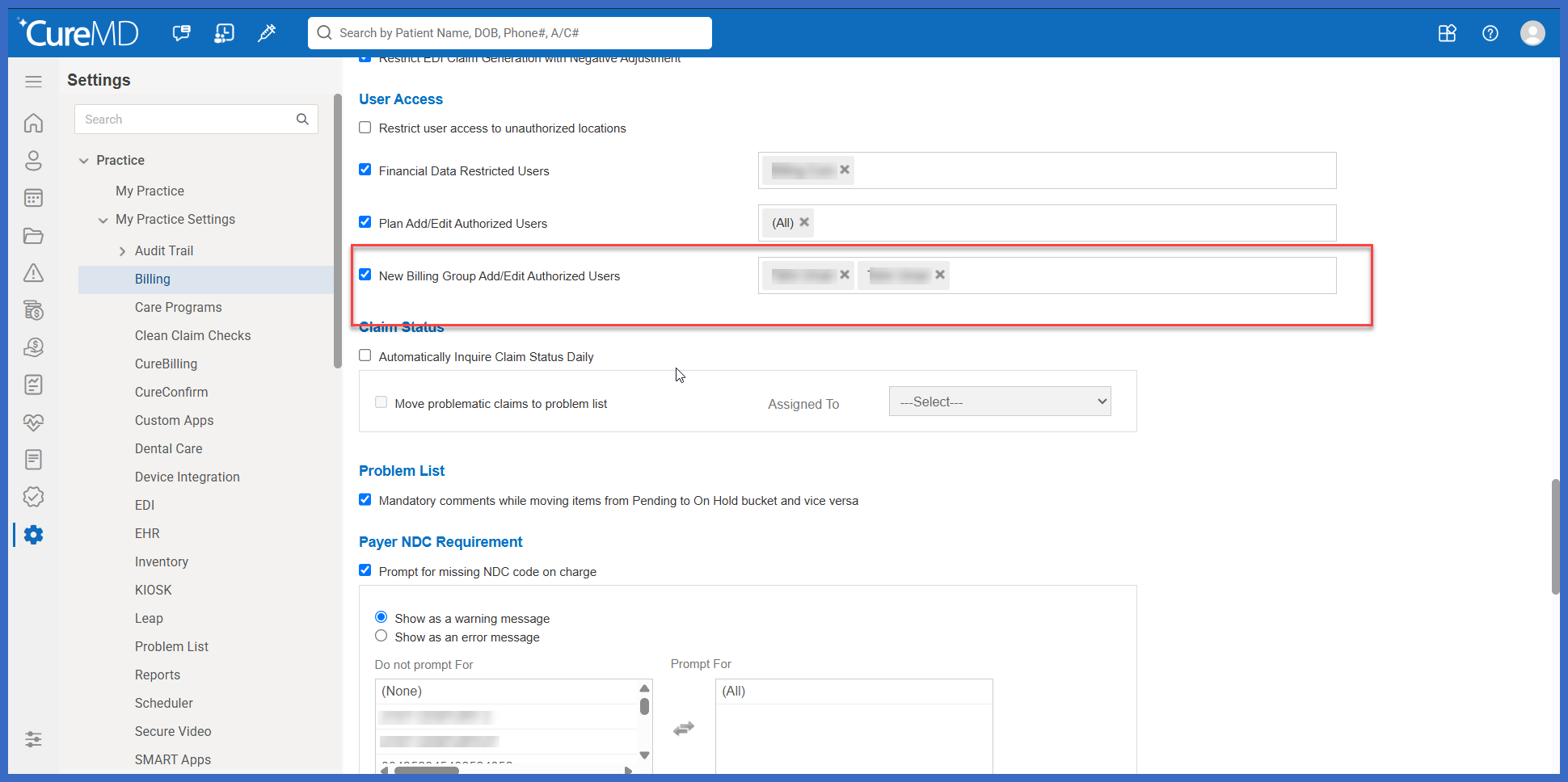
- Added a new Billing Group Add/Edit Authorized Users setting under Settings > Practice > My Practice Settings > Billing.
- Practice administrators can authorize:
- A single user
- Multiple users
- All users
- Authorized users can create, edit, save, and delete Billing Groups using existing functionality.
- Users not included in the authorized list retain Search and View access only.
- The Add/New Billing Group option is disabled for unauthorized users.
- Existing Billing Groups remain accessible in read-only mode for unauthorized users.
- Save, Delete, and editing controls are restricted for unauthorized users.
- Hovering over restricted controls displays the following message:
- You are not authorized to make any change on this page.
- Authorization changes take effect according to the application’s existing permission model. • Existing Billing Group records and search functionality remain unchanged.
How It Works
- Navigate to Settings > Practice > My Practice Settings > Billing.
- Locate the Billing Group Add/Edit Authorized Users setting.
- Select the individual users who should be authorized to manage Billing Groups, or select All users.
- Save the authorization configuration.
- Authorized users can access Billing Group management and create or modify existing Billing Groups.
- Unauthorized users can continue searching and viewing existing Billing Groups but cannot add, edit, save, or delete records.
- When unauthorized users hover over restricted controls, the system displays the authorization message.
 Benefits
- Gives practice administrators greater control over Billing Group configuration and maintenance.
- Prevents unauthorized users from creating or modifying Billing Groups.
- Preserves Search and View access for users who need to reference existing configurations.
- Reduces the risk of accidental or unauthorized billing setup changes.
- Supports more consistent management of Billing Group configurations.
- Provides clear feedback when users attempt restricted actions.
- Allows practices to assign management privileges to specific users without affecting existing Billing Group data.
