Enhanced Sound Notification Controls for High-Priority Patient Notes
Configure High-Priority Patient Note
Access Patient Notes from Scheduler
Access Patient Notes from Today’s Patients
Patient Banner Notifications
What’s New
- The Sound option is now available only for Patient Notes marked as High Priority. • Sound notification options are no longer displayed for:
-
Appointment Notes
-
-
- Follow-up Notes
- The Use default sound option is now unchecked by default for all notes, including previously created notes.
- The Attach sound file option has been removed from other note types.
- When multiple high-priority Patient Notes have sound notifications enabled, the notification sound plays only once per notification event.
- Sound notifications remain available for applicable high-priority Patient Notes accessed through the Patient Banner.
- Follow-up Notes
How It Works
-
Open the applicable patient’s chart or access Patient Notes through Scheduler or Today’s Patients.
-
Create or open a Patient Note.
-
Mark the Patient Note as High Priority.
-
The Sound option becomes available for the high-priority Patient Note.
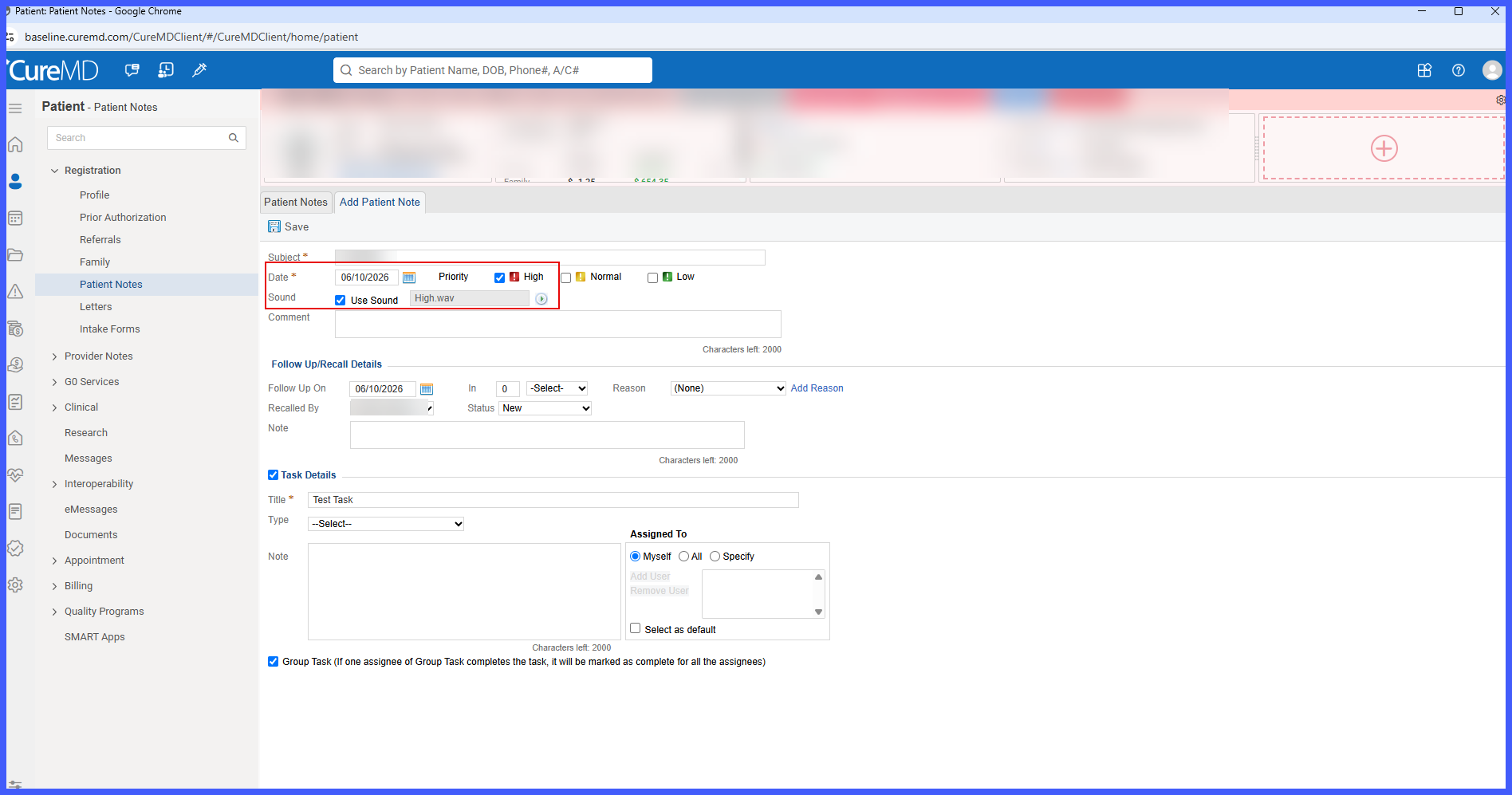
- Enable Use default sound if an audible notification is required.
-
When the applicable notification event occurs, the system plays the sound for the enabled high-priority Patient Note.
-
If multiple applicable Patient Notes have sound notifications enabled, the sound plays only once for that notification event.
Benefits
-
Ensures sound notifications are reserved for high-priority Patient Notes.
-
Reduces unnecessary audible alerts from Appointment Notes and Follow-up Notes.
-
Prevents repetitive sounds when multiple high-priority notes are present.
-
Gives users greater control over whether sound notifications are enabled.
-
Improves the consistency of sound notification behavior across applicable Patient Note workflows.
-
Helps staff remain aware of important patient information without excessive notification sounds.
