Academic Credentials for Practice Provider Profiles
Configure Provider Academic Credentials
Use Academic Credentials in Documentation
What’s New
- Added a new Academic Credentials field to the Practice Provider Profile.
- The field is available under:
- Settings > Practice > Provider > Practice Provider > Profile
- Academic Credentials appears directly below the HIS ID field.
- The field is optional and does not prevent the provider profile from being saved when left blank.
- Supports multi-select, allowing multiple academic credentials to be associated with a provider.
- Saved academic credentials are available for inclusion in Provider Notes where applicable.
How It Works
- Navigate to Settings > Practice > Provider > Practice Provider.
- Open the applicable provider’s Profile tab.
- Locate the Academic Credentials field below HIS ID.
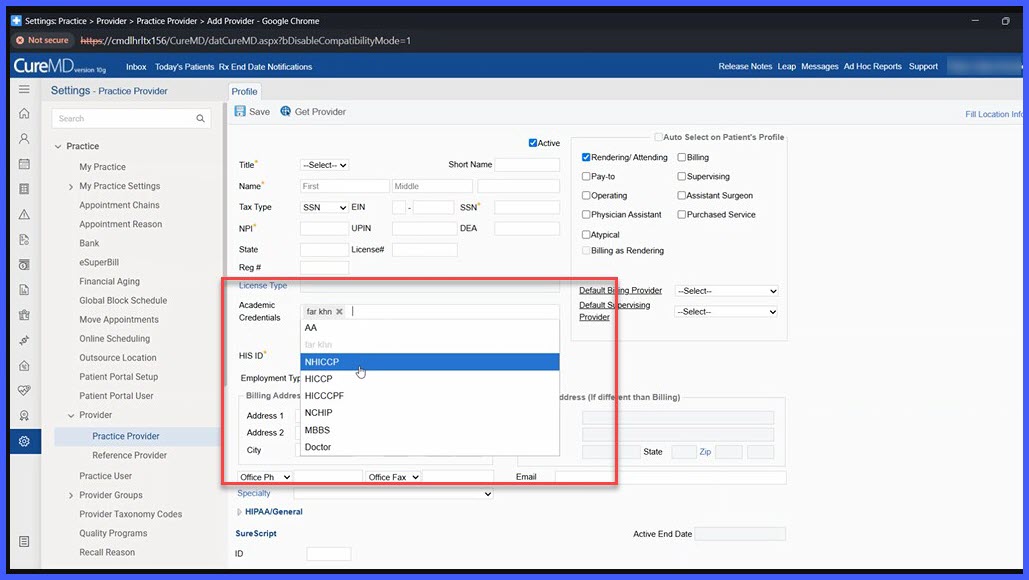
- Select one or more applicable academic credentials.
- Save the provider profile.
- The saved credentials become available for inclusion in applicable Provider Notes.
Benefits
- Provides a centralized location for maintaining provider-specific academic credentials.
- Supports multiple credentials for providers who require more than one academic designation.
- Improves consistency of provider credential information across applicable Provider Notes.
- Reduces repetitive manual credential entry during clinical documentation.
- Supports practice-specific provider credentialing and documentation requirements.
