Configurable Appointment Status Colors on the Scheduler Day Summary
What’s New
-
What’s New
• The Day Summary is available within the application across:
– Daily View
– Weekly View
– Multiple View
– Chain View
• A color picker is available for each appointment status when Status Color on Appointments is enabled.
• Users can assign a custom color to individual appointment statuses.
• The Save option allows users to retain their selected color configuration.
• Saved colors are retained at the user and practice level.
• Previously configured colors automatically reload when the Day Summary is reopened.
• After changes are saved, the applicable Scheduler view automatically refreshes.
• Saved status colors are reflected on the corresponding appointment tiles.
• Existing hardcoded status colors continue to serve as fallback colors when a custom color has not been configured.
How It Works
- Ensure the Status Color on Appointments preference is enabled.
- Open the Day Summary from the Daily, Weekly, Multiple, or Chain Scheduler view.
- Locate the appointment status you would like to customize.
- Use the corresponding color picker to select the desired status color.
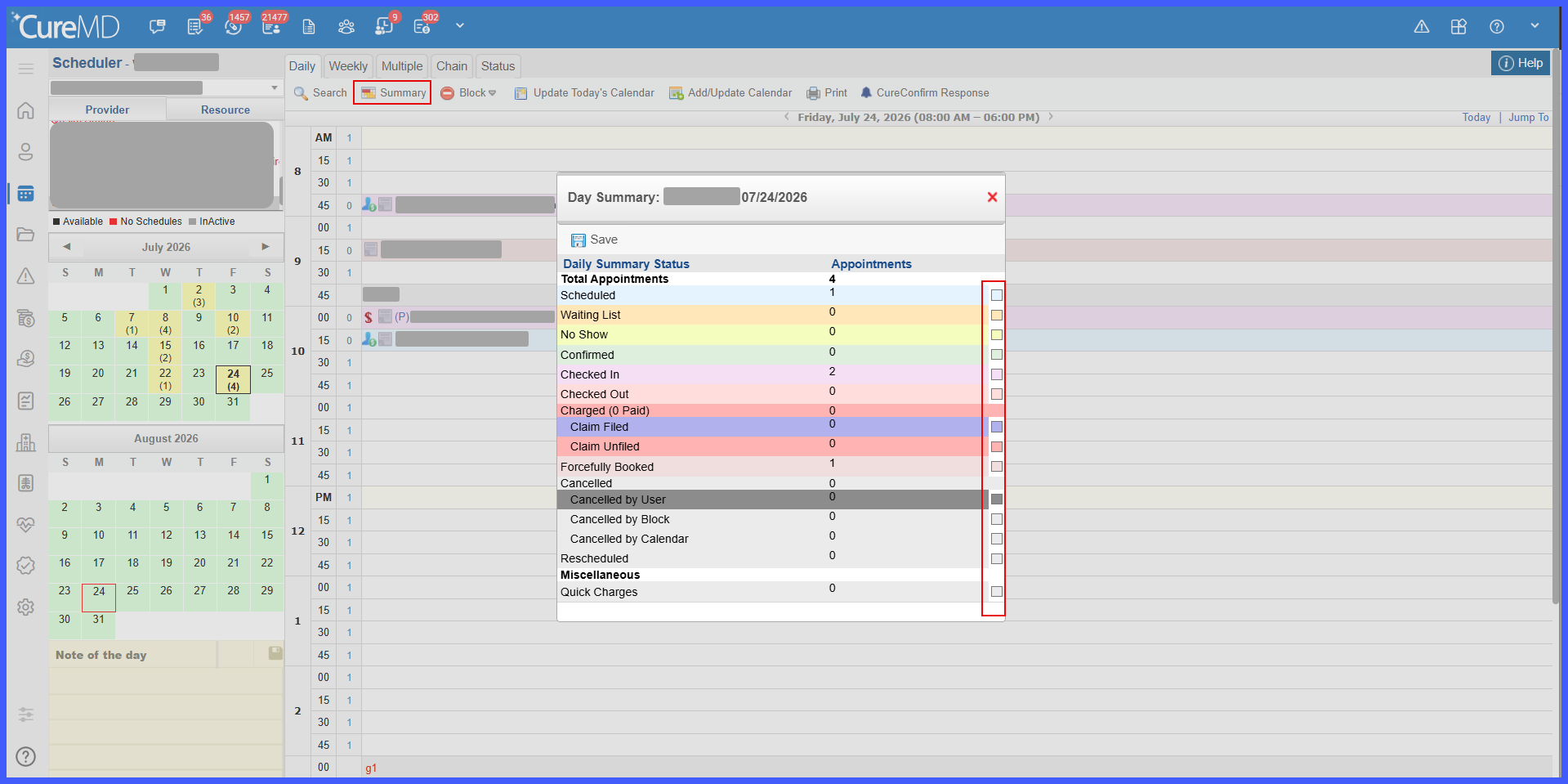
- Repeat the process for any additional appointment statuses you would like to customize.
- Select Save to retain the configured colors.
- The applicable Scheduler view automatically refreshes.
- Appointment tiles display the newly configured colors based on their corresponding statuses.
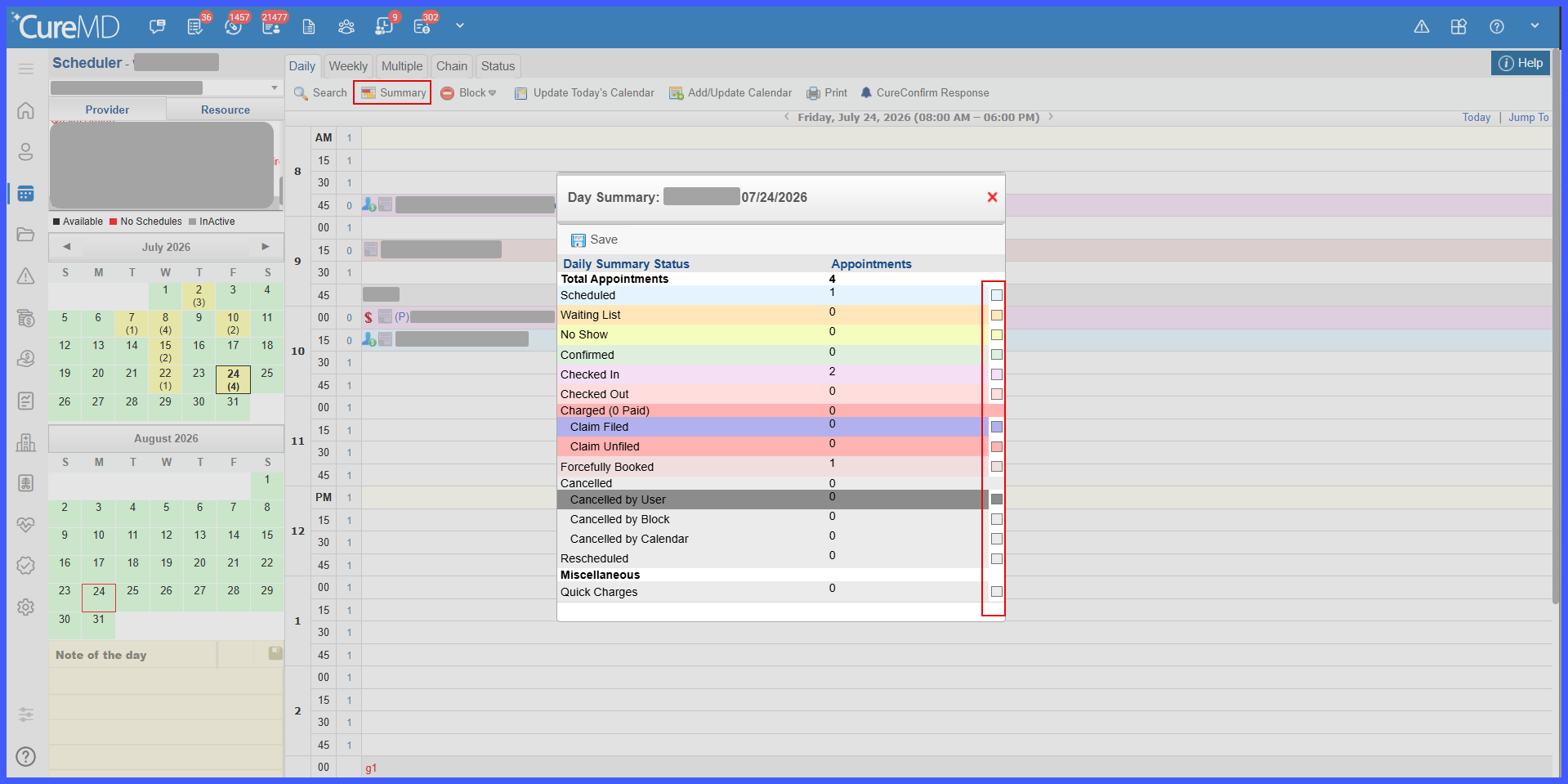
- When the Day Summary is reopened, the user’s previously saved color selections are retained.
Benefits
• Allows users to customize Scheduler colors according to their preferred workflow.
• Makes different appointment statuses easier to visually identify.
• Reduces the need to repeatedly configure status colors by retaining user preferences.
• Automatically reflects saved changes across supported Scheduler views.
• Maintains existing default colors when users have not configured custom values.
