View and Edit Patient Documents from Provider Notes
View Patient Documents from Provider Notes
Open and Edit a Patient Document
What’s New
- A new Documents tab is available in the right-side panel of Provider Notes, positioned after the Smart Phrases tab.
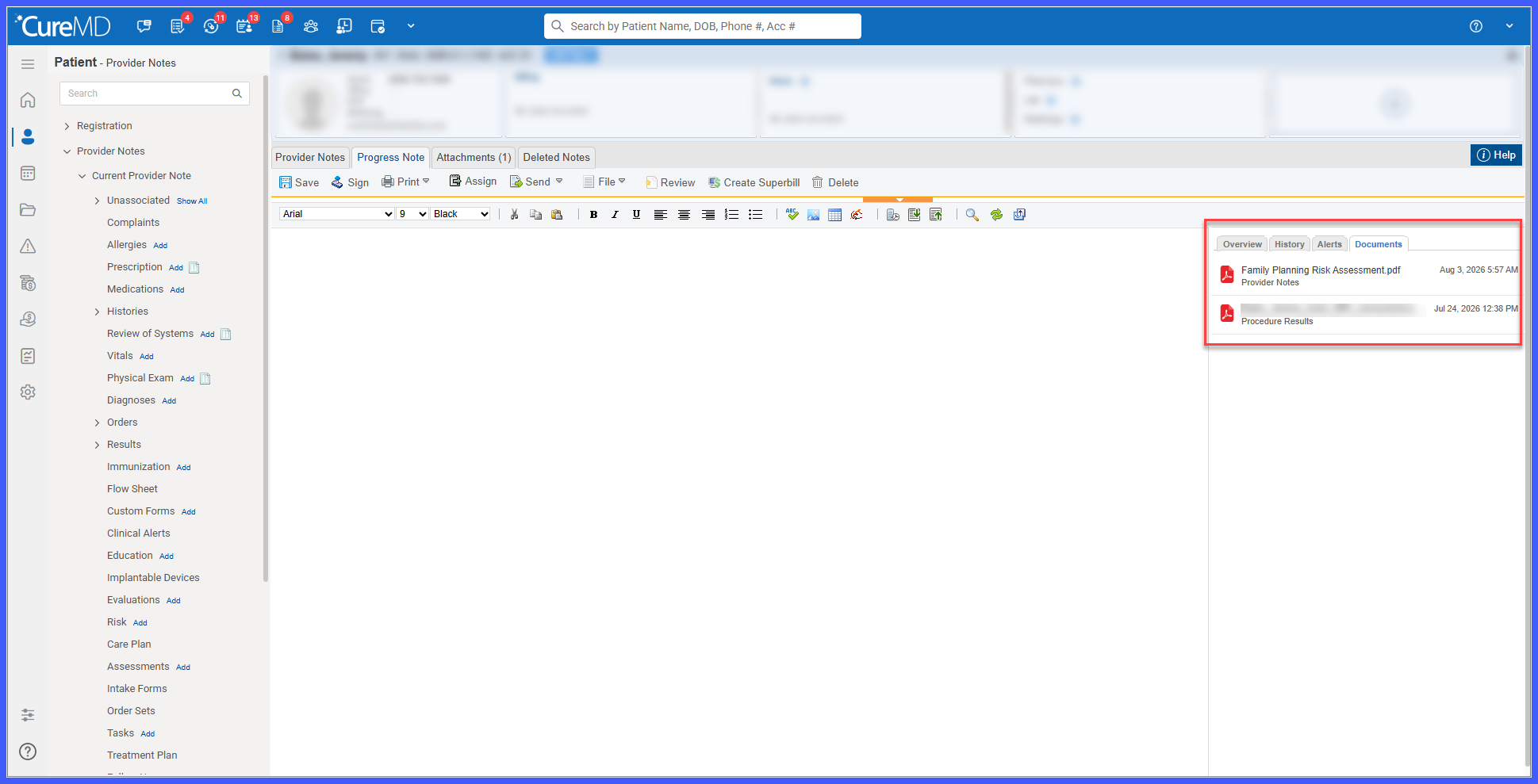
- The Documents tab displays documents associated with the selected patient.
- Documents are sorted by creation date, with the most recent document displayed first.
- Selecting a document opens it in an overlay while keeping the Provider Notes screen open in the background.
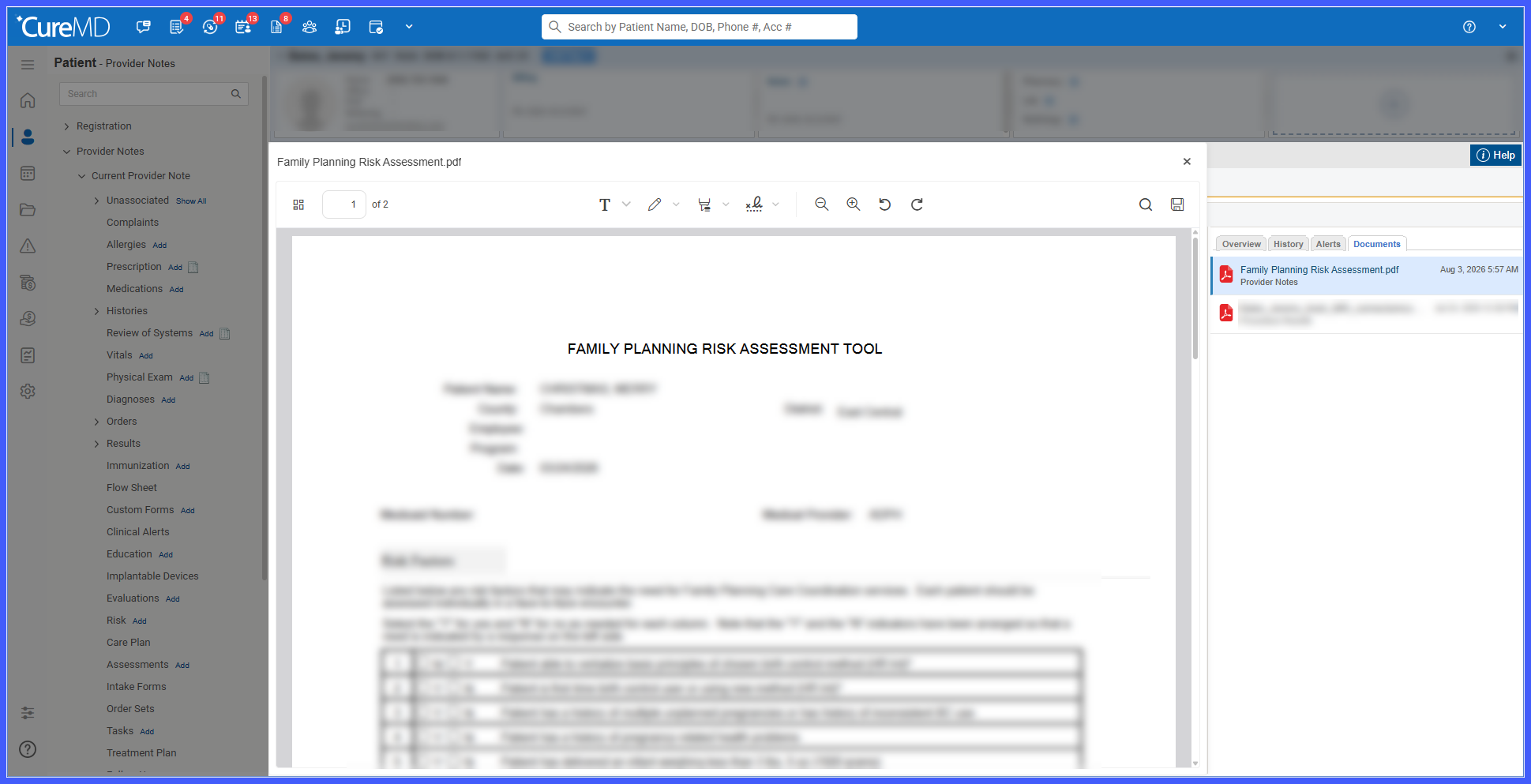
- Editable documents can be modified directly from the document overlay.
- The Documents tab remains open after the document overlay is closed.
- The Documents tab is available only to users with the required 11x Document Manager permission.
How It Works
- Open Provider Notes for a patient who has available documents.
- Select the Documents tab from the right-side panel.
- Review the patient’s documents, which are displayed with the most recently created document first.
- Select a document to open it in an overlay without leaving the Provider Notes screen.
- If the selected document supports editing, use the available editing tools to make changes.
- Close the document overlay to return to Provider Notes; the Documents tab remains open.
Benefits
- Provides quick access to patient documents within the Provider Notes workflow.
- Reduces navigation between Provider Notes and the document management area.
- Allows supported documents to be reviewed and edited without leaving the current Provider Notes session.
- Maintains the Provider Notes context while documents are being accessed.
