Auto-Accept Patient Portal Requests for Registration, Appointments, and Demographic Updates
What’s New
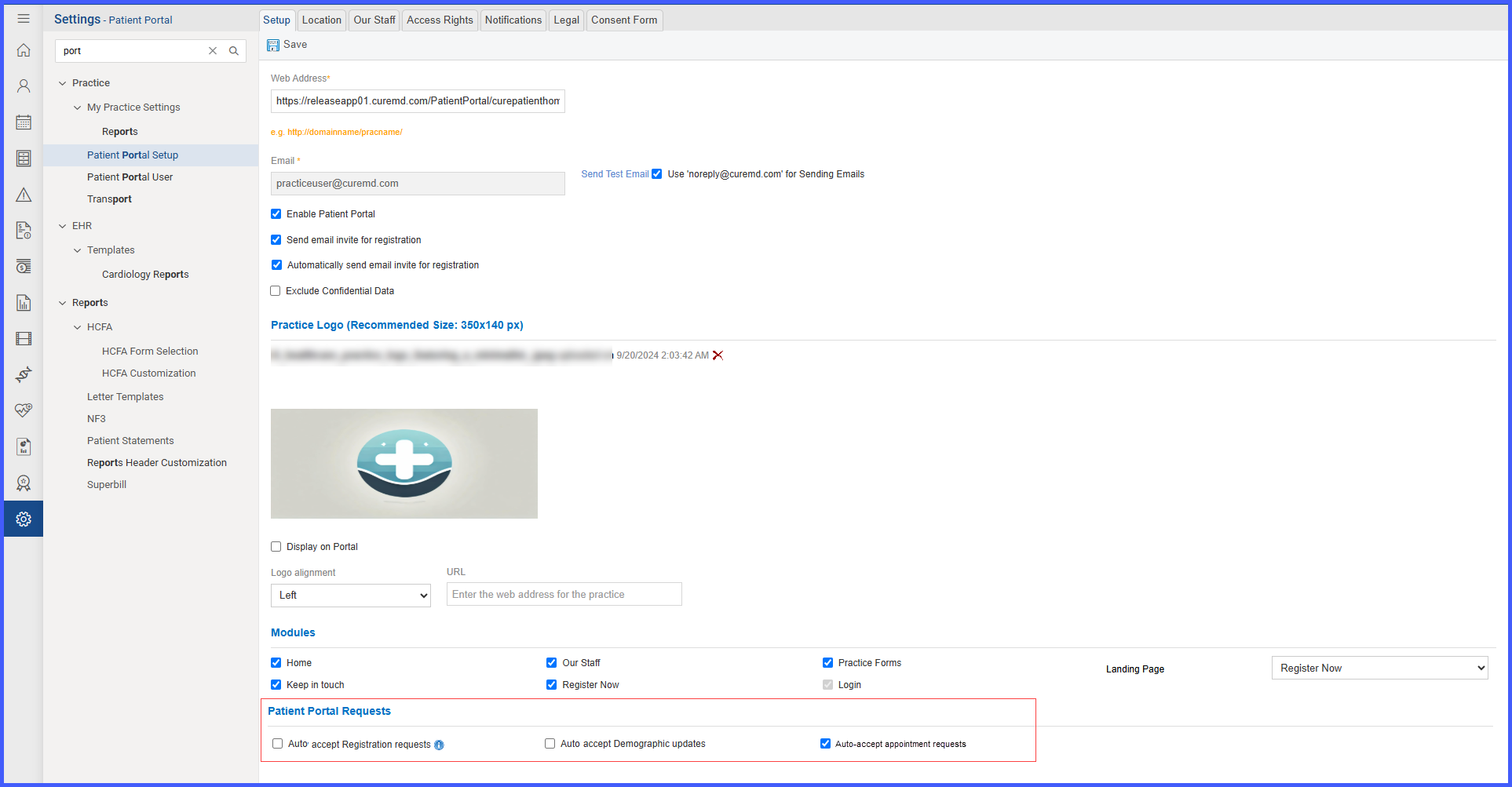
When the user navigates to the Patient Portal Setup page in the Settings module, a new section labeled Patient Portal Requests is available.
Within this section, three options are provided to enable or disable auto-accept for Registration Requests, Demographic Updates, and Appointment Requests. Once saved, these preferences apply practice-wide and will govern how future requests are handled.
A tooltip for registration is available, stating: “If enabled, registration requests will be auto-accepted unless a duplicate is detected.”
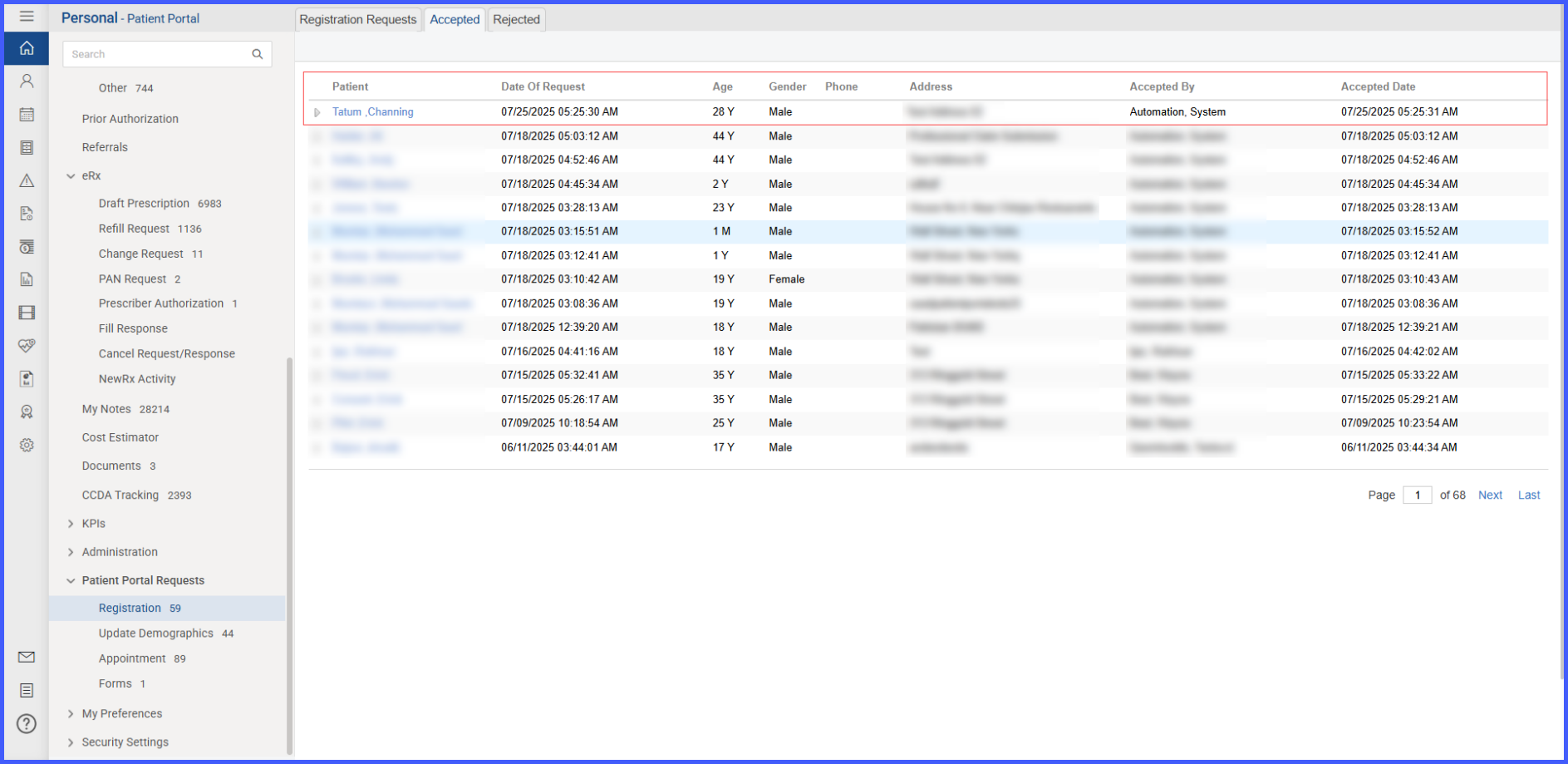
For registration requests, once the auto-accept setting is enabled, any new request submitted from the portal without a duplicate match is automatically accepted and a new patient chart is created. These requests appear under the Accepted tab with details including Accepted by ‘System Automation’
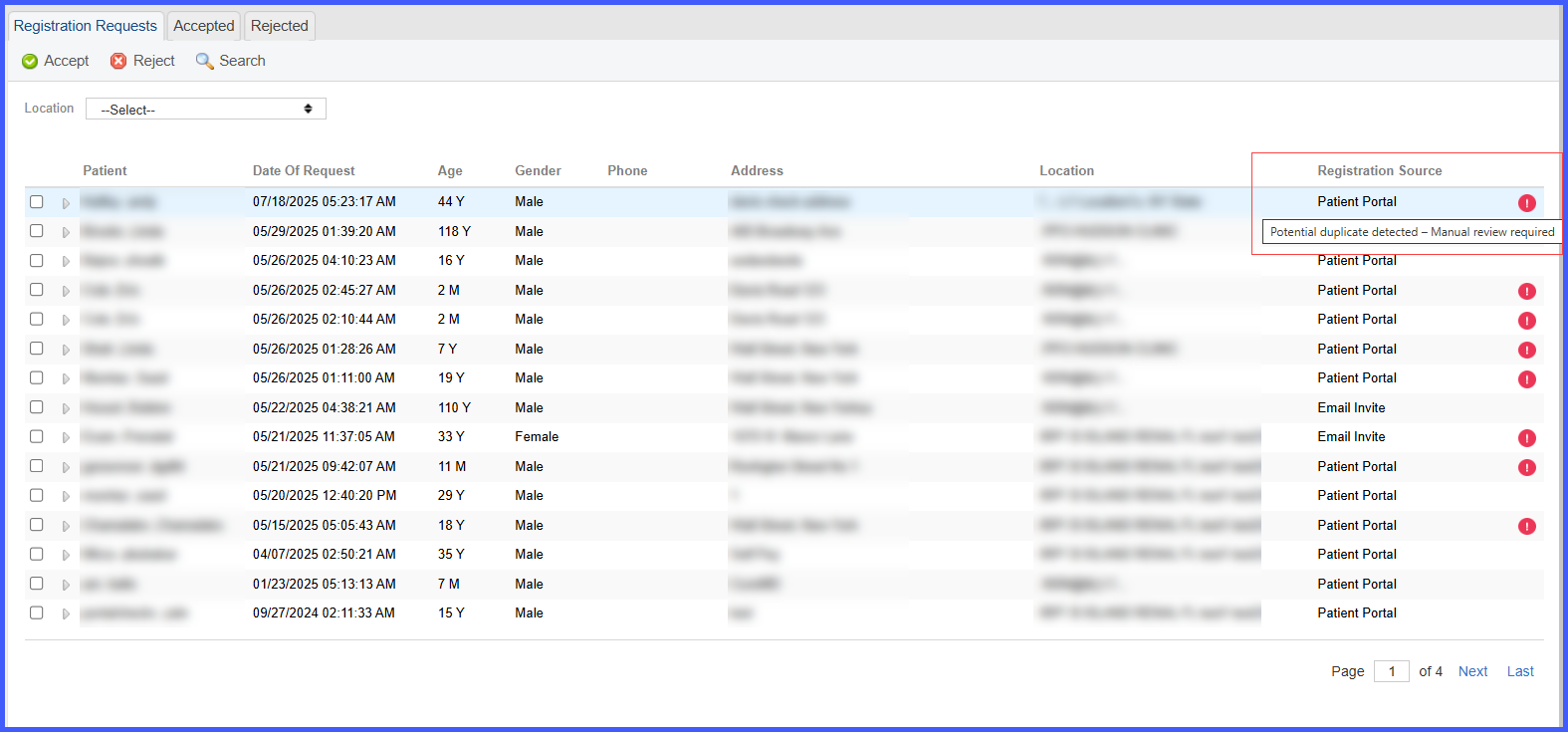
If a potential duplicate is detected, the request remains in the Pending tab with a warning icon (“Potential duplicate detected – manual review required”) and must be processed manually.
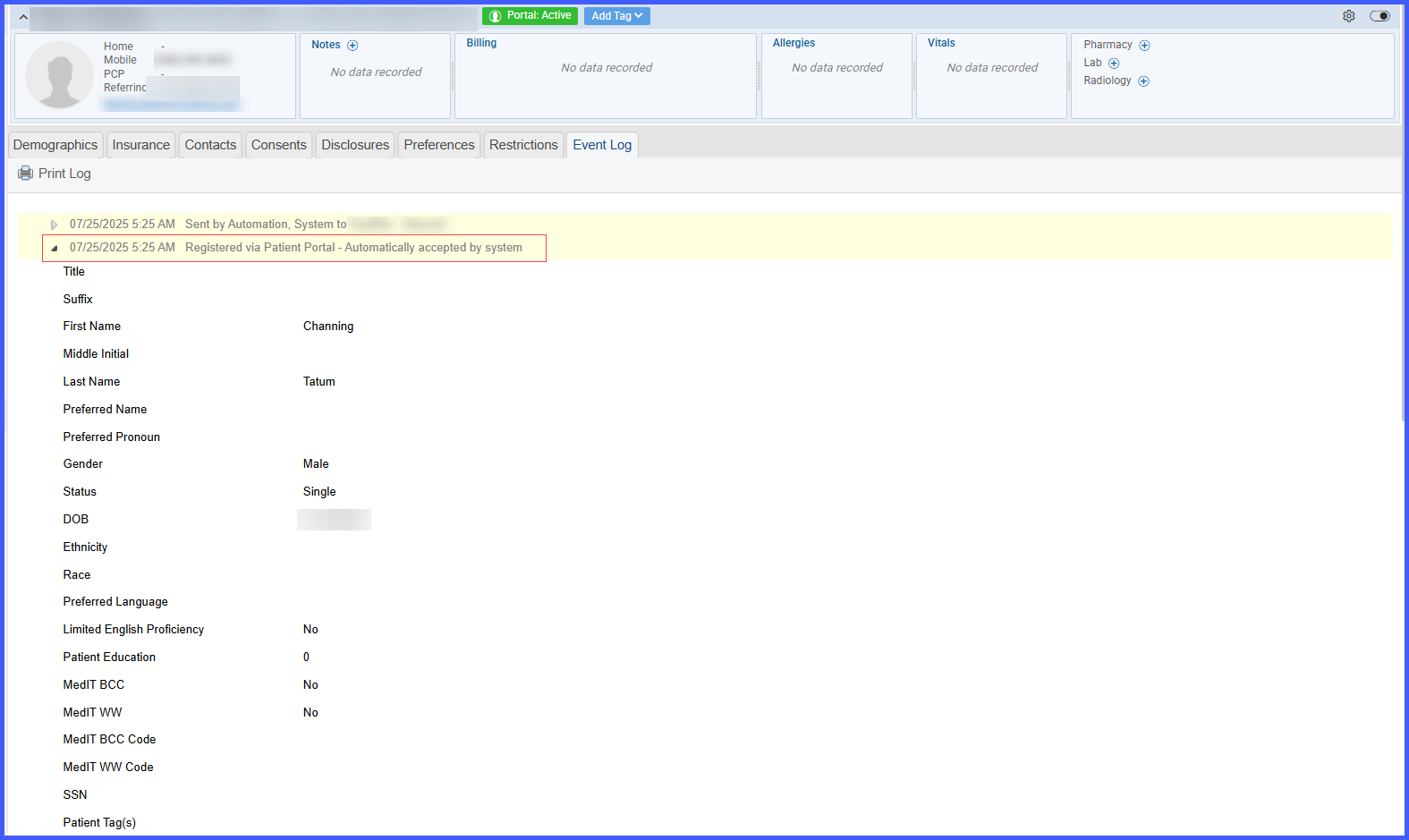
In Patient > Profile > Demographics, the Logs button now shows an entry labeled “Registered via Patient Portal – Automatically accepted by system.”
For appointment requests, enabling the auto-accept setting allows valid requests to be booked without staff intervention.
Once accepted, the request moves to the Accepted tab
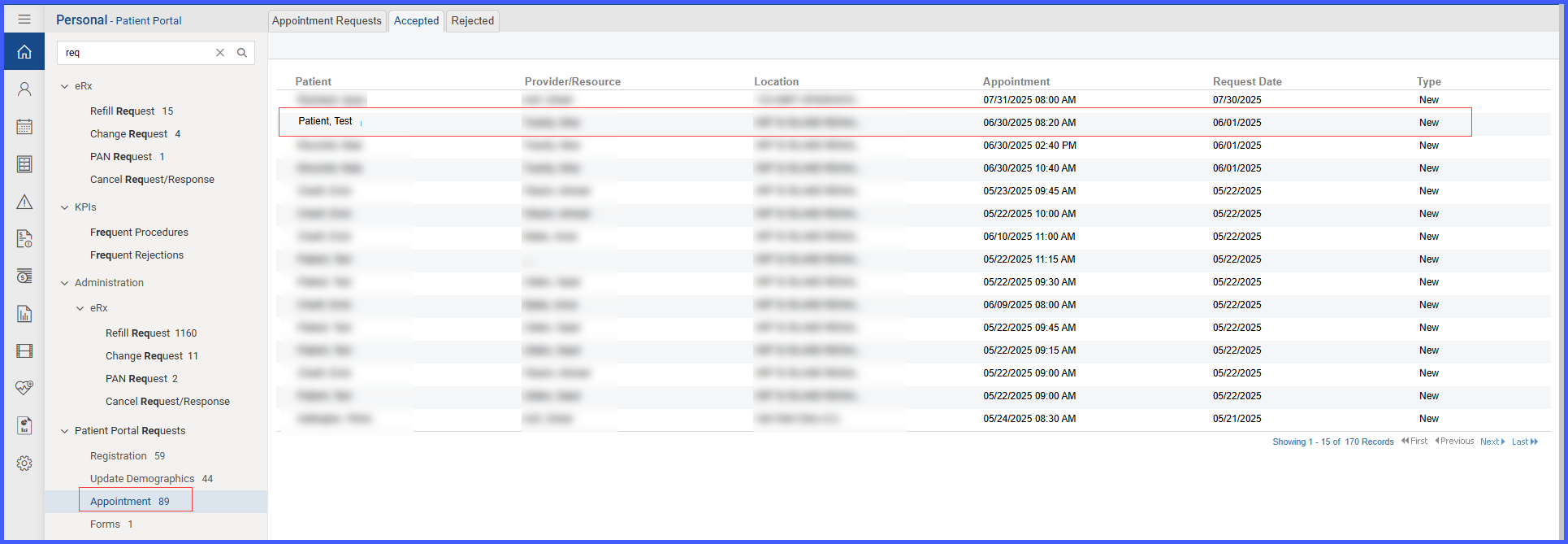
If a request conflicts with scheduling rules such as unavailable slots, provider restrictions, or blocked capacity, it remains in the Pending tab for manual review. Patients receive real-time messages based on the outcome: “Your appointment has been booked successfully” for accepted requests, or “The selected slot is unavailable. Your appointment request has been submitted for review by the practice” if not.
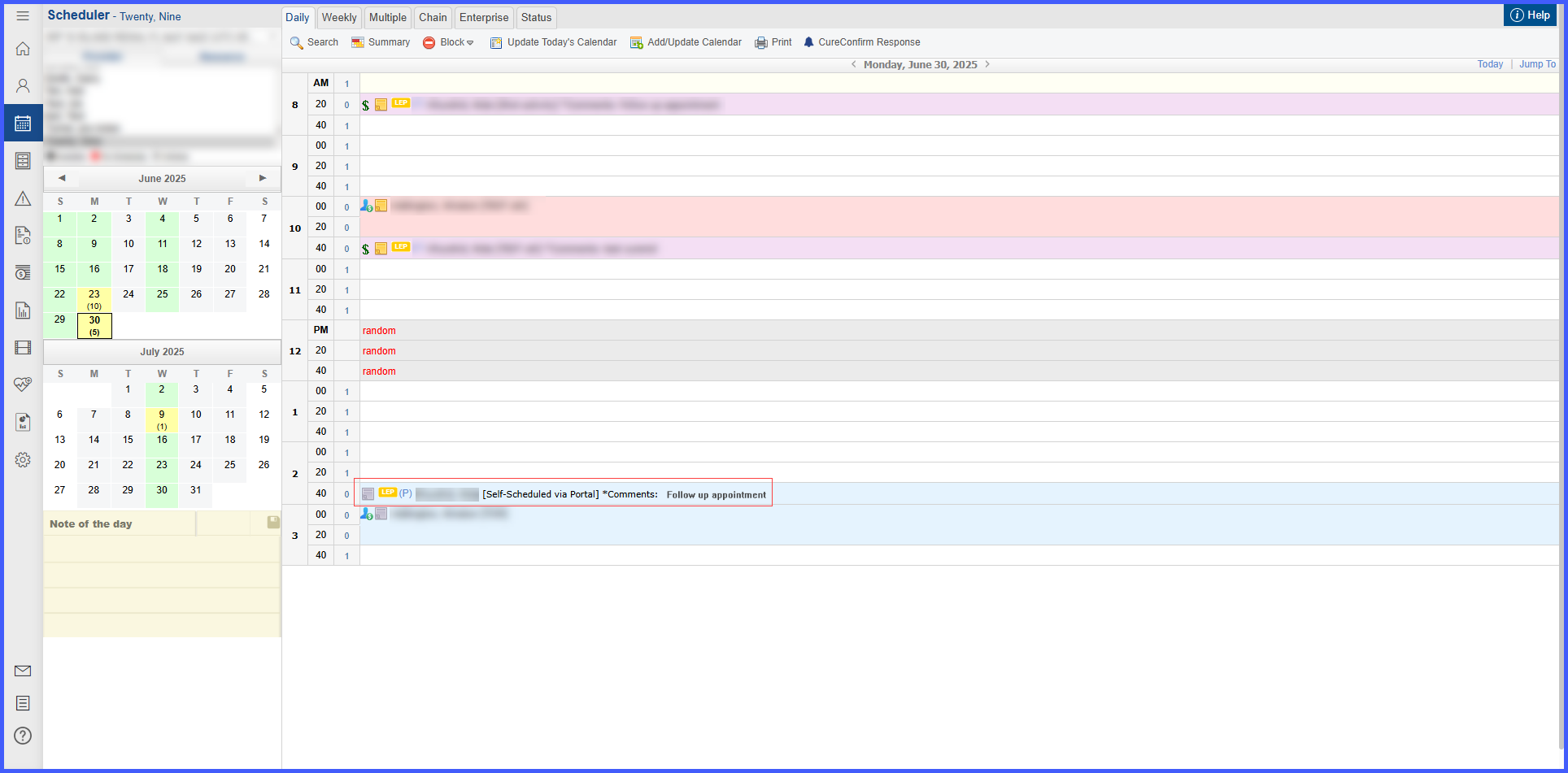
Auto-accepted appointment requests are booked directly on the scheduler. The system assigns the reason “Self-Scheduled via Portal (15 min)” and includes any patient comments within the appointment notes.
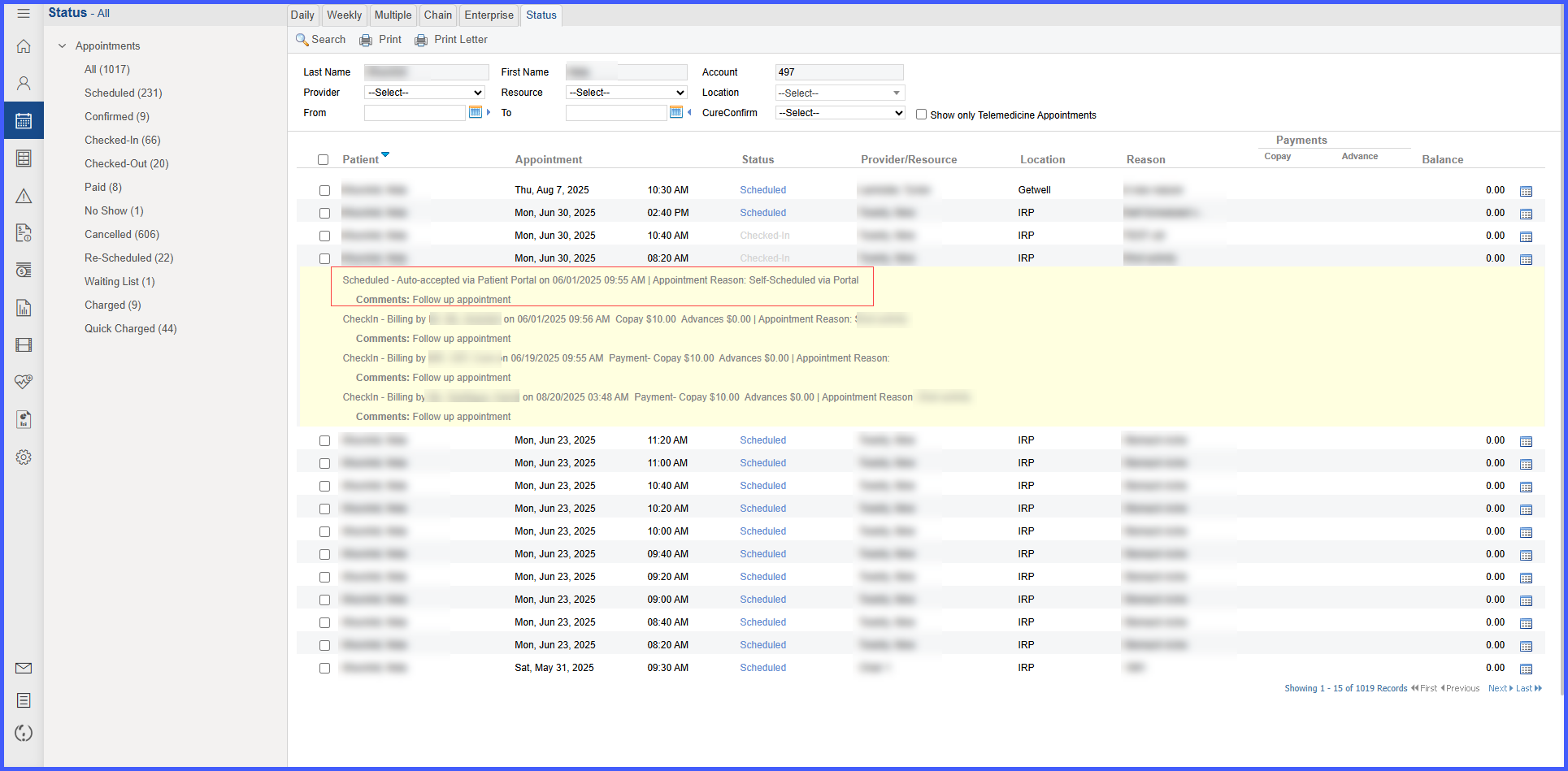
The Scheduler logs display an entry in the format: “Scheduled – Auto-accepted via Patient Portal on [Date Time] | Appointment Reason | Comments.”
For demographic updates, enabling the auto-accept setting allows demographic and contact changes submitted by patients to be applied automatically. Accepted requests appear in the Accepted tab,
The system logs in Profile > Demographics and Profile > Contacts now include entries labeled “Modified via Patient Portal – Automatically accepted by system.” This ensures that patient information remains current without requiring staff intervention.
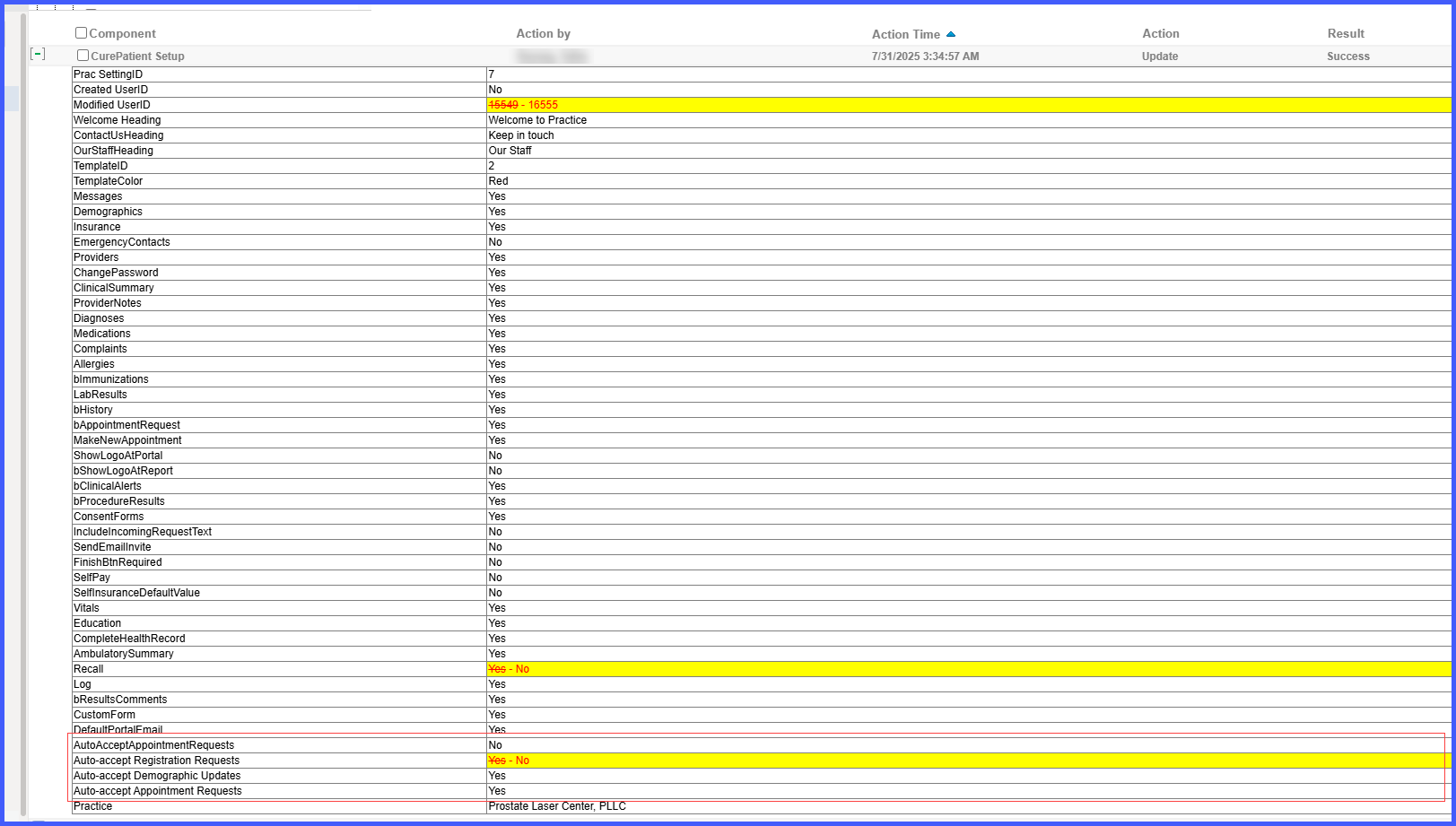
To ensure accountability, all changes made to the auto-accept configuration settings are now logged in the audit trail. When users enable or disable the auto-accept checkboxes for Registration, Demographics, or Appointments, an entry is created under Reports > Miscellaneous > Audit Trail – Settings.