How to Use the Expanded SmartPhrase Limit (Up to 10,000 Characters)
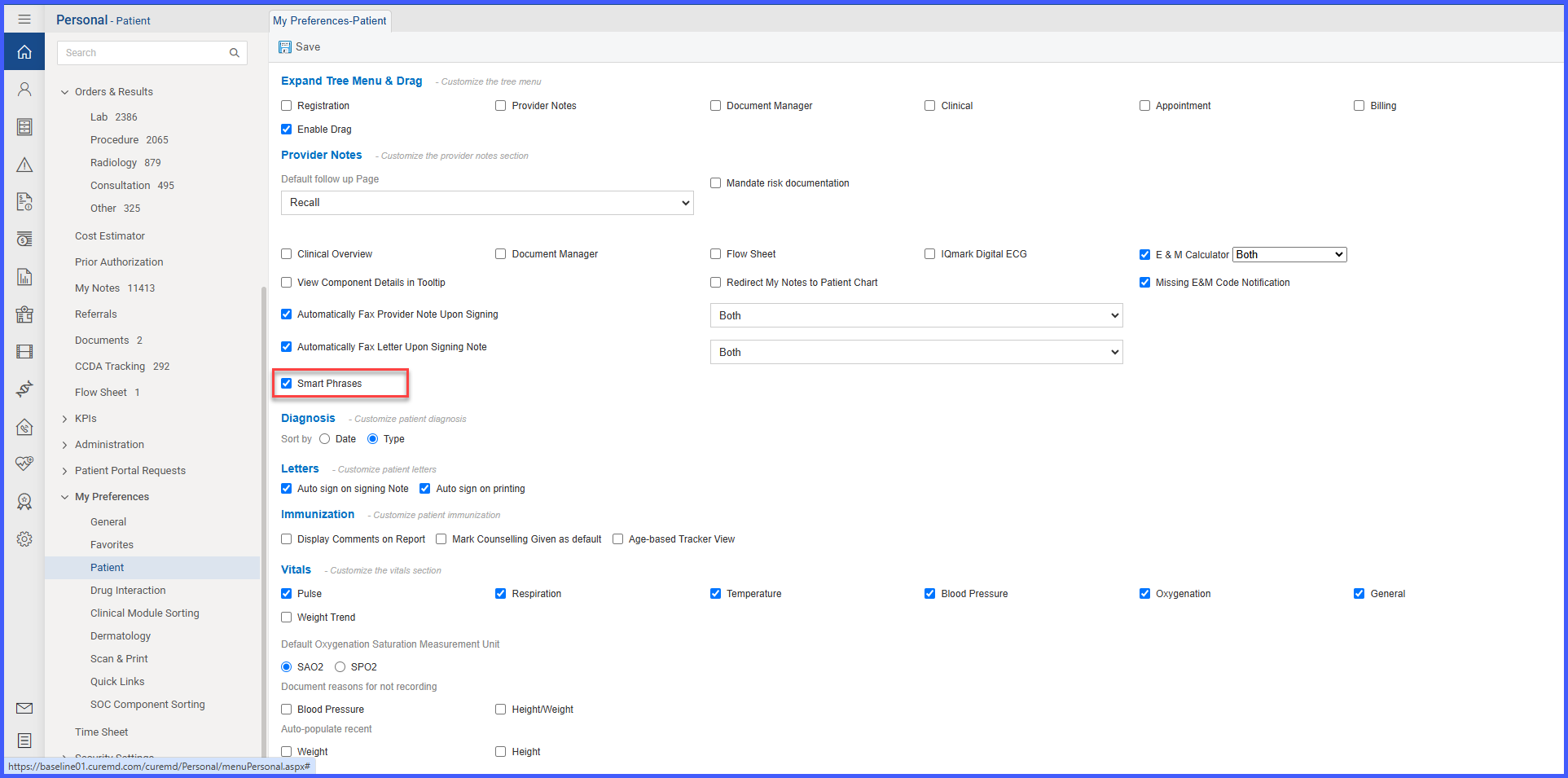
This change applies to users with the appropriate rights, as configured in 
- Settings > Practice > My Practice Settings > EHR
- Personal > My Preferences > Patient.
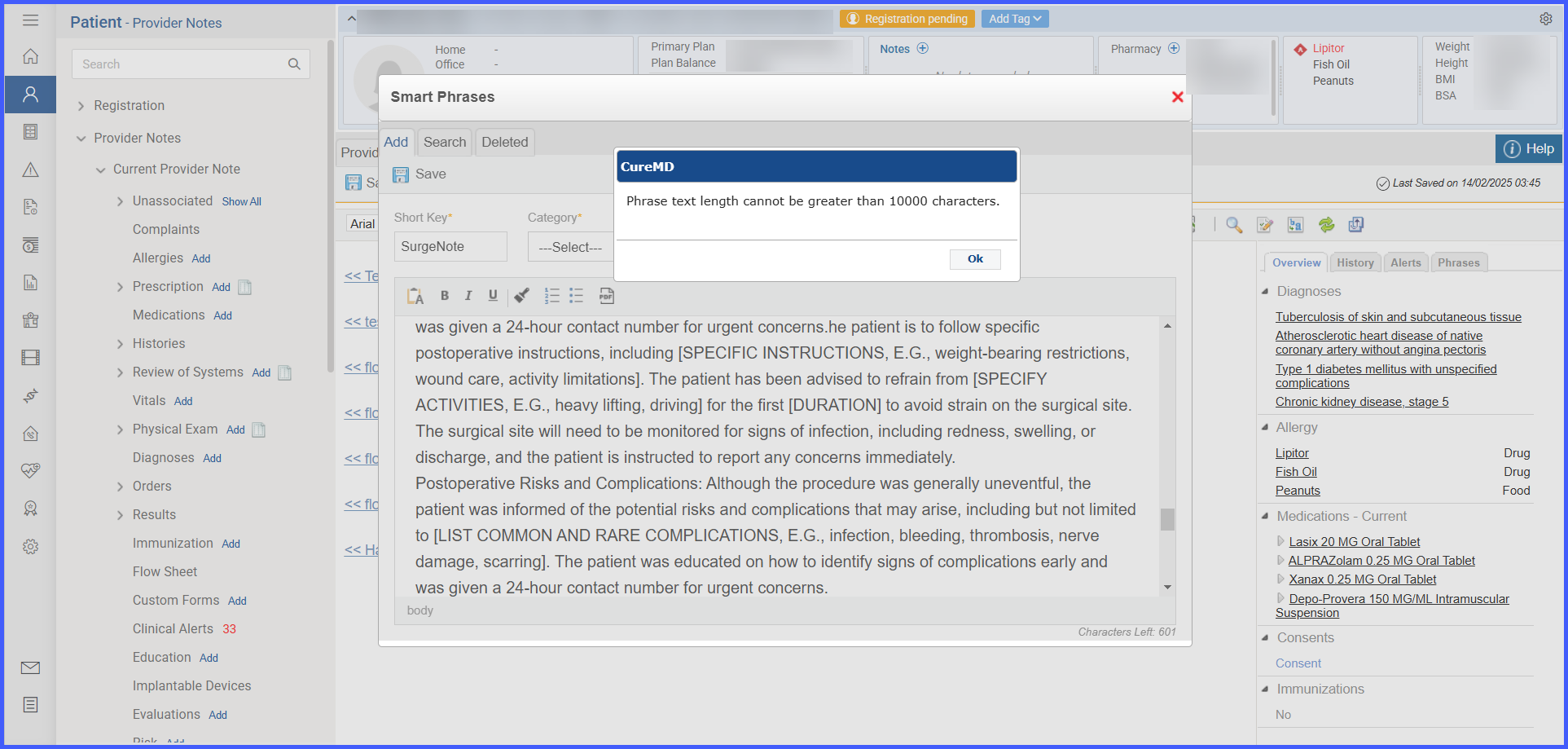
 When creating or editing a smartphrase from Add/Edit Provider Notes > SmartPhrase, The character limit for smartphrase will be updated to allow up to 10,000 characters, including whitespace.
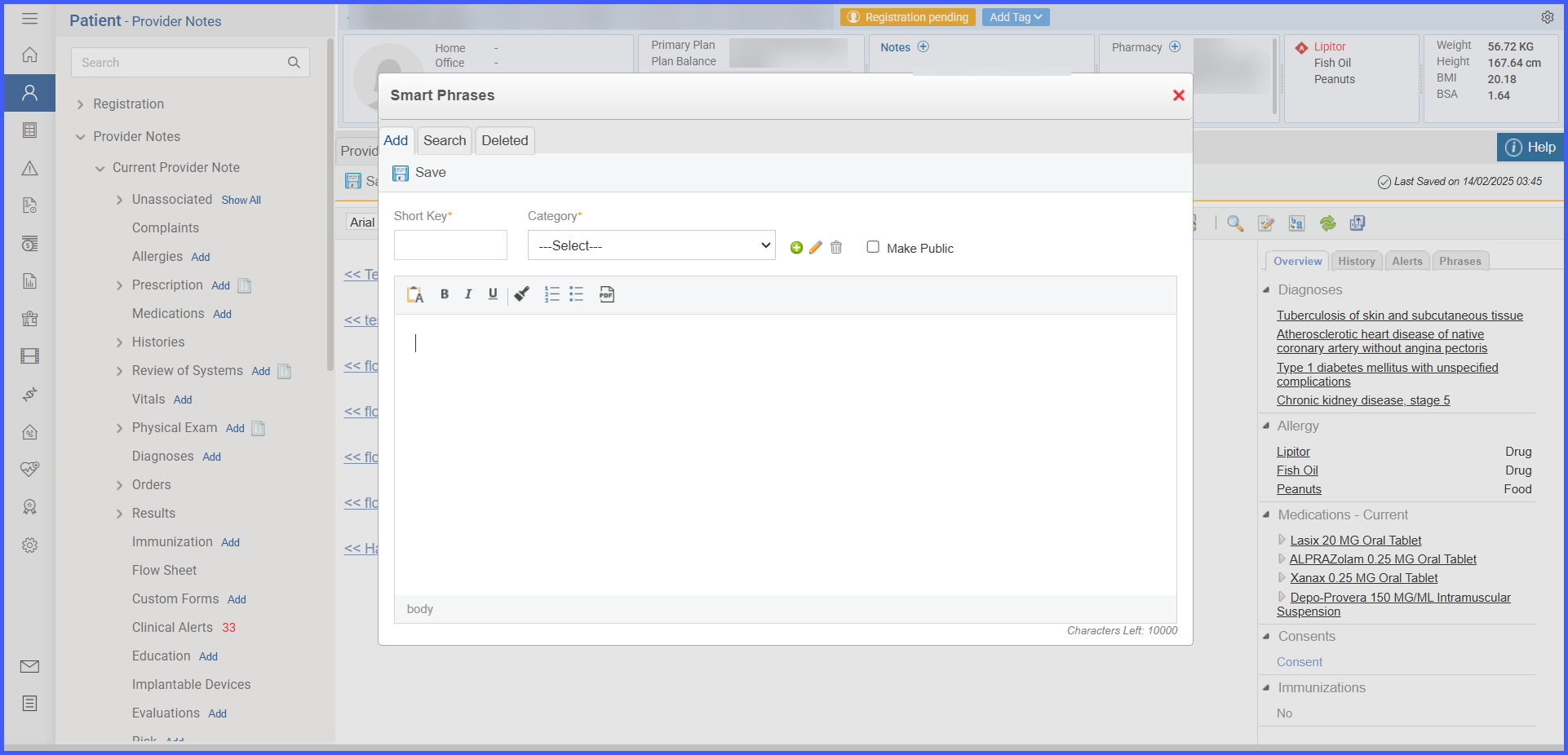 The user will see an updated “Characters left” counter showing 10,000 characters available. The count will update as characters are added or removed.
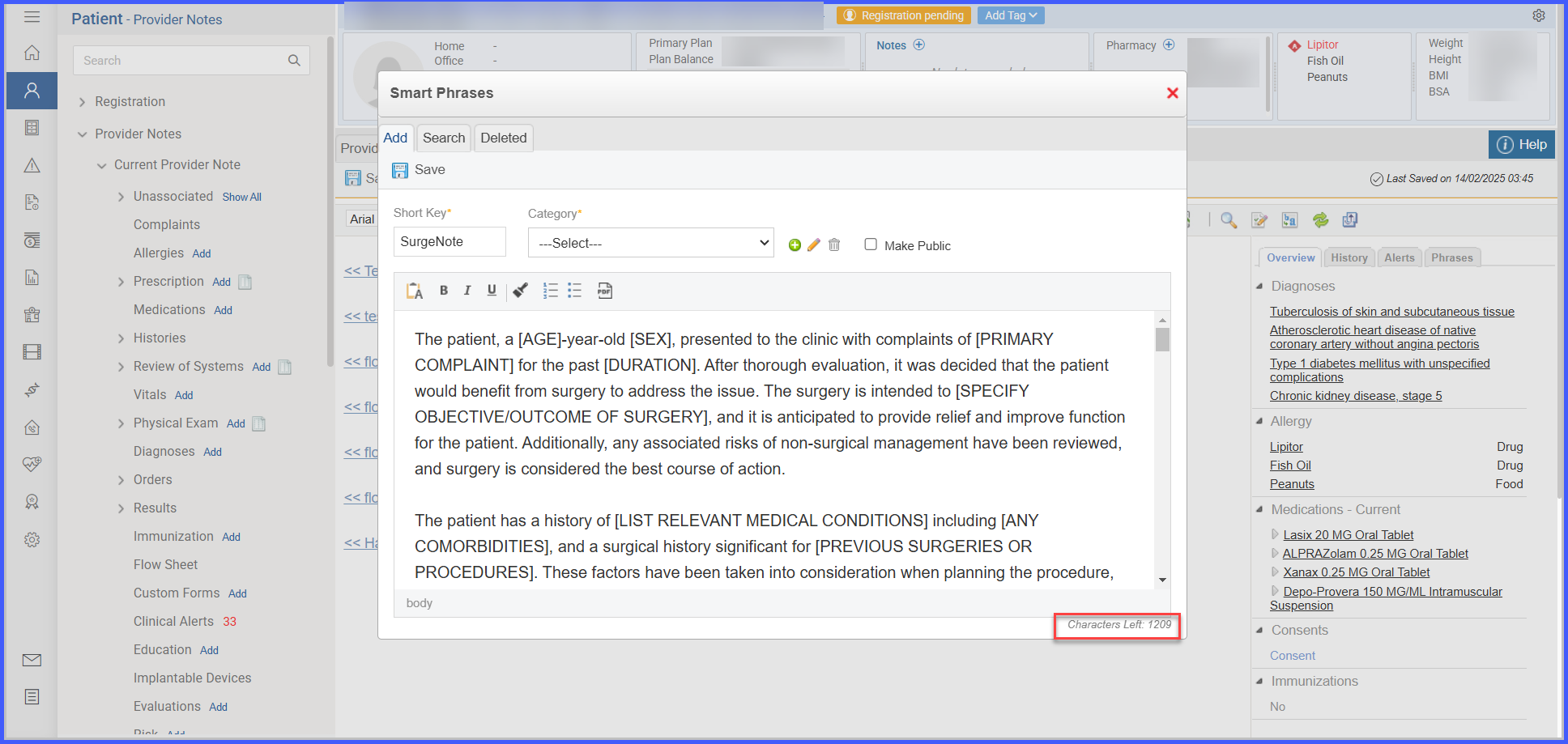 Additionally, if the user copy-pastes more than 10,000 characters, only the first 10,000 characters will be retained, and a prompt will appear notifying the user that the “Maximum character limit reached.”
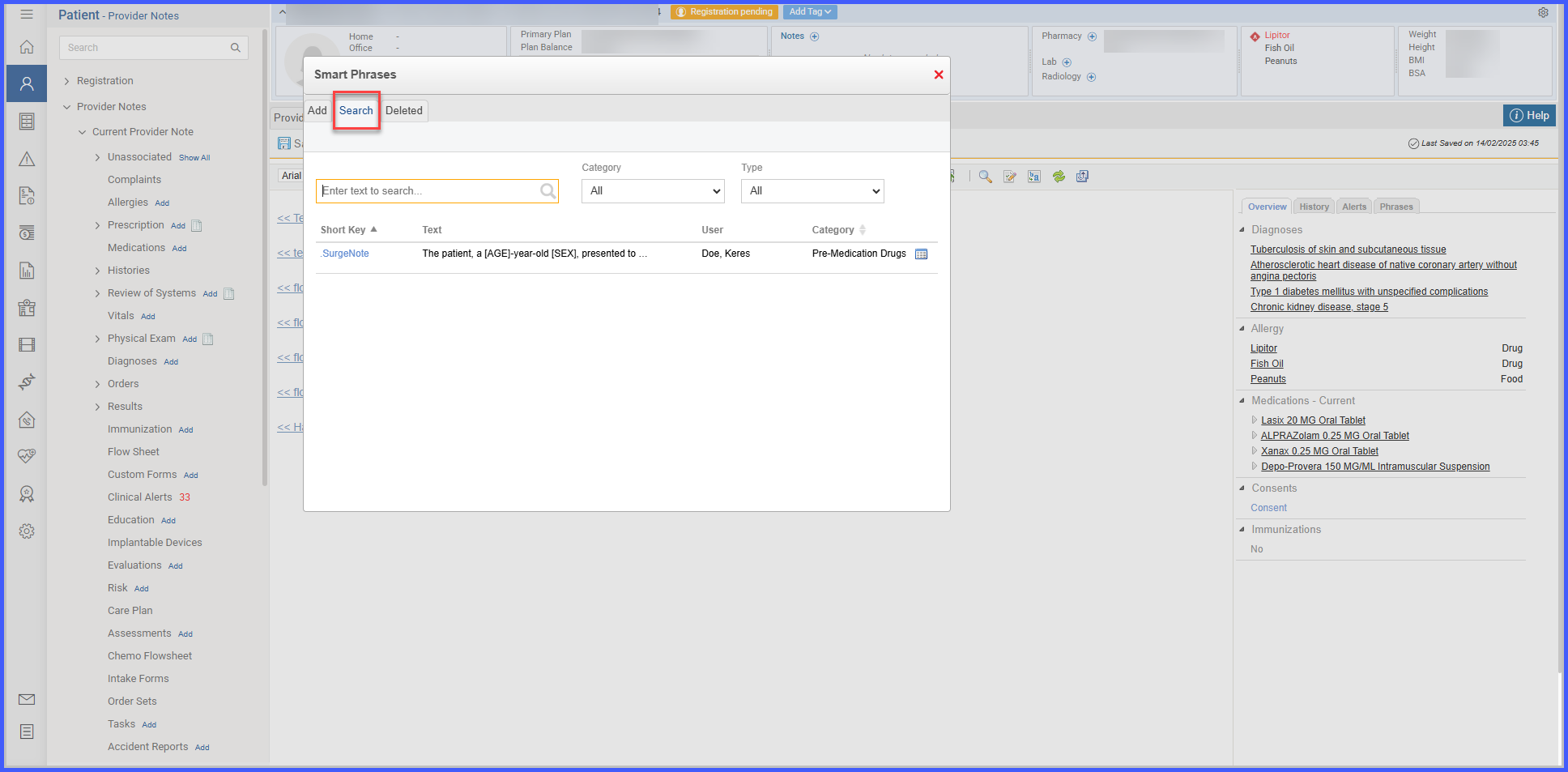
 When the user navigates to Smartphrases directory > Search Tab, The created smartphrase will be displayed in Listing.
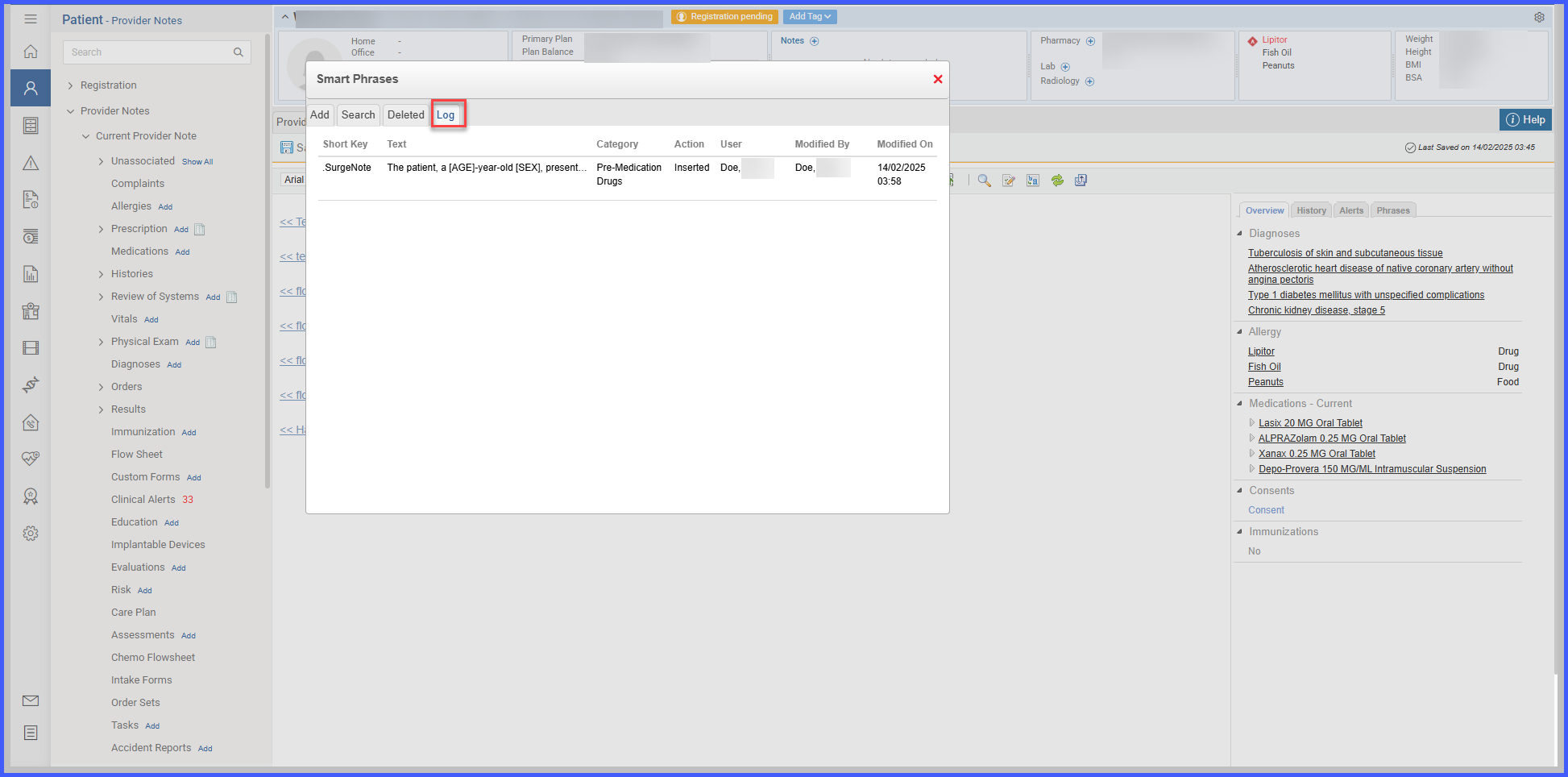
 The user can also review the logs by clicking the ‘ ‘ icon.
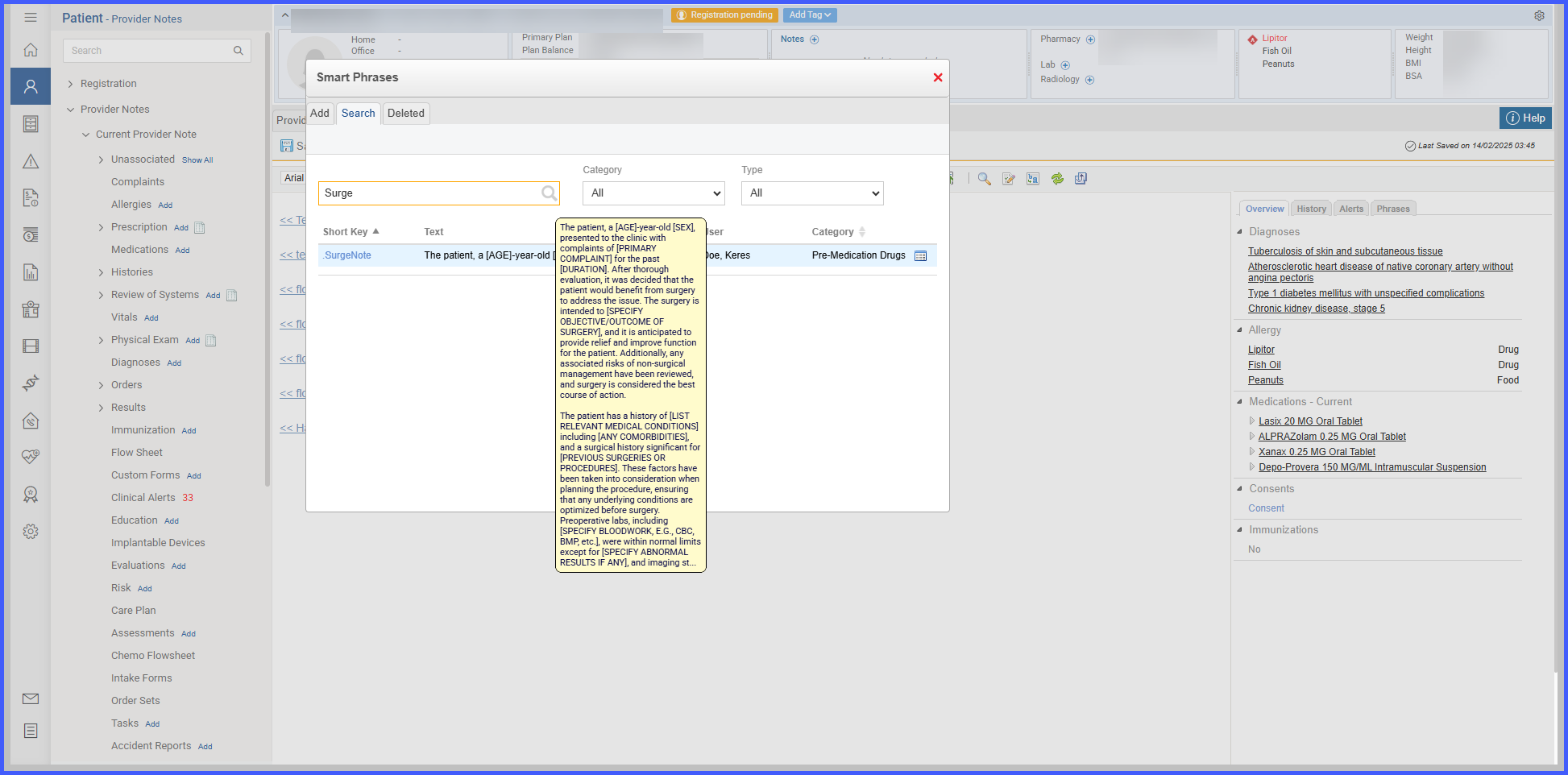
 Hovering over the phrase in the Search, or Deleted tabs will display the tooltip of the first 1,000 characters, with the remainder truncated by an ellipsis (“…”).
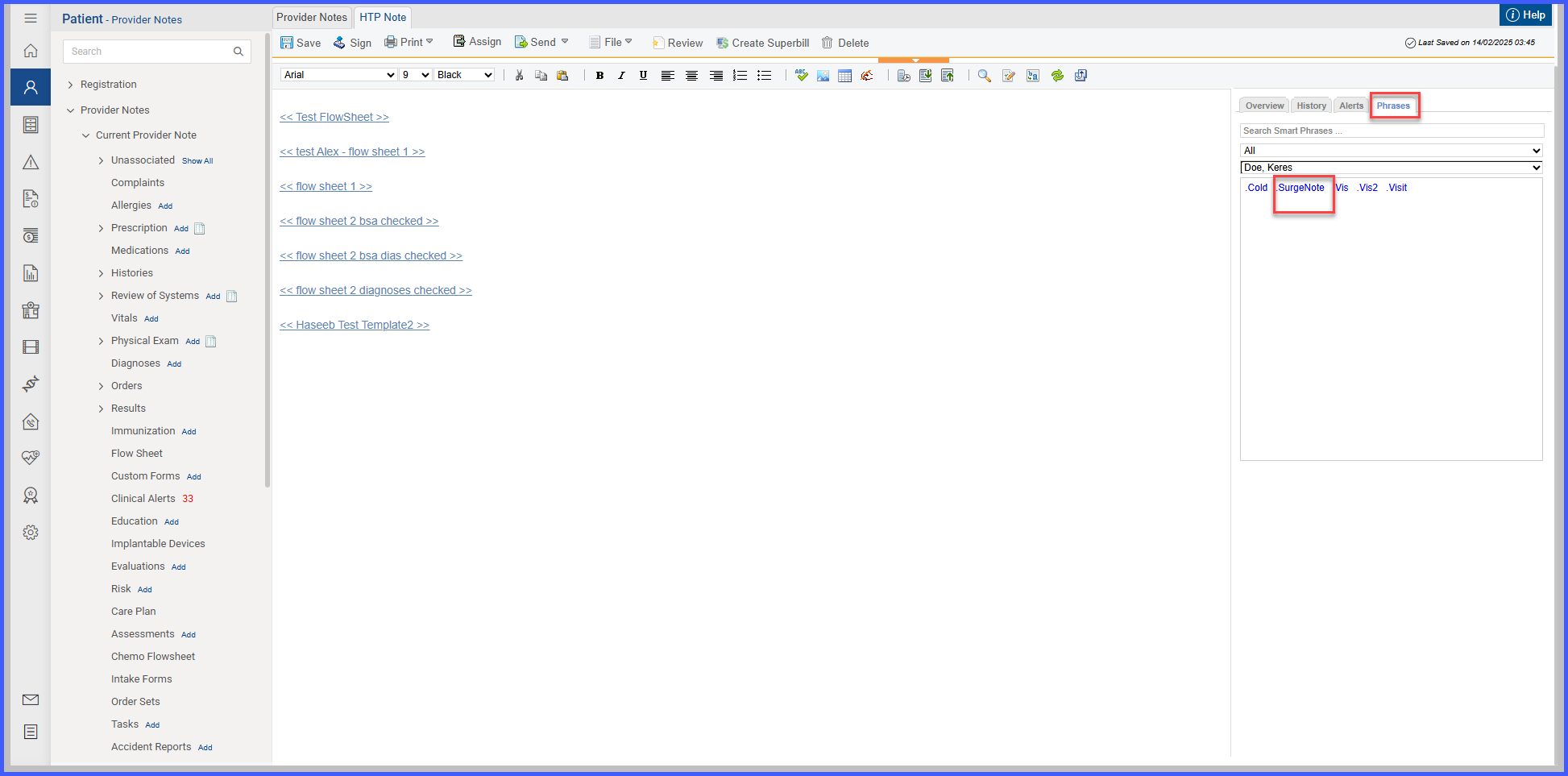
 The smart phrase once created will be displayed in Provider Note> Phrases tab against the practice user who created it.
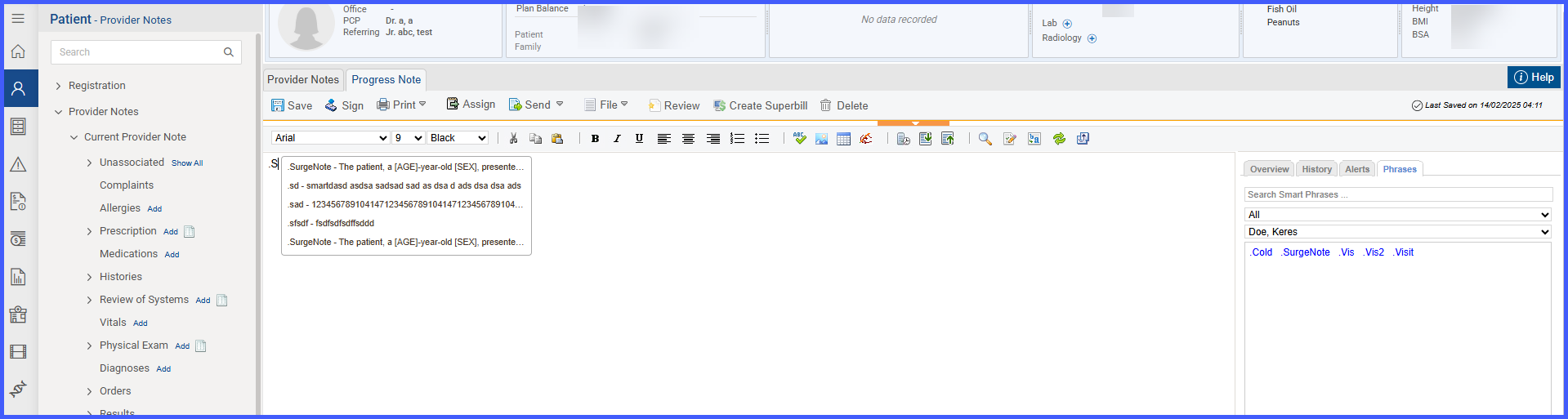
 The SmartPhrase can be accessed in the provider note by typing a dot [.] followed by the SmartPhrase initials. After that, pressing CTRL + SPACE will display a list of all partial matches.
The user can then click on the desired Smartphrase to insert it directly into the note.
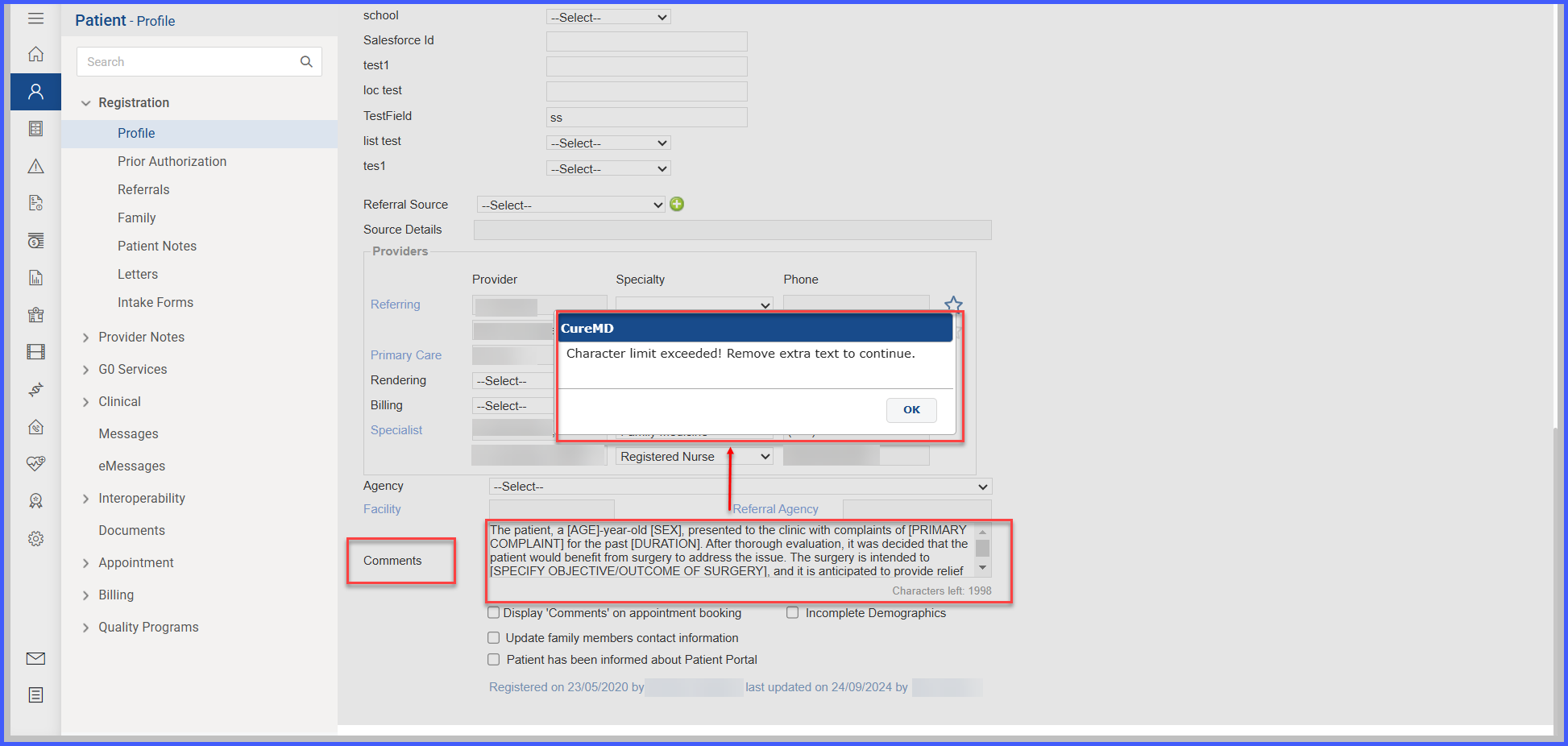
In workflows where SmartPhrases are fetched using partial or exact match, if a SmartPhrase exceeds the character limit of the input field, a restriction message will appear, notifying the user that the SmartPhrase cannot be fetched due to the character limit restriction.