How to Verify CureMD Client Utility is Installed and Running?
To verify that the Utility is installed in the system, consider the following steps:
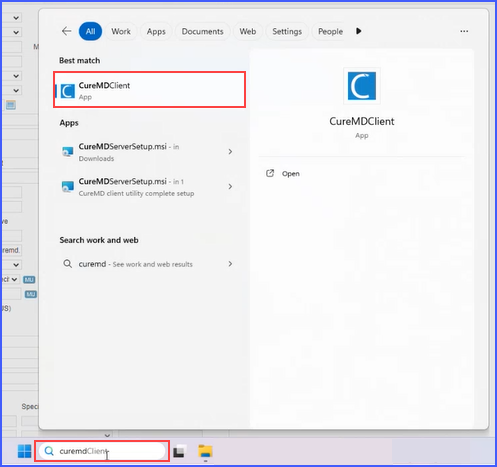
- Taskbar Search
Users can search ‘CureMD Client Utility’ in the taskbar search to verify that the software has been installed and is present in the system.
2. Desktop Shortcut
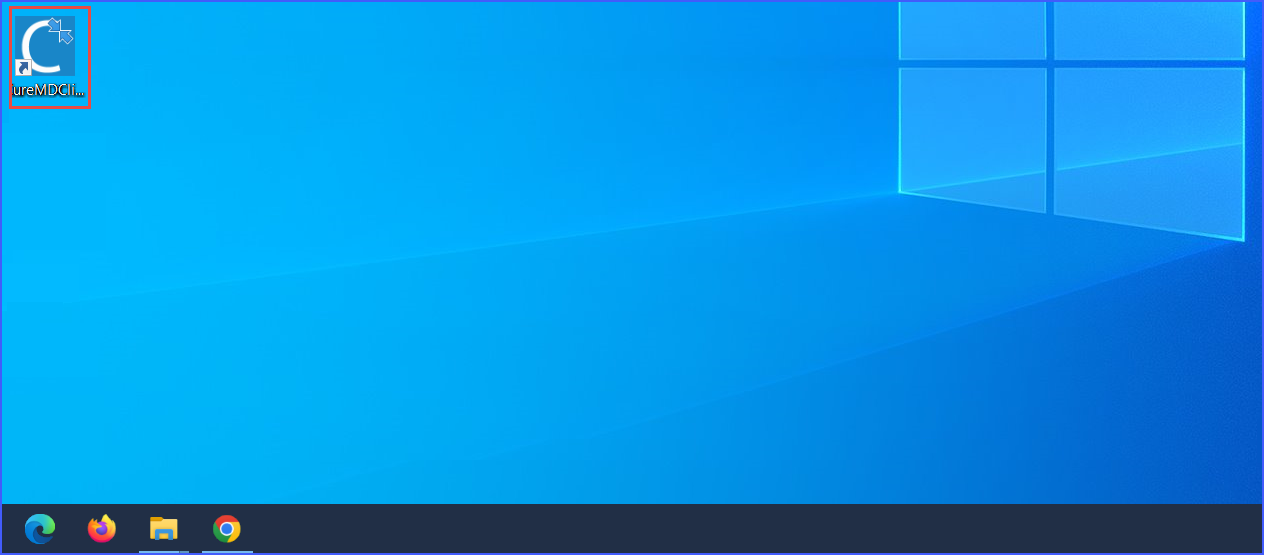
Upon installation of the ‘CureMD Client Utility’, a desktop shortcut featuring a C icon is automatically created. Users can check their desktop screens for this icon to confirm the installation.
Additionally, to verify that the utility is installed AND running in the background of the CureMD application, the following steps can be taken:
a. Click on the arrow icon ‘^‘ in the Windows Taskbar to open the ‘System Tray’.
b. Check if the system tray is displaying the utility icon ‘C’.
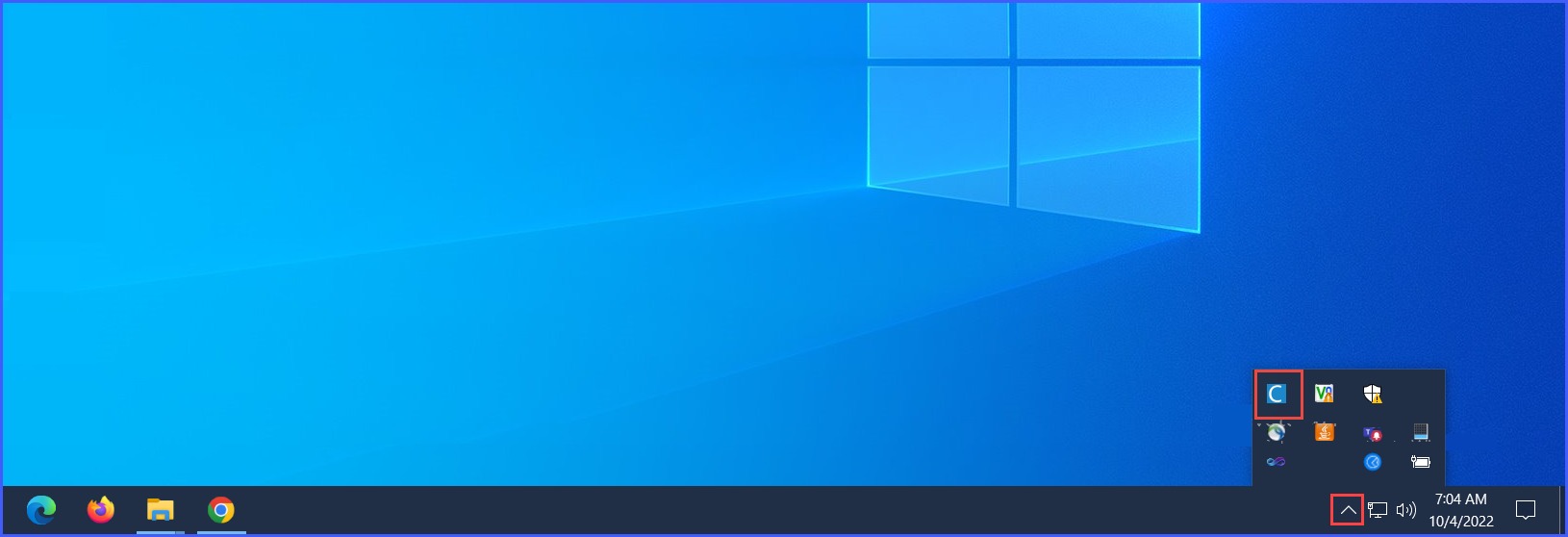
The icon ‘C’ appears in the tray when the utility is running/turned on. If it is not present in the tray, then the utility is not running.
To turn on the utility, double-click the ‘C’ desktop shortcut created in step 2 above.
If none of the above steps are successful, the utility may not be installed on your system. Please click here to download and install the CureMD Client Utility.
