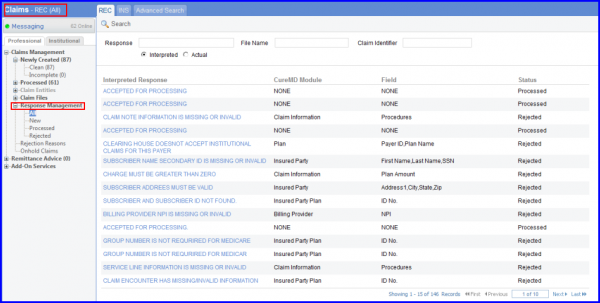
What is Real-Time Claim Status?
When user hovers the mouse pointer on any row, it displays the ‘Edit’ and ‘Claim Status’ Inquiry icons on the right most side of the row.
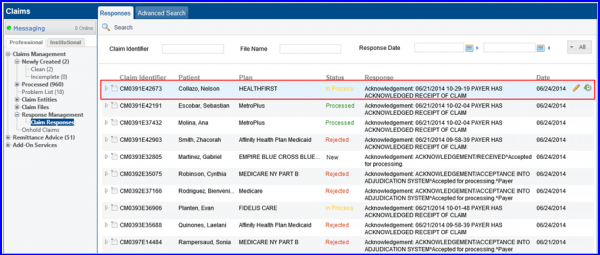
In order to edit the interpretation and claim status, click on the ‘img’ icon. It opens up the area below the row for editing purpose.
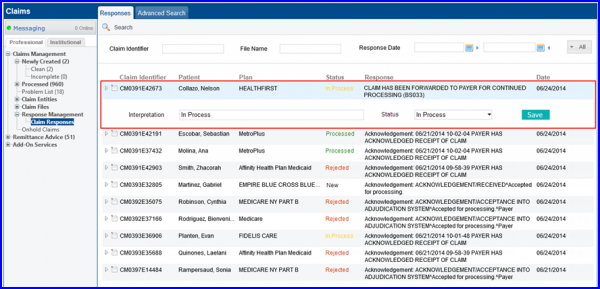
This section contains the Status dropdown having values In Process, Processed and Rejected.
Upon selecting an entity from ‘Entity’ dropdown, its relevant fields are displayed in ‘Fields’ section below the dropdown. User can select any number of ‘Fields’.
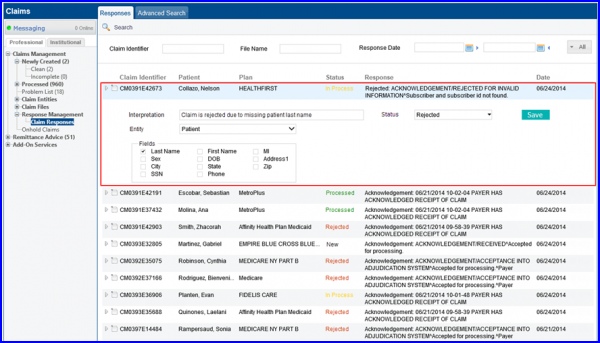
After updating click ‘Save’ button in order to save the selected fields against a response.
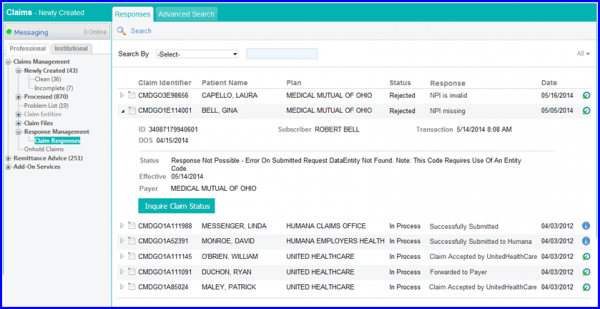
Upon clicking ‘Claim Status Inquiry’ button, if the claim response was unsuccessful, following screen is shown:
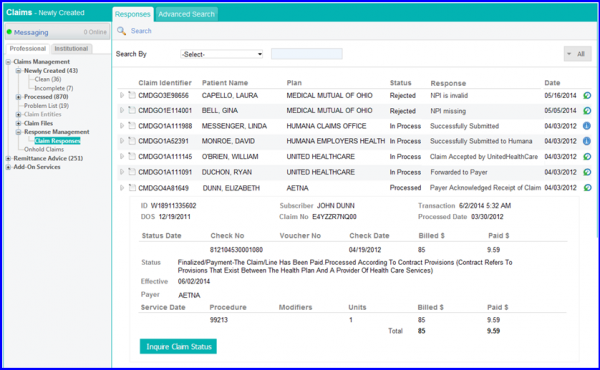
In case of successful response the following screen is shown:
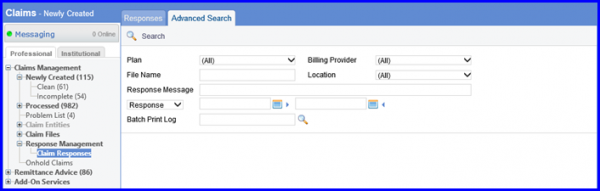
User can also search for an exact claim required, by selecting the “Advance Search” tab from the top.