How to Prescribe a Medication to Patient?
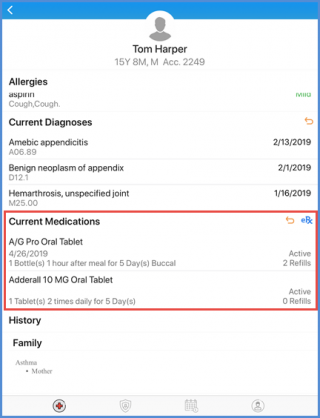
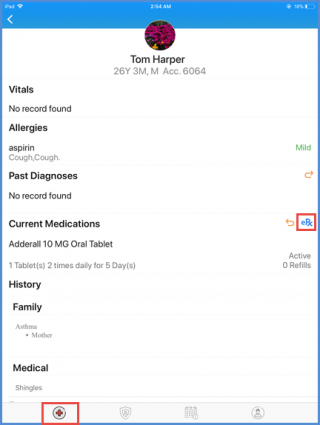
When diagnosed, patients might need to be prescribed new medications. To know how to search a patient, click here. Select the patient and navigate to the ‘Clinical’ component and tap on ‘eRx’ next to Current Medications.
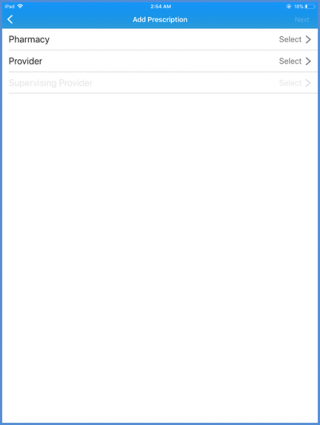
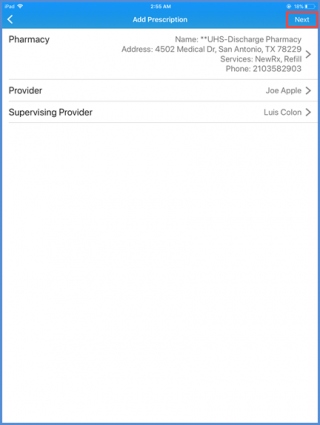
This opens the “Add Prescription” screen. Here, users can select the Pharmacy, Provider and Supervising Provider.
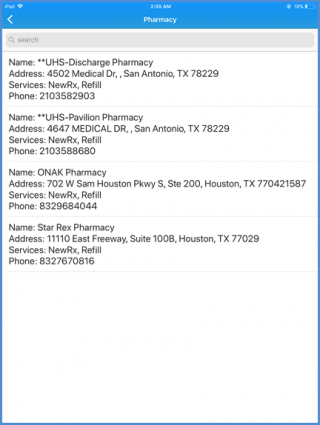
Tap on a field to open the list of available options for it. Then, select one.
The ‘Supervising Provider’ field is only available after the ‘Provider’ is selected. Once all are selected, tap ‘Next’ to move ahead.
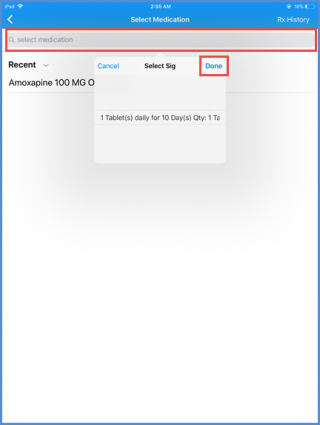
Then, search and select a medication to prescribe. If a Sig. is available for the selected medication, select a suitable one from the ‘Select Sig’ menu and tap ‘Done.
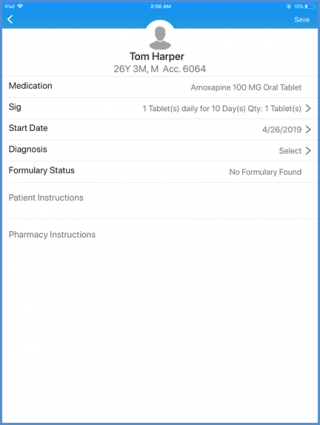
After selecting the medication, users are taken to the Medication Details panel where users have the option to change the Sig, set the Start Date of medication and the Diagnosis as well as add any instructions for the patient or pharmacy.
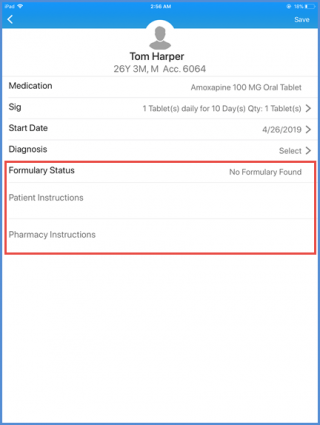
Navigating back to clinical screen, user can add Formulary status, Patient and pharmacy instruction.
Once done, click ‘Save’.
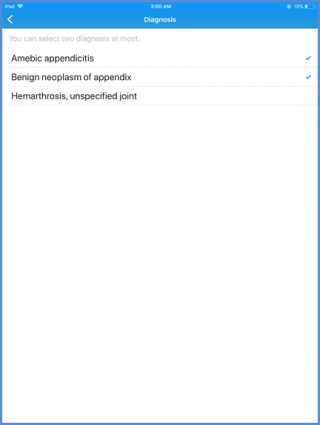
Only two Diagnosis can be associated with one medication. Tap on a diagnosis to mark and select it.
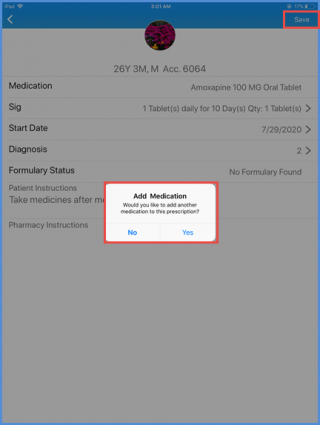
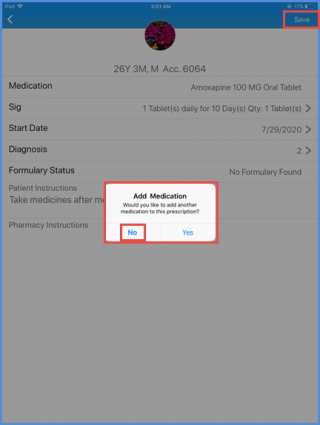
After selecting the medication details, tap ‘Save’. Users are shown a notification asking if they want to select another medication. If yes, tap ‘Yes’ and follow the same procedure to add another medication. If not, select ‘No’.
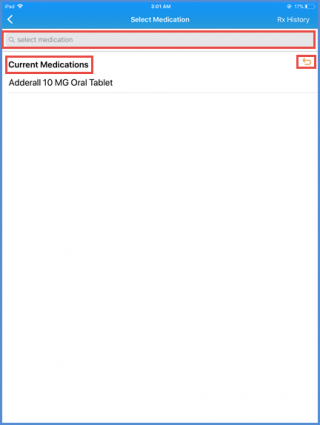
On selecting ‘Yes’, user can search another medication to add. All current medications are listed here.
User can click on the arrow to select any Past Medications.
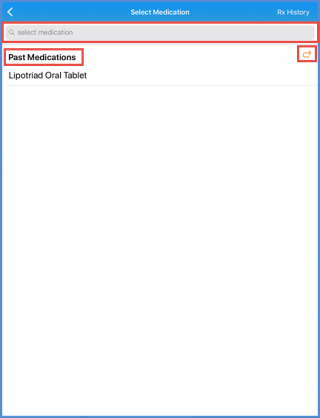
All medications taken in past are listed here. A tap on an arrow takes user back to the current medication list.
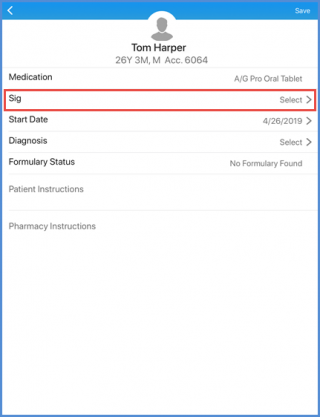
On the “Patient Clinical” screen, user can click on Sig to add details.
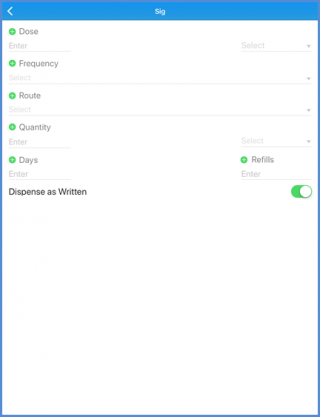
Sig details include medication Dose, Frequency, Route, Quantity, Days and Refills.
Once done tap on back arrow to navigate back to the “Patient Clinical” screen.
Here, tap on ‘Save’ to view “Add Medication” popup.
Incase user does not want to add another medication, tap on ‘No’.
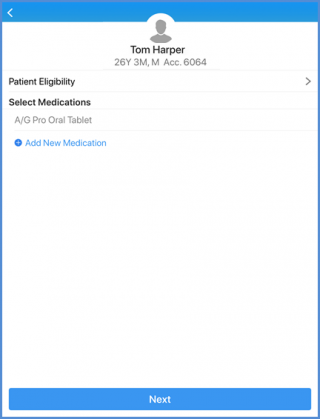
This action takes user to the screen where Patient eligibility can be checked. Futhermore, user can also add a new medication to the prescription.
Tap on ‘Next’ to proceed.
After a medication is added, users can view a Summary of the prescription. after reviewing, tap ‘Send eRx’. To change something, tap the back icon instead.
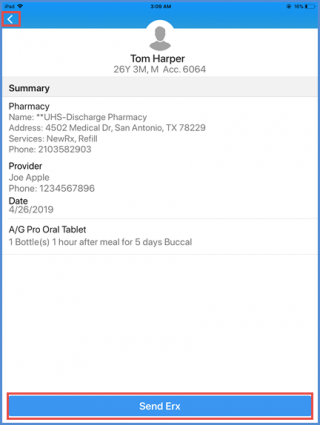
The added medication shows up in the ‘Current Medications’ list.