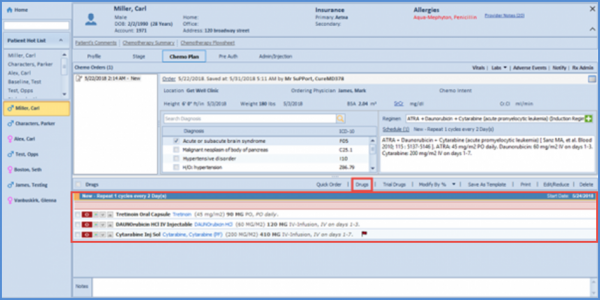
How to Create a Quick Order?
Quick orders are meant to make the ordering process easier and more efficient.
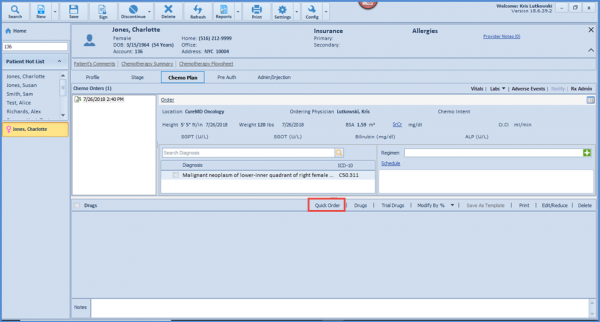
From the dashboard, click on ‘Quick Order’.
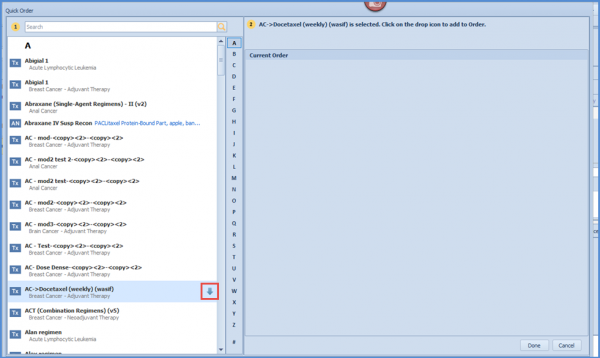
A pop-up is displayed featuring a search section and a list of all drugs & preferred regimens in an alphabetical order. From here, select a drug/regimen and click on the drop icon to populate it in the Current Order section of Quick Order pop-up.
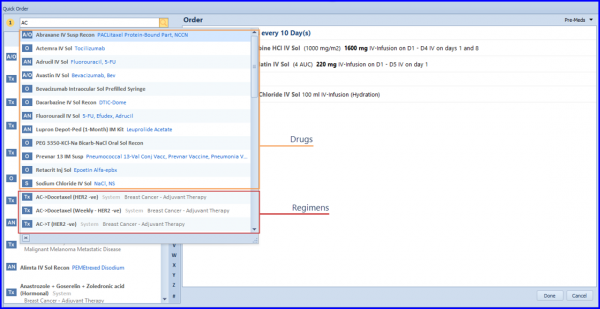
System displays search results in an hierarchy prioritized by drugs and followed by regimens. 
User can view patient’s order on the right section in Quick Order screen.
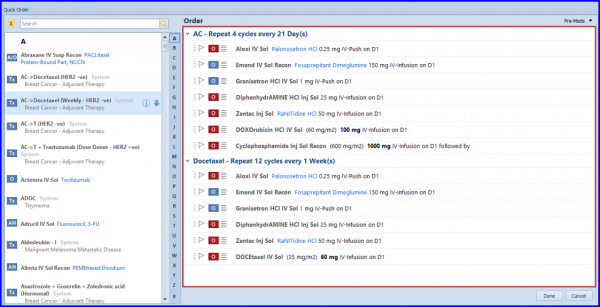
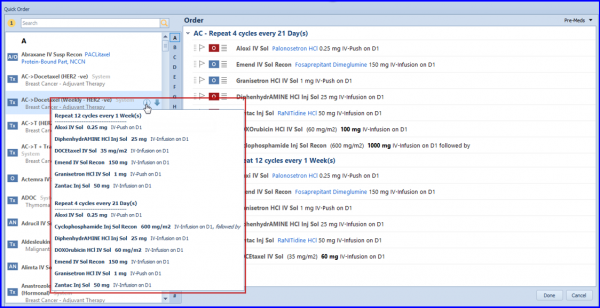
Regimen details can be viewed by clicking on the information icon in ‘Quick Order’ view.
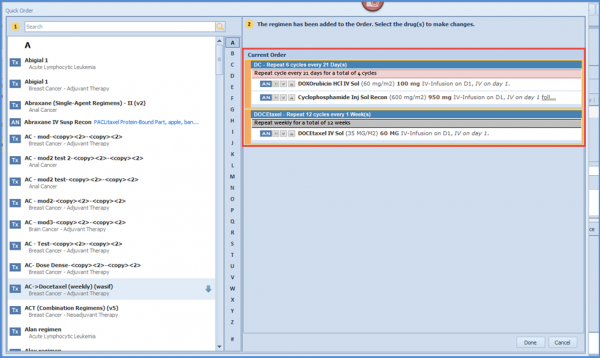
To change the sig. details and pre-medications, click on the name of the drug from the Current Order window.
Drug dosages can be changed by selecting any one of the desired dosages. Based on it, the system displays a calculated dosage. For mixing Instructions, click on an option and the system will display a pre-calculated infusion time.
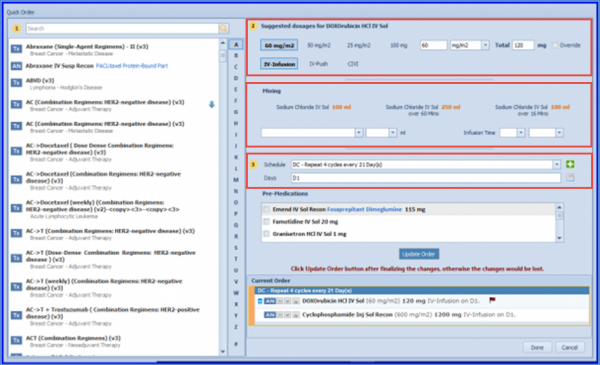
Users can also specify a schedule and cycle days for the selected medication as well.
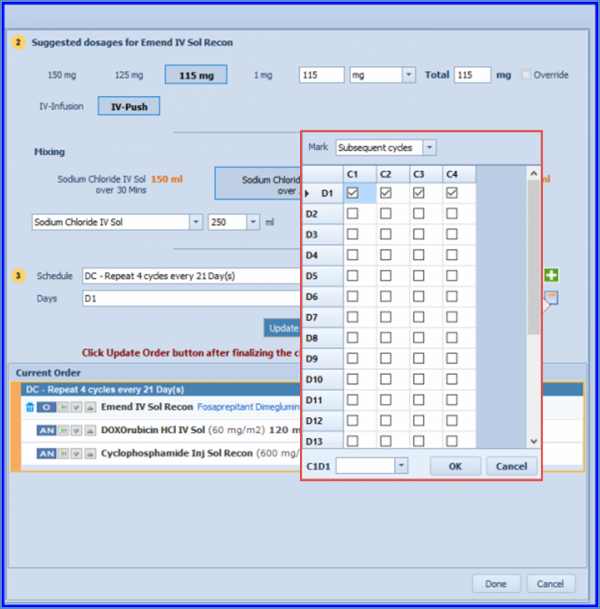
Once done, click on ‘Update Order’ and follow the same procedure for other medications as well.
Close the Quick Order pop-up and the customized quick order will populate on the drug strip.