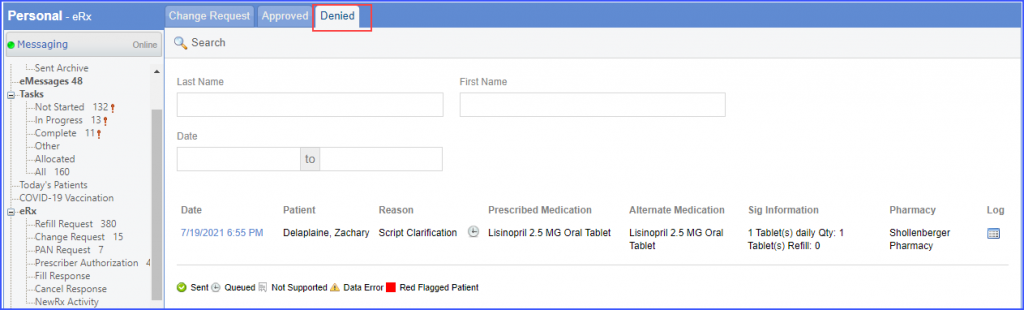
How to Process Alternate Medication and Sig Information?
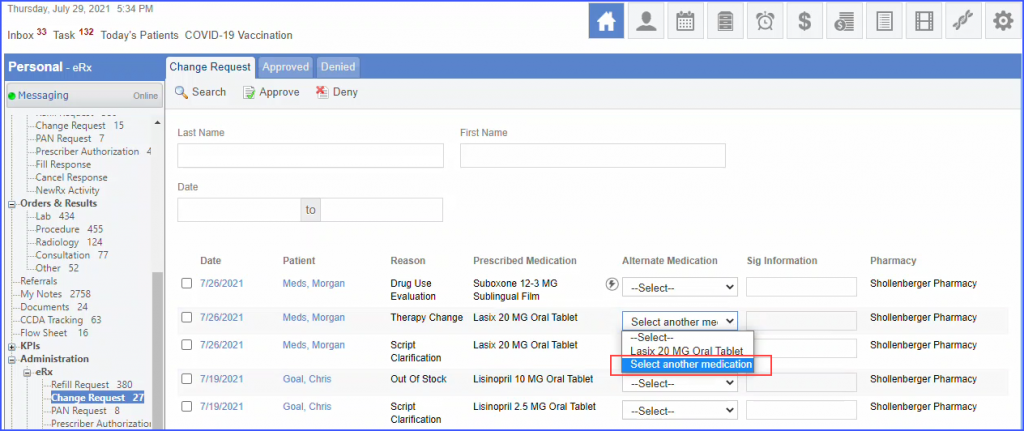
For DUR and Therapy change requests, if the user does not wish to select one of the pharmacy requested alternate medications and wants to prescribe an alternate medication from the system database, they can click on select another medication option from the Alternate Medication drop down.
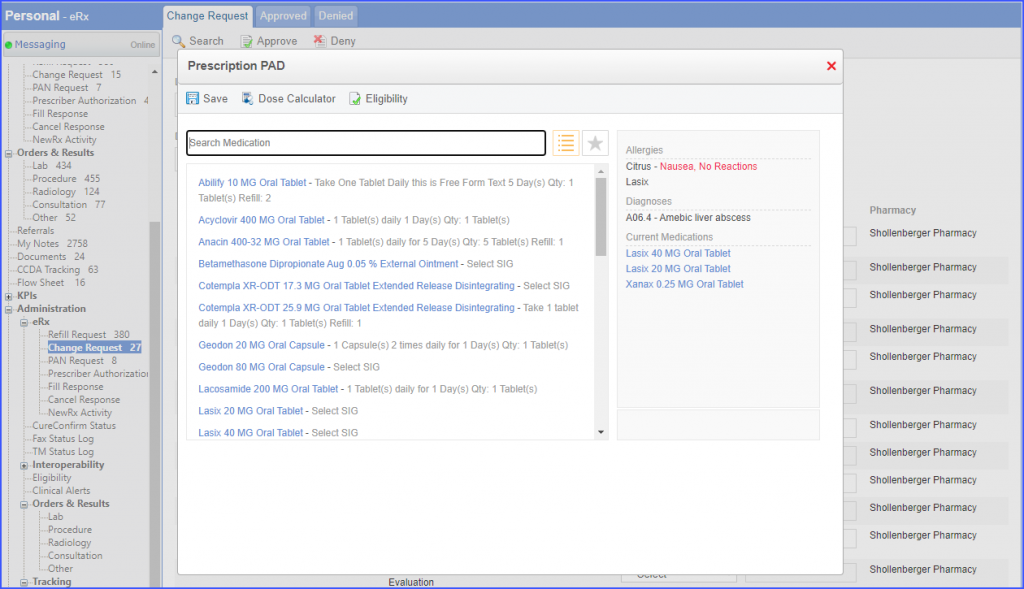
The Prescription PAD appears in a light box. User can search for another drug and prescribe it.
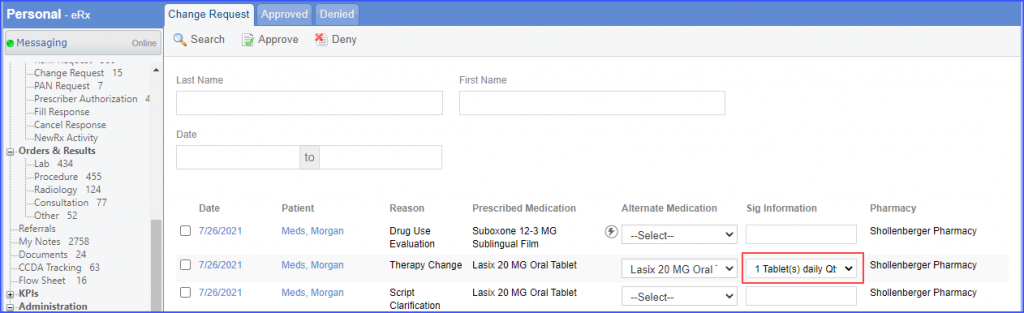
For the selected alternate medication, the corresponding Sig is displayed in the Sig Information drop down menu. User can click on the drop down menu and select “Add another Sig.” option to define another sig. The New SIG light box appears.
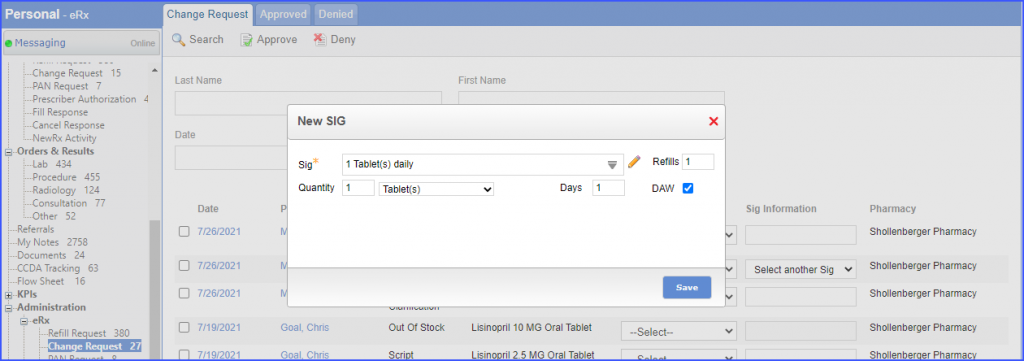
User enters the appropriate sig. information and clicks on Save. The new sig is displayed in the field.
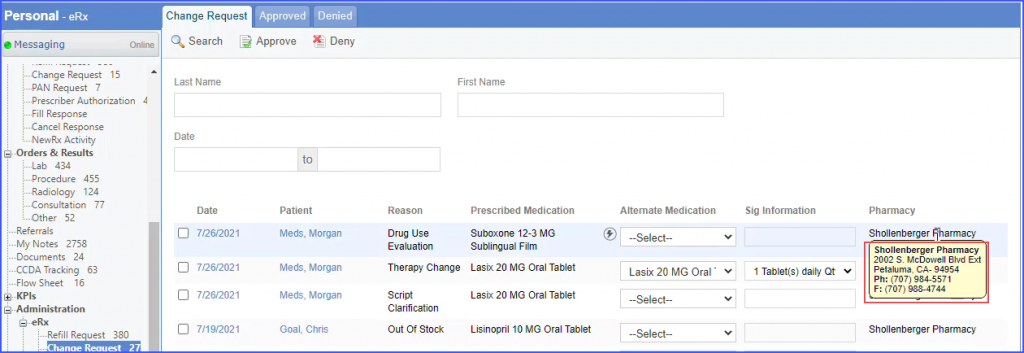
The pharmacy details are visible in the tool tip that appears when the user lets the mouse pointer hover on the Pharmacy name.
eRx Change Request Approved and Denied Tabs:
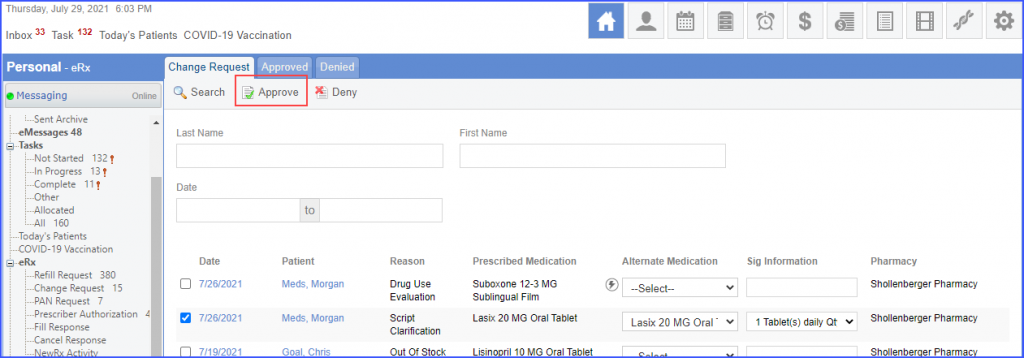
To approve a change request, enable the checkbox next to the date and click the ‘Approve’ button.
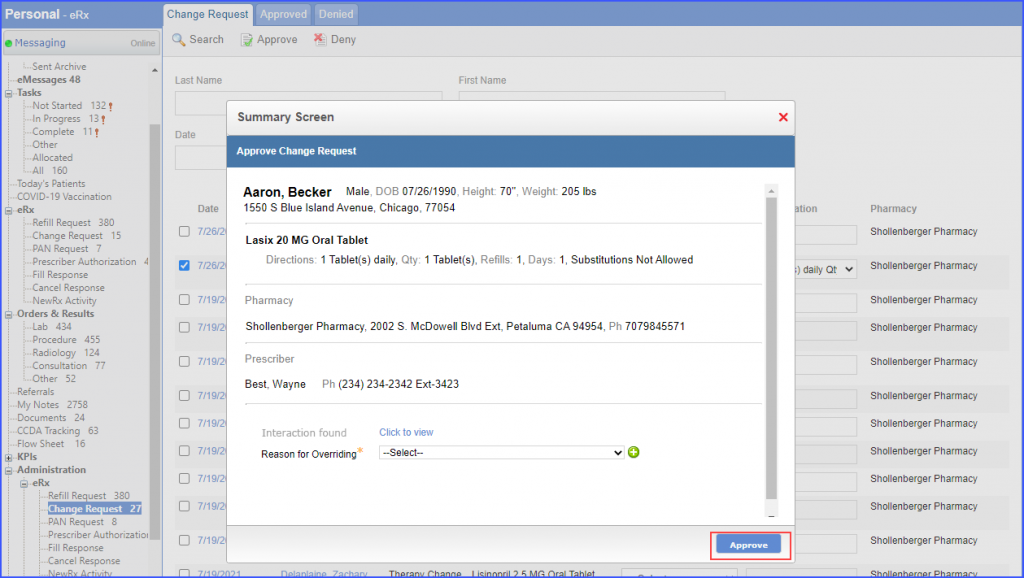
The system displays the ‘Summary Screen’ for the selected change request. Click the ‘Approve’ button on the summary screen.
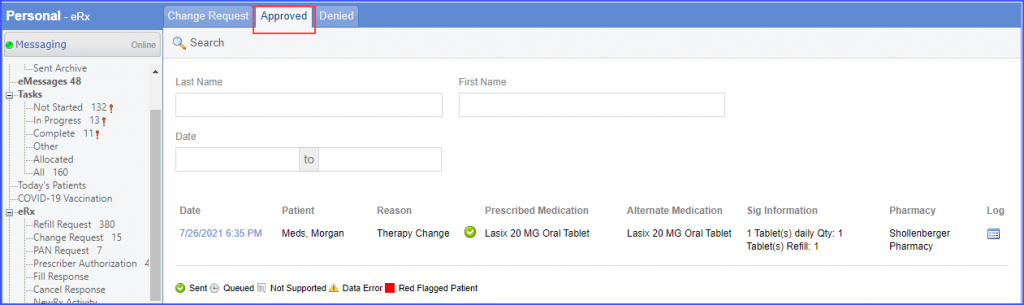
Once the ‘Approve’ button is clicked, the change request is moved to the ‘Approved’ tab.
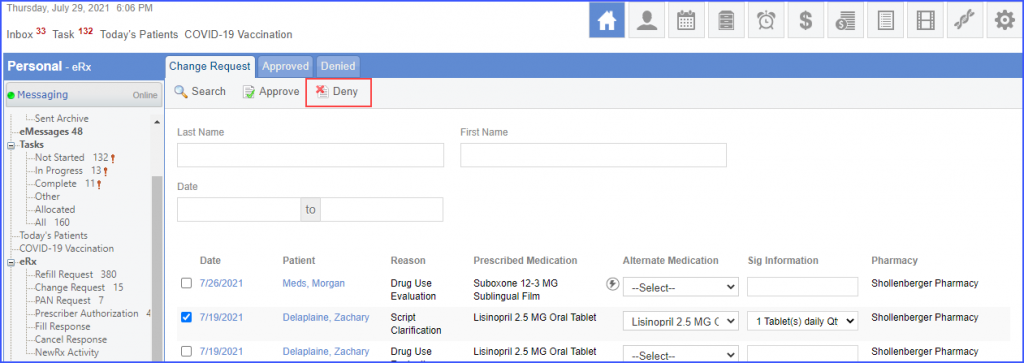
Similarly, a change request can be denied by enabling the check box next to the date and clicking the ‘Deny’ button.
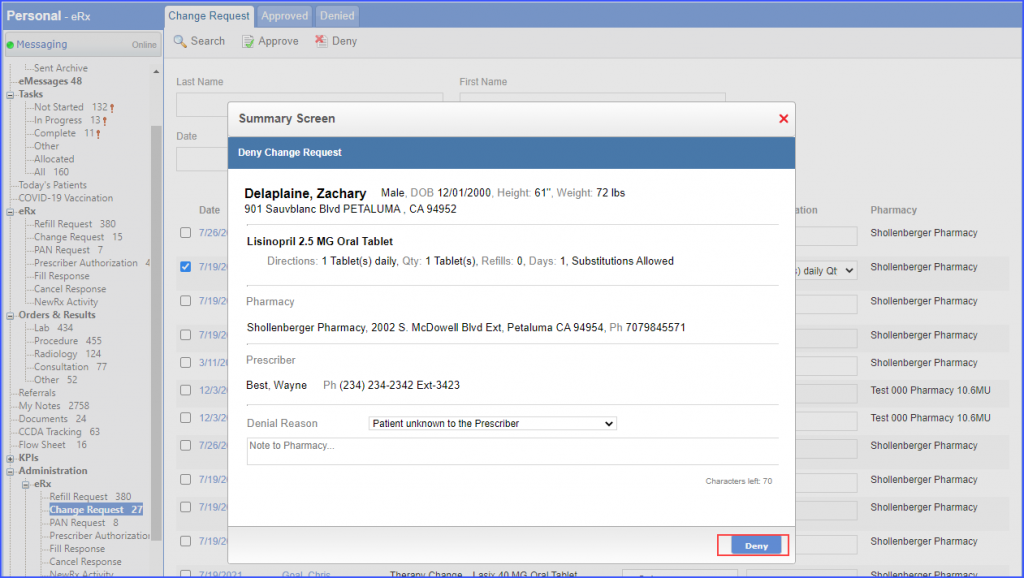
The system displays the ‘Summary Screen’ for the selected change request. Click the ‘Deny’ button on the summary screen.
Once the ‘Deny’ button is clicked, the change request is moved to the ‘Denied’ tab.