How to Assign a Document?
To assign a document while uploading it:
In the ‘Upload File’ pop-up, click the dropdown icon next to ‘Assignment’.
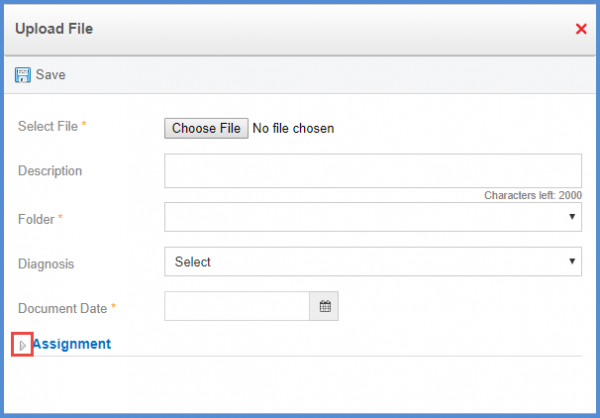
This displays the ‘Assignment’ menu.
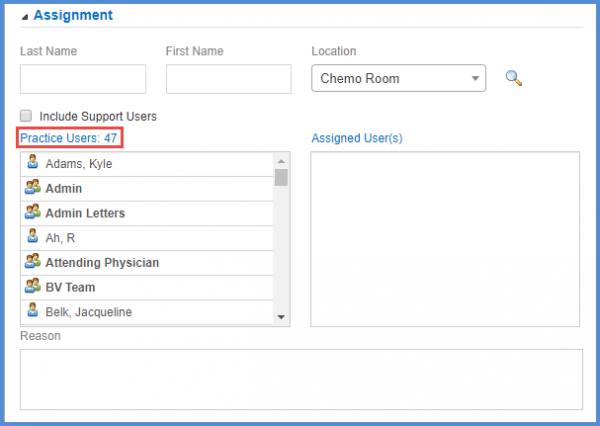
Search the relevant user from the ‘Practice Users’ list, or by using the search fields.
Double click on the user name(s) to assign the document to a particular user or multiple users.
To assign a document after it has been uploaded:
Click the relevant folder in the ‘Patient Chart’ tab of the ‘Document Manager’ module.
This will display the file in the selected folder.

Enable the checkbox next to ‘Date’ of the required file.
Click ‘Assign’.
This will display the Document Assignment pop-up.
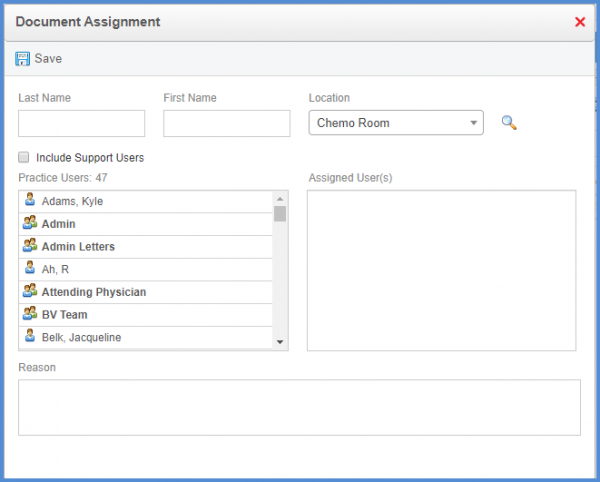
Search the relevant user(s) from the ‘Practice Users’ list, or by using the search fields.
Double click on the user name(s) to assign the document to a particular user or multiple users.
